Trending Topics

 Trending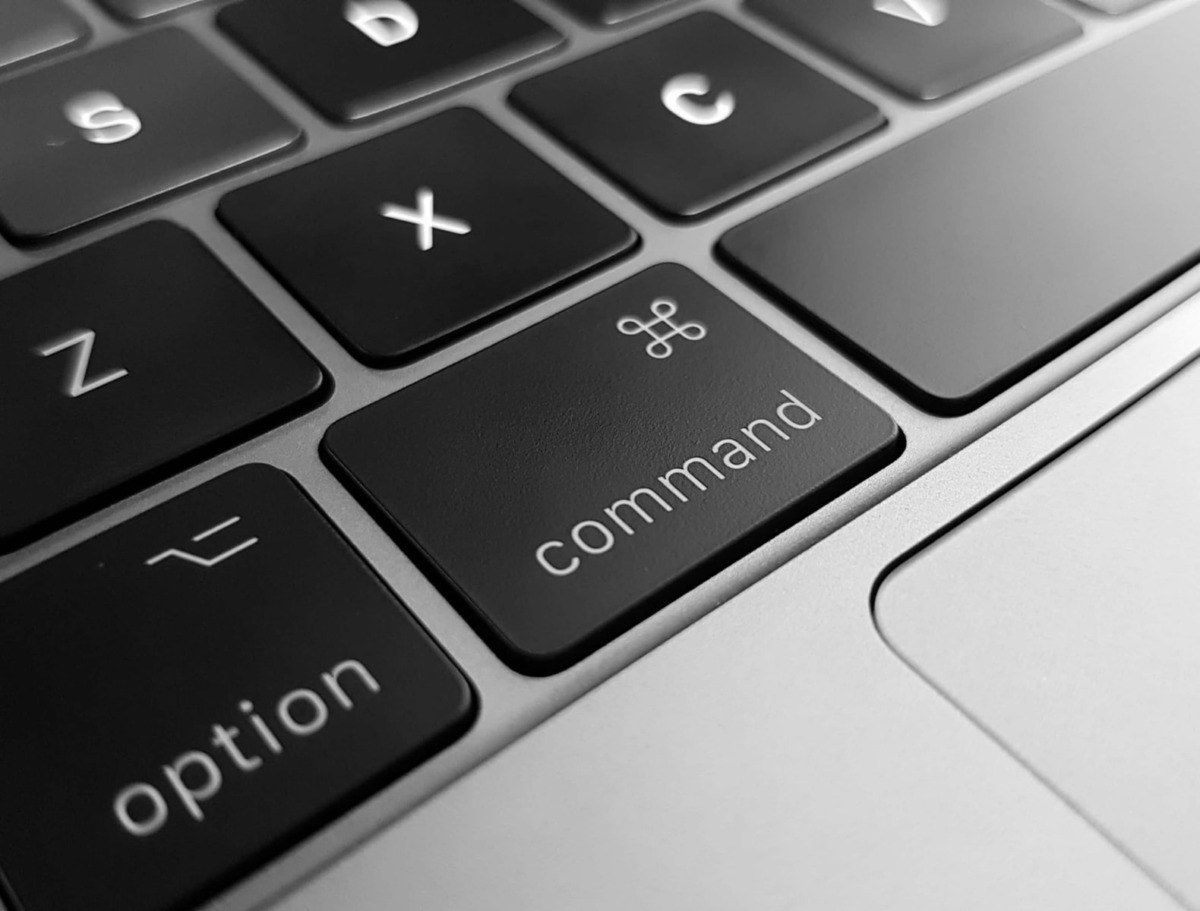
Why have the Command and Option keys switched on my keyboard?

If you’re using an external keyboard designed for Windows PCs with your Mac, you might notice something odd going on. When you press the Command key, you actually get the Option key and vice versa. That’s a nightmare when it comes to using keyboard shortcuts, but don’t fret: it’s easy to get those Command and Option keys switched back to their rightful places. Here’s how.
How to remap the Command key on a Mac keyboard
The Mac’s keyboard settings let you remap the modifier keys, such as Command and Option. Better still, it does this on an individual keyboard basis, so even if you remap the keys on your external keyboard, it won’t make any difference to the built-in keyboard on a MacBook.
To remap the keys, click the Apple symbol in the top-left of the screen and choose System Preferences.
From the System Preferences screen, choose Keyboard.
Now, click the Modifier keys button in the bottom-right of the Keyboard preferences screen.
Here comes the crucial bit: make sure you select the correct keyboard from the drop-down menu at the top of the next screen. Now, all you have to do is switch the Option Key to Command and the Command Key to Option, as shown below:
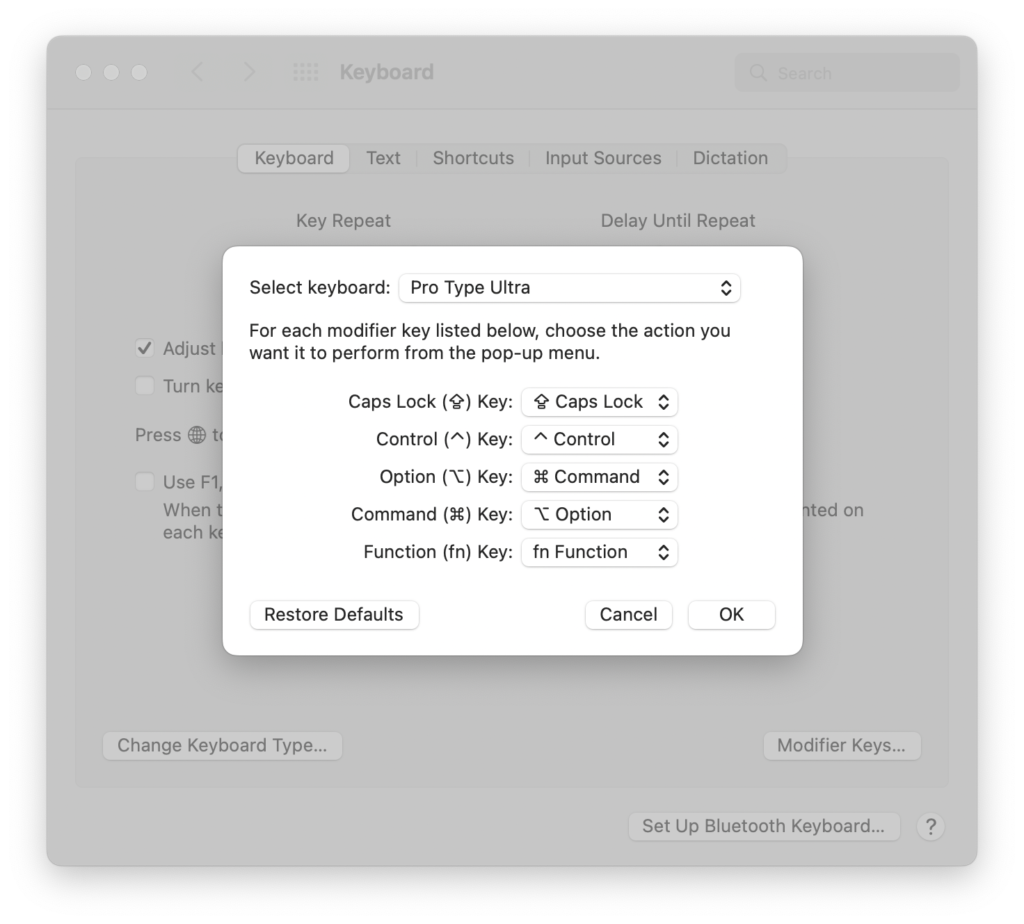
You should now find your Command and Option keys switched back to their rightful places, and everything is hunky dory again!
Additional explainers you might be interested in
About The Author