Trending Topics

 Trending
Claude Skills explained: How to make your work life easier

AI is meant to take the grind out of your work life, and few tools do that better than Claude Skills.
Claude Skills can be thought of as AI macros. Instead of having to re-enter prompts time and again for AI jobs you run repeatedly, you save the prompt as a Skill and then only have to type a few letters next time to start the job rolling.
Here we’re going to show you how to create Claude Skills, the types of work task they excel at, and how you can tweak them to do exactly as you wish.
How to create Claude Skills
Claude Skills are hidden away in the Claude interface. In fact, you’d be forgiven if you’ve never heard of them before, because they don’t appear by name in the main navigation. They’re actually tucked away under Customize.
The easiest way to activate skills is by typing a backslash (/) into the Claude prompt window. If you do this, you should see /skill-creator appear in the drop-down menu.
The /skill-creator lets you tell Claude what tasks you want a Skill to perform and what it should be called. So let’s create one here. We want a Skill that scans our inbox for any delivery notices, so that we can check when items are due to arrive without having to search our inbox or remember which courier is delivering an item.
In a new prompt window we type:
/skill-creator Create a new skill called /delivery-tracker that will scan my Gmail inbox for recent order/delivery correspondence and report on any items not yet received or not yet collected. Provide expected delivery dates and times.
We’ve previously connected Claude to our Gmail inbox, so it already has the ability to search our mail. Claude may ask you a couple of follow-up questions about how you want this Skill to operate and then it will perform a test run to check that it’s working as intended. You can ask it to tweak anything that’s not.
When satisfied, ask Claude to finalise the skill. The next time you need to check your incoming deliveries, all you’ll need to enter in the prompt window is:
/del
That should be enough to populate a drop-down list with the /delivery-tracker Skill listed. Simply select that Skill and the process will run.
Turn chats into Skills
The example we’ve given above is a pretty simple Skill. But what if you’ve spent hours working with Claude in a chat, refining a process that finally delivered the results you wanted? Well, you can easily turn that into a repeatable Skill without having to re-explain how you want it done to the AI.
In the chat in which you’ve already defined the process, enter the following prompt:
Can you turn the above into a repeatable Skill?
ChatGPT will run back through the process and attempt to document what you did in a markdown file. It will share this with you, so that you can edit anything that you don’t like. When you’re happy, ask it to give the Skill a name. The next time you need to run that process, you won’t have to go through a tiresome back and forth to achieve the same results.
Examples of Claude Skills for work
Here are some examples of Claude Skills that could be used for work purposes.
/morning-briefing
Have Claude check your inbox for any unread messages, your calendar for any appointments in your diary today, and messaging services such as Slack for any unread messages in relevant channels, especially DMs. Ask it to highlight any messages that require an urgent response from you. When you run this first thing in the morning, it’s a great way to get a snapshot of your day and any messages you’ve missed overnight (which is particularly useful if you work with colleagues in different timezones).
/meeting-briefing
Ahead of meetings, you’re often sent materials that are relevant to the appointment, such as reports or links to relevant websites. If you’re meeting with a new client, you might want to do some research on them or their business. With a /meeting-briefing skill you could ask Claude to search your inbox/calendar invites for any materials relevant to the meeting and give you a summary of those. You could also ask it to perform a LinkedIn and web search for the client/company you’re meeting, so you’ve got some background information on them. The prompt should reference the particular meeting you’re concerned with (perhaps identified in your /morning-briefing), so should look something like:
/meeting-briefing My 10am meeting with Simon Royce from Fractal Designs
/proof-read
If your company is putting out press releases or announcements, you might want Claude to proof read the copy to make sure there are no typos and that everything fits the company style (such as correct spelling/capitalisation of brand names). One thing we’ve neglected to mention until now is that files can be added to Skills. So, if your company has a house style guide, you can add this to the Skill and Claude can reference it when checking over your documents. Our advice is to instruct the Skill to list any errors in the documents, not to edit those documents itself. That way, you avoid the risk of the AI making mistakes in its own edits.
/invoice-generator
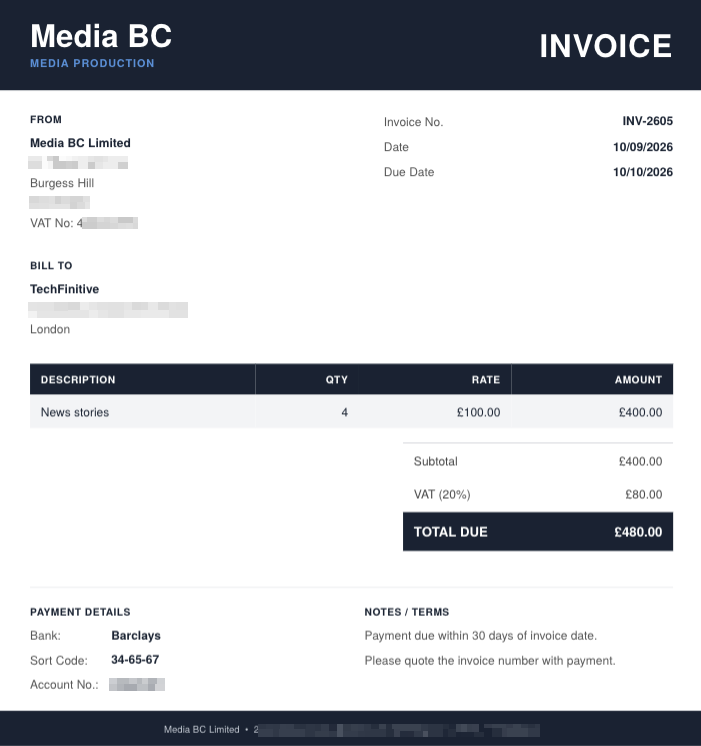
This one is more for the smaller businesses that don’t have dedicated accountancy software for generating invoices, as you can get Claude to do that job for you. When creating the Skill, you give Claude all the boilerplate information that you need printed on every invoice (company name, address, VAT registration number, bank details etc). Then when it comes to invoicing, all you need provide is the details of the work and payee, and Claude will do the rest. For example, a prompt might look something like:
/invoice-generator £550 for pest control for Hampton & Jones estate agents in Redhill
When we’ve run this Skill, Claude will even search online for the payee’s address and automatically populate that on the invoice. This Skill is particularly handy if you’re on the road and need to issue an invoice instantly, as you can issue the prompt from a smartphone.
Editing Skills
Finally, you may find that you want to change the way Skills behave or add functionality to them over time. This is easy to do.
If you want to check the precise instructions your Skill is currently using, select Customize in the left-hand menu and click on the relevant Skill. You’ll see both a summary of its instructions (under Overview) and the document containing the full markdown file of instructions and any associated files (under Contents).
To make a change, click the three dots icon and then you have two choices. Select Edit if you want to manually edit the instructions for the Skill by literally editing the markdown file like a Word document; alternatively you can Edit With Claude and ask the AI to make the requested changes for you.
In our experience, it’s usually best to Edit With Claude as the markdown files can be long and repetitive, and it’s easy to think you’ve removed part of an instruction only for it to appear again later in the markdown file. The AI is generally better at ensuring your new instructions are fully adhered to.
More AI-related articles by Barry Collins
About The Author

Barry Collins
NEXT UP