Trending Topics

 Trending
How to remote control ChatGPT Codex from your phone

The ChatGPT Codex has become a killer app over the past few months. Not only can it run coding jobs, but manipulate files on your local computer and run agentic AI jobs. Now you can remotely control Codex from your iPhone or Android smartphone, unleashing another powerful (and potentially risky) element to the app.
In this article, we show how to remote control ChatGPT Codex from your phone and what you can do with it.
How to set up remote control of ChatGPT Codex
The first thing you need to do is download the Codex desktop app for your PC or Mac. If you already have Codex downloaded, just make sure it’s updated to the latest version.
Then make sure you have the ChatGPT app installed on your smartphone and ensure it’s updated to latest version, too.
Now, in the desktop app, in the left-hand menu, you should see an option to connect to Codex mobile. Click that option and follow the onscreen instructions to link your two devices.
Once it’s all connected, you should be able to click on the Codex link in the smartphone app and connect to Codex on your PC/Mac, provided the app is running on your computer.
Full access or not?
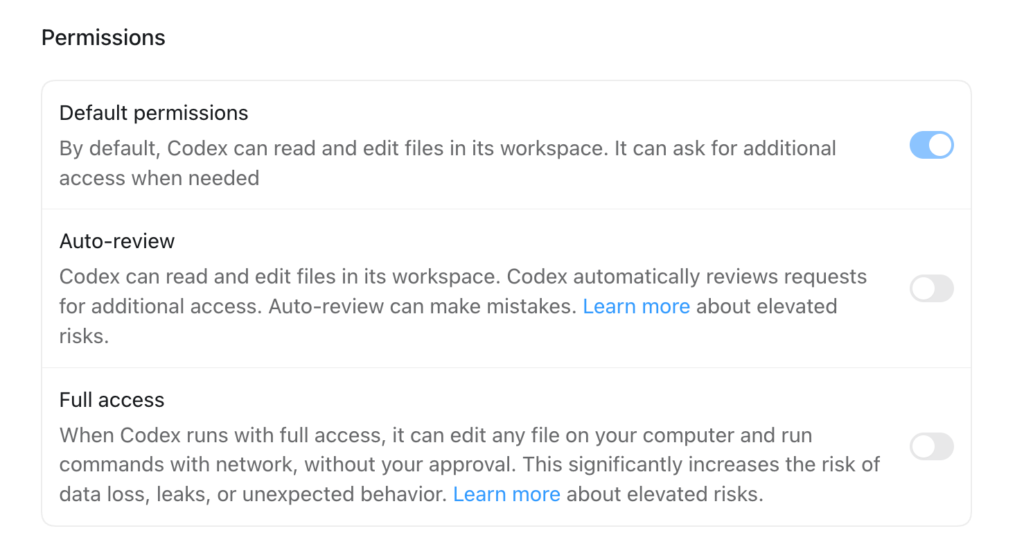
A key decision you need to make with Codex is whether to give it full access to your computer or not.
This is a big decision, as by handing it full access, you’re letting the AI read, write and potentially delete files on your computer. We wouldn’t recommend doing this on a machine you rely on for work/home use as the risks outweigh the benefits, but if you’ve got a computer dedicated to AI tasks that isn’t stuffed with critical/sensitive data, you may be more willing to take a chance.
You can change the permissions level by opening Codex on the desktop, selecting Settings, then choosing from the three permissions options under the General settings.
We mention this because without full access, you may be nagged for permissions to access files/folders on your computer and those permissions prompts can be erratic, occasionally failing to show in the mobile app. If a job seems to stall, it’s probably because it’s waiting for a permission, that you may have to grant in the desktop app.
Manipulate files on your computer
To give you an example of what remote control Codex can do and access, we started a new chat in the mobile app and asked Codex to:
Examine my Downloads folder and describe the contents of any files over 1GB in size
Note that Codex assumes you’re talking about the Downloads folder on the computer, not the phone, as it’s merely a remote control. It’s as if you’re typing that same prompt into the Codex desktop app.
We didn’t actually have any files larger than 1GB, but it listed the filenames of the largest files it could find. We asked it what those listed files could do and it described the contents of various app installers that were loitering in our Downloads folder.
Finally, we asked it if there were any files of concern in that folder. It discovered an image of our driving licence and bank statements that contain sensitive data, so we asked Codex:
Can you rename any sensitive files in that folder with the word "SENS" ahead of the original filename (with a space before the filename)?
After we clicked a permission prompt it went ahead and renamed all the sensitive files in the folder with the suggested prefix, so that we could later review those files.
This is a niche use case, but it highlights how without even touching your computer, you can now manipulate files stored on it. There’s an obvious security risk there, so make sure your phone is well secured if you’re using Codex remotely.
Create files on your computer

You can not only use remote control to fiddle with existing files, but create new ones. The football World Cup is just around the corner, so we started a new chat in remote control and asked it to:
Create a Football World Cup 2026 sweepstake spreadsheet that lists all of the teams and includes a column to put that team's owner alongside each team. Save the spreadsheet on our desktop. @spreadsheets
You’ll notice that by using the @spreadsheets tag at the end of our prompt, we’re able to enact the spreadsheets plugin that allows the AI to create its own .xslx files. Similar plugins are available for @documents and @presentations.
The AI sets about the task, checking with the FIFA and other websites to make sure it’s got the correct 48 teams, before creating the spreadsheet and dropping it as requested on our Mac desktop, ready for the office sweepstake to begin!
You could use similar prompts for more business-like tasks. Say you’ve got a folder containing spreadsheets of sales reports from previous months/quarters. You could ask the AI to access the files and combine the data into an annual report.
Complete coding jobs
Codex is (as the name suggests) often used for coding, but it can take a while for the AI to whirr through coding tasks, meaning you might need to leave your desk for a meeting or lunch break before it’s done. With remote control, you can continue working on coding projects while away from your desk.
We had a very basic Hangman-like cricket word game that we created using Codex a couple of years ago. In the desktop app, we asked Codex:
Can we refresh the UI of this game?
It had access to the GitHub repo in which the game’s code was uploaded, so it was able to examine the code and give it a visual overhaul. It took around five minutes to redesign the game and midway through we switched to our smartphone app and watched it working away via remote control. When it had completed the refresh, we could see a preview of the new design on our smartphone screen:
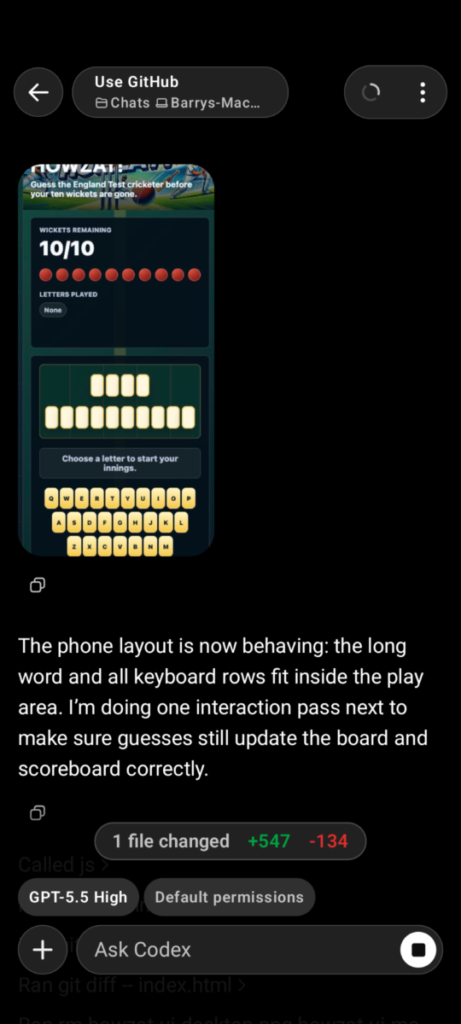
We didn’t like the way it had a put a text title of the game’s name over a graphic banner that already contained the name, so we asked it to fix that and it removed the text title, “while a hidden accessible heading remains for page structure”, which was a clever touch.
When we were happy with the design, we could even use remote control to push the revamped interface up to the GitHub repo… although you’d probably want to take more care reviewing a real-life coding project, not just give it a cursory look over on your phone!
More by Barry Collins
About The Author

Barry Collins
NEXT UP


