Trending Topics

 Trending
Should you hand control of your computer to ChatGPT Work?

Chatbots have come a long way in a few short years. We’ve now reached the point where the apps for services such as ChatGPT Work want to take control of your computer, letting them open apps and manipulate files on your PC or Mac with impunity.
If your gut reaction is that doesn’t sound like a smart idea, there’s evidence to suggest you’re right. But before we write off the concept completely, let’s explore what handing control of your computer to ChatGPT Work involves and the risks and rewards.
Handing control of your computer to ChatGPT Work
ChatGPT recently merged its ChatGPT and Codex apps into a single app, now called ChatGPT. But inside that, you’ll see a new focus on what’s called ChatGPT Work, where the AI undertakes tasks on your behalf instead of merely answering questions.
The new app also gives you the option to effectively hand power of attorney over your computer to ChatGPT. It does this via a few different settings.
The most risky of these is found in Settings > General. Here you’ll discover three different permissions levels: default permissions, auto-review and full access.
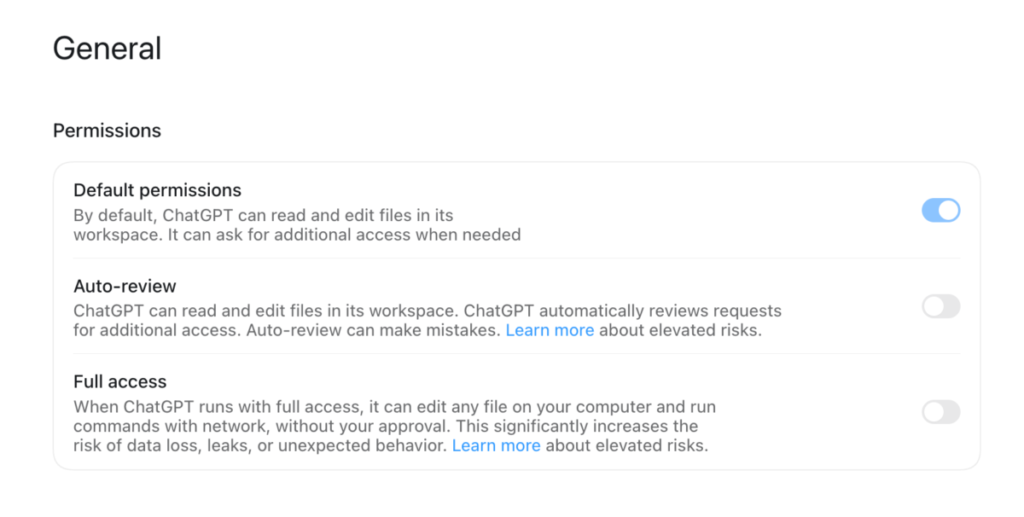
Default permissions is the safest of these options, and the one that’s switched on, as the name suggests, by default. It basically means ChatGPT can read and even edit files in its own workspace (an area of storage set aside for ChatGPT), but for anything else it will seek explicit permission.
Auto-review loosens the apron strings, effectively letting the AI decide if it should seek your permission to undertake actions outside of its sandbox. ChatGPT’s documentation suggests it will act with caution, blocking anything that might involve the transmission of personal data or that might weaken security, but you’re leaving that decision in the hands of an AI that by OpenAI’s own admission “can make mistakes”.
Full access is knocking down any barriers. It hands ChatGPT permission to “edit any file on your computer and run commands with network [sic], without your approval”. As ChatGPT’s settings explain, “this significantly increases the risk of data loss, leaks or unexpected behaviour”. If that’s not already setting off mental klaxons, read “The risks of full access” below to confirm why adopting this setting is a huge gamble.
Elsewhere in ChatGPT’s settings, there are other options you should be aware of. Under Computer use, for example, you will find the following settings.
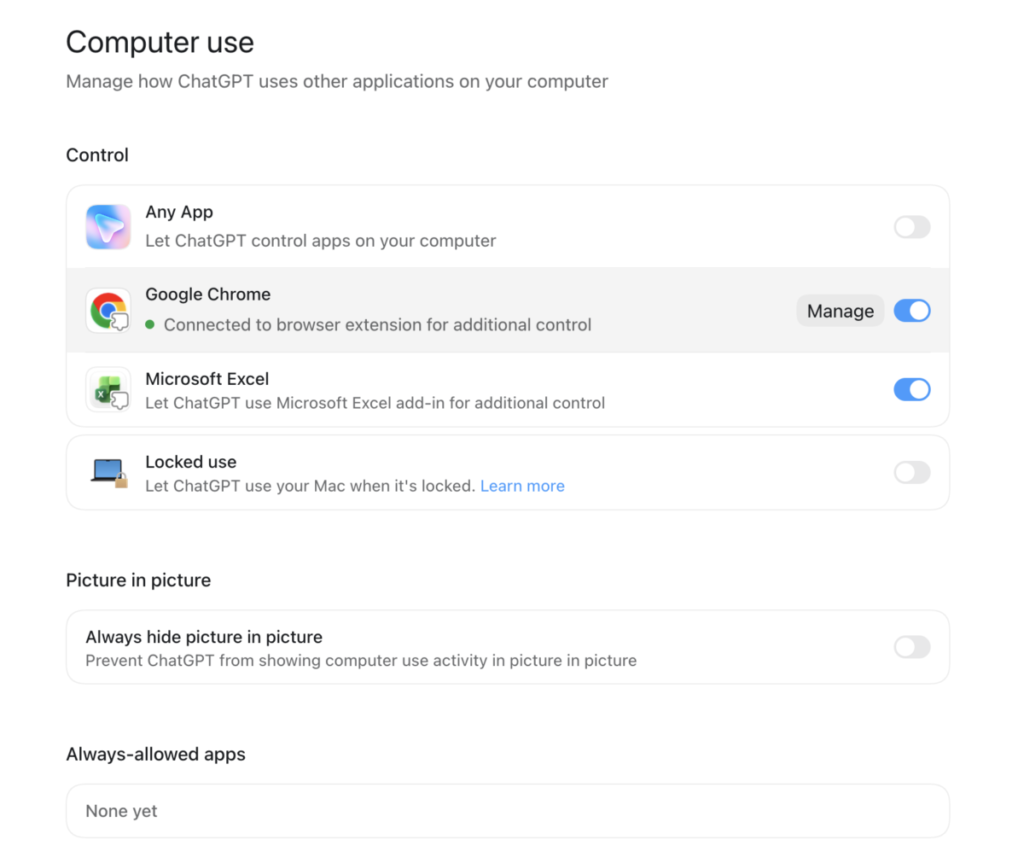
Here you can give ChatGPT permission to control “any app” on your computer – and it does mean any app. On our Mac with this setting switched on, we’ve seen ChatGPT take control of apps as diverse as Spotify, Adobe InDesign, Keynote and even the Mac App Store.
This settings menu also lets you toggle control of apps for which ChatGPT has specific plugins for, such as the Chrome browser and Microsoft Excel. The browser has more granular settings that you can access via the Mange button, that let you decide if you want to give the AI access to browser history and downloads, for example.
These settings work in conjunction with the overall permission settings above. So by far the most riskiest combo you could pick is full access with any app permissions. That really is saying to ChatGPT: have at it.
The risks of full access
There’s a reason why security flaws that potentially give hackers control of your machine are treated extremely seriously: it’s because they are extremely serious.
Now, to be clear, we’re not equating OpenAI to hackers nor suggesting the company has any malintent (Techfinitive’s lawyers can stand down), but there is a considerable risk in letting any AI system do what it likes on your computer. And it’s not merely a theoretical risk.
OpenAI admitted earlier this month that a bug which caused ChatGPT’s Codex to wipe files from Mac computers was only a problem on systems with full access activated. According to Thibault Sottiaux, OpenAI’s engineering lead for Codex, when the AI was trying to define a temporary directory, it made “an honest mistake” and deleted $HOME instead.” $HOME being the folder where all your personal files live on a Mac. Ouch.
It’s hard to think of a clearer rationale for not giving ChatGPT carte blanche on your computer. Also, if it’s your employer’s computer you’re using, you absolutely must seek permission before enacting any of these permissions – and we strongly suspect that the answer will be no.
What happens when you let ChatGPT Work use apps?
To test ChatGPT’s computer use system, we briefly turned on the option that let ChatGPT use any any app, but with the overall permissions still set at the default level, meaning it should seek permission before doing anything critical.
As stated above, we tested in it a variety of apps. It was able to use the Spotify desktop app to find a playlist to help us focus on work, and then start playing that music, moving the mouse cursor across the app to the relevant buttons. It could open and access the Mac App Store and search for apps.
Later, we asked it to:
Open InDesign and create a new A3 portrait page for a magazine cover
It took two-and-a-half minutes to complete this fairly rudimentary task, which is slower than any half-competent human would take to complete the task, but then we were properly blown away by its response to the next prompt:
Can you create a cover for a magazine called Smashed. It should have a black gradient background, with a highly stylistic title font. It's a fashion magazine.
First, ChatGPT generated a cover image for this fictional magazine and then pulled together a credible-looking magazine cover in Adobe InDesign, leaving us with a file that we could pick up and edit ourselves. And it did that in ten minutes, which would be a stretch for a human designer.

We were also able to get ChatGPT Work to create new files based on documents already stored on our computer. We pointed ChatGPT to a folder containing a sales spreadsheet and accompanying annual report for a fictional fashion company. We then asked it to:
Use Keynote to create a presentation of the financial figures based on the spreadsheet and commentary in this folder
The key thing to note here is that with default permissions, ChatGPT checks in (to an almost irritating level) before it does anything: for example, writing new files, editing those files, opening apps.
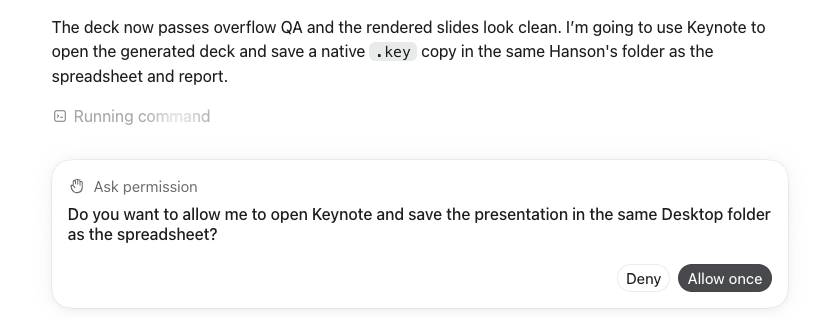
So even though you’ve given it permission to use any app, it will still ask before it does anything in that app. MacOS permissions also kick in here: we had to grant permission for ChatGPT to control Keynote before it was allowed to proceed.
It was able to use the information in the local documents to create a new presentation. However, it seemed to create the presentation in its own back end and then merely convert it with Keynote, rather than use Keynote to create the presentation from scratch.

Our verdict
Would we give ChatGPT full access and allow it to run any apps it likes on our computer? Not a chance. The rewards are nowhere near strong enough to justify the immense risks. Even on a AI-dedicated machine with no personal data stored locally that would seem like a risk too far.
We would, however, be willing to turn on the “any app” permission temporarily and let ChatGPT do its thing with default permissions enabled for a specific job, such as those highlighted above. The constant seeking of permission can be irritating and eliminates much of the convenience of AI automation, but it provides reassurance that the AI isn’t up to no good in the background.
As soon as the job was finished, we’d be turning the “any app” permissions off, though. AI needs to be kept on a tight leash, especially when it comes to controlling your hardware. You are ultimately responsible for what it does on your system, after all.
Related articles
About The Author

Barry Collins
NEXT UP


