Trending Topics

 Trending
Why is my Lenovo laptop so slow all of a sudden?

A Lenovo laptop that was running fine yesterday but crawls today is certainly frustrating. Thankfully, sudden slowdowns almost always come from a small set of causes – and most of them are a quick fix.
Let’s look at six of the most common culprits and how to sort them.
The best first step: restart your Lenovo laptop
A restart may not explain the sudden slowdown, but it is one of the easiest ways to get your Lenovo laptop running normally again.
It’s important that you do a restart and not a shutdown of your laptop. Since Windows 8, these commands work differently, and it’s a restart that will hopefully cure your slowdown issue.
To restart your laptop, first close and save anything you are currently doing. Next, open your Start menu, click on the power icon, and select Restart.
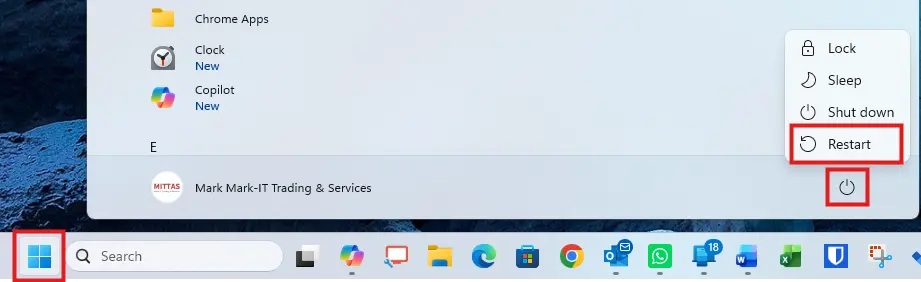
Once the laptop reboots, it will hopefully operate smoothly again. If not, then try the remaining fixes listed below.
Culprit No.1 – Your laptop is too hot
Modern processors protect themselves from heat damage by slowing down when they get too hot, which can cause noticeable system-wide stuttering.
If your laptop fans are constantly running loud or the chassis feels hot to the touch, your processor is likely fighting to stay cool. To help avoid this, make sure any intake vents on the laptop are free of dust. Also try to use it on a hard, flat surface rather than on a bed, blanket, or anything soft, which can include your lap.
If the fan still continues to run at full speed, there may be dust and debris in the fan and vents inside your laptop. If you feel okay taking the laptop apart, then manuals are available on the Lenovo website. Otherwise, your local computer shop or IT support company should be able to help.
Culprit No.2 – An app or process has gone rogue
Sometimes a program or background process can get upset and start consuming your laptop’s resources. Any major use of the CPU, memory or disk will lead to a sudden slowdown of your laptop.
To check if this may be the case, launch Task Manager by holding down the Ctrl + Shift + Esc keys at the same time.
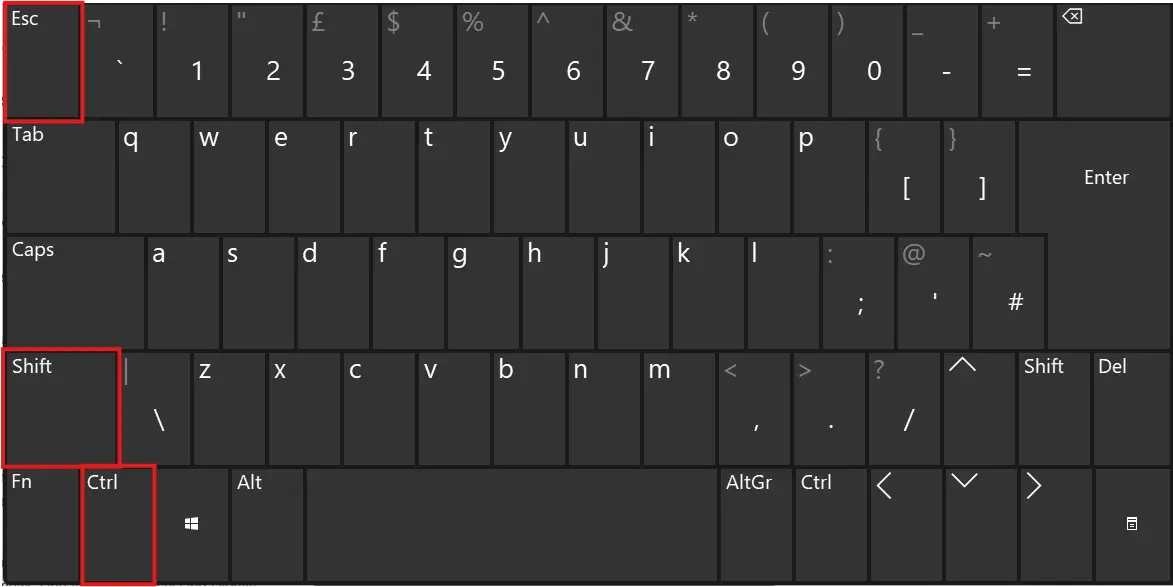
When Task Manager opens, navigate to Processes. If you can’t see the Processes option, you may be in simplified view, so click on the More Details expander to open things up.
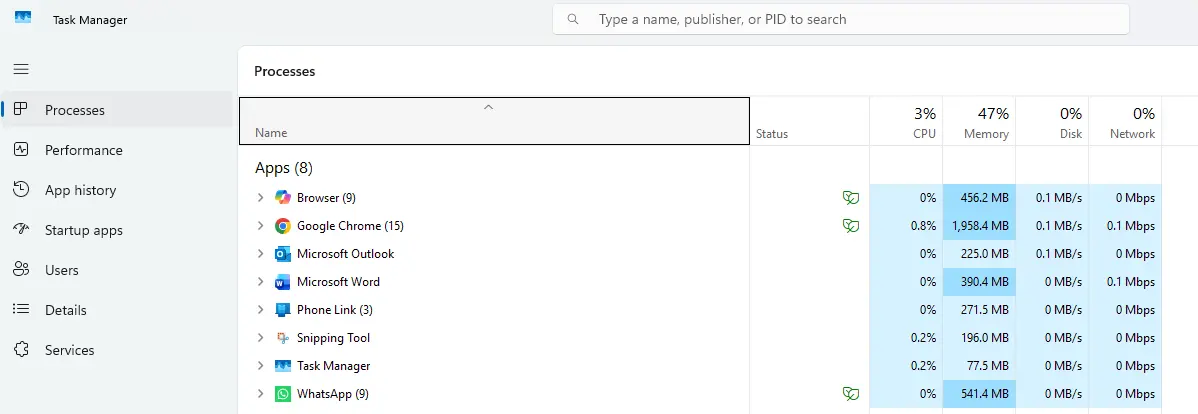
Now click the CPU, Memory and Disk column headers one at a time to see the processes with the highest usage.
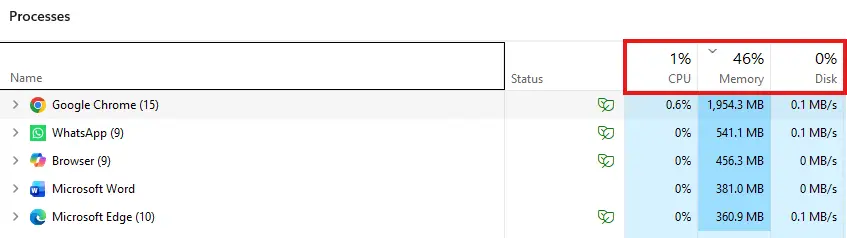
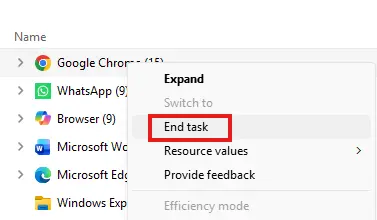
If you discover any process throttling your CPU at 90–100% or using vast amounts of memory or disk access, you may have found your culprit. To see if you have, right-click the offending item and select End Task to immediately free up resources and hopefully get your laptop back in action.
Culprit No.3 – Lenovo Vantage or Lenovo Service Bridge misbehaving
Lenovo Vantage and Service Bridge are two pieces of software found on nearly all Lenovo laptops.
Lenovo Service Bridge is a small helper tool that automatically identifies your laptop on Lenovo’s support website so it can show the correct drivers, updates and warranty information.
Lenovo Vantage is Lenovo’s main control centre app, giving you tools to manage updates, battery settings, hardware features, Wi‑Fi security and system health all in one place.
Although both tools can be useful, they also have a reputation for misbehaving and slowing your laptop down.
To check if these apps are potentially causing issues, you can end the tasks for the following processes: Lenovo Vantage, Lenovo System update and Lenovo Service Bridge. You can do this by following the instructions above under the Culprit No.2 heading.
You can also consider uninstalling both programs. The laptop will work perfectly fine without either app, and you can always reinstall them again from the Lenovo website if required.
Culprit No.4 – your hard drive is getting full
Both older hard disks and more modern SSDs require a buffer of unallocated space to remain fast. If your hard drive is too full, it creates a very noticeable performance bottleneck.
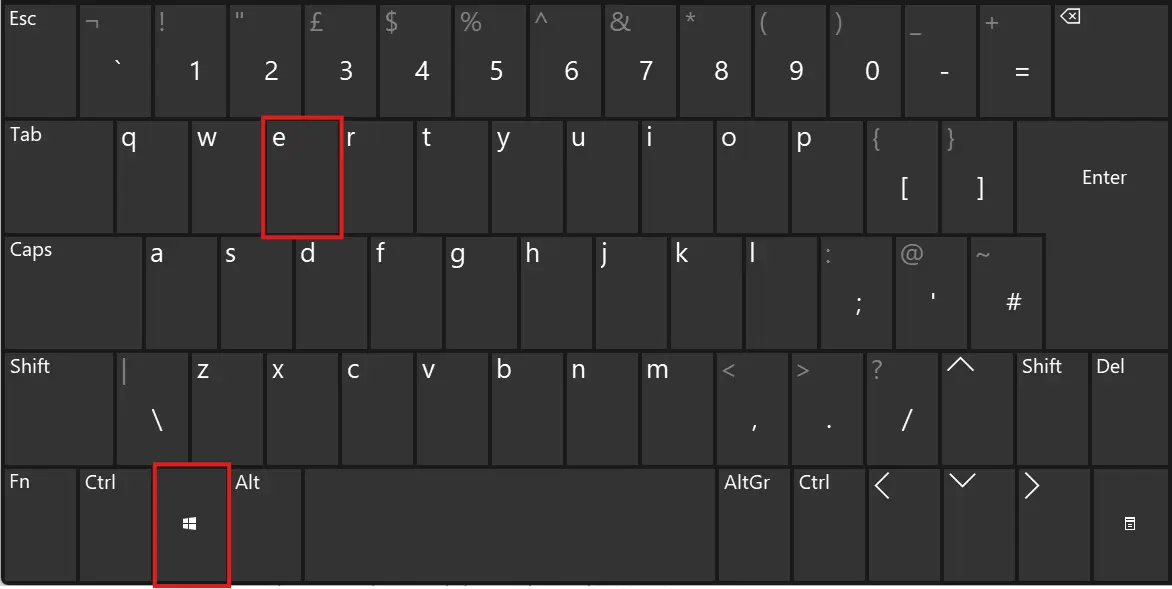
To check how much space you have on your drive, first open File Explorer (the yellow folder icon on your desktop). If you can’t see the icon, hold down the Windows key and press E on your keyboard instead.
Now select This PC from the left‑hand sidebar to see your drives listed on the right-hand pane.

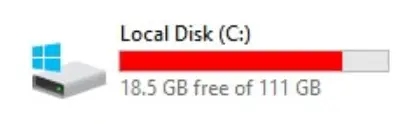
All the hard drives will show a coloured bar to show how full they are. If the storage indicator has turned red on any of the drives – especially the C: drive – then it is too full to run efficiently and can cause slowdown issues.
The best option is to free up space by moving data off the drive or uninstalling any apps you don’t need.
Culprit No.5 – Windows Updates
Windows Update is one of the most common – and most overlooked – causes of sudden slowdowns. When Windows 11 downloads or installs updates in the background, it can quietly consume CPU time, memory and disk bandwidth.
On systems with older or struggling drives, this can bring the entire machine to a crawl.
Even worse, if an update gets stuck or fails and keeps retrying, Windows will continue to hammer the disk until it completes.
Checking Settings → Windows Update is often enough to reveal whether your Lenovo laptop is busy patching itself rather than actually running slowly.
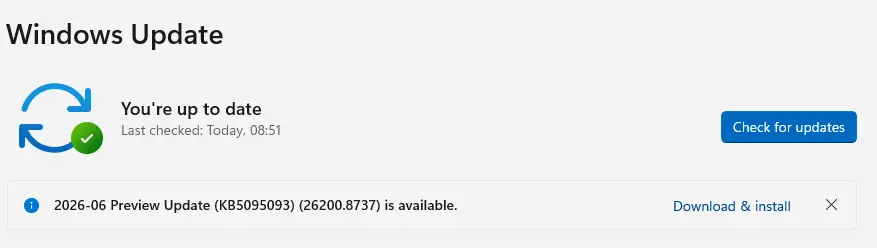
However, if you notice persistent messages like “Preparing…” or “Retrying…”, the update has probably encountered an issue. The quickest potential solution for this is to do a restart, but you can also try:
Restarting the Windows Update service
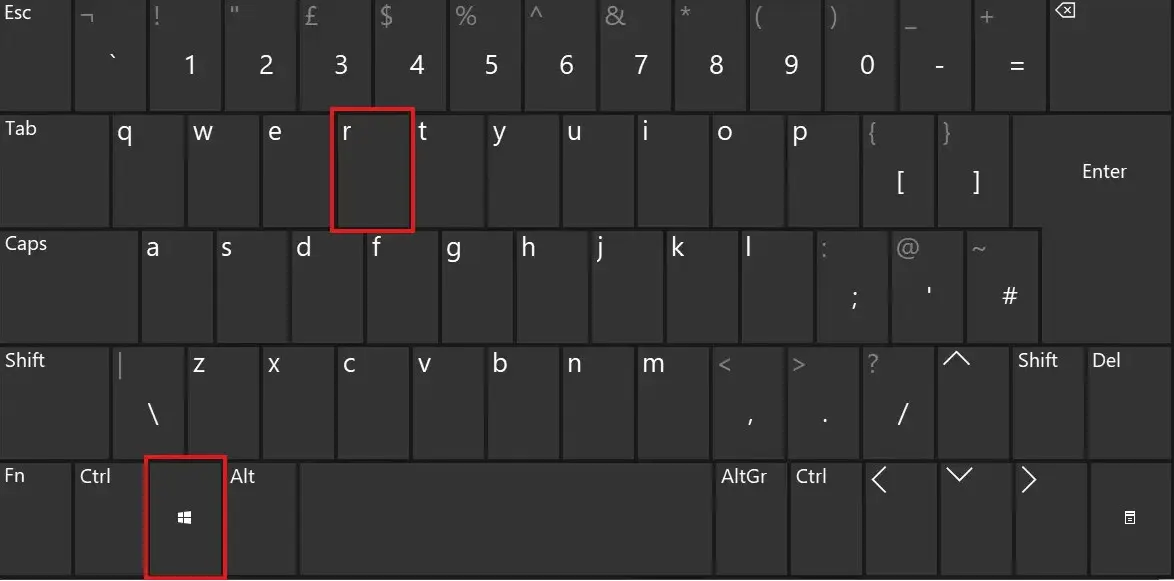
To restart the Windows Update service, first hold down the Windows key and press R.
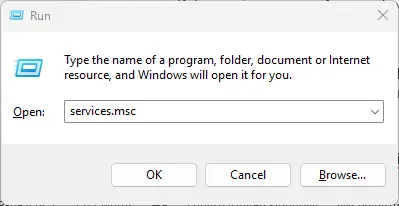
This will bring up the Run box. Now type services.msc and press Enter.
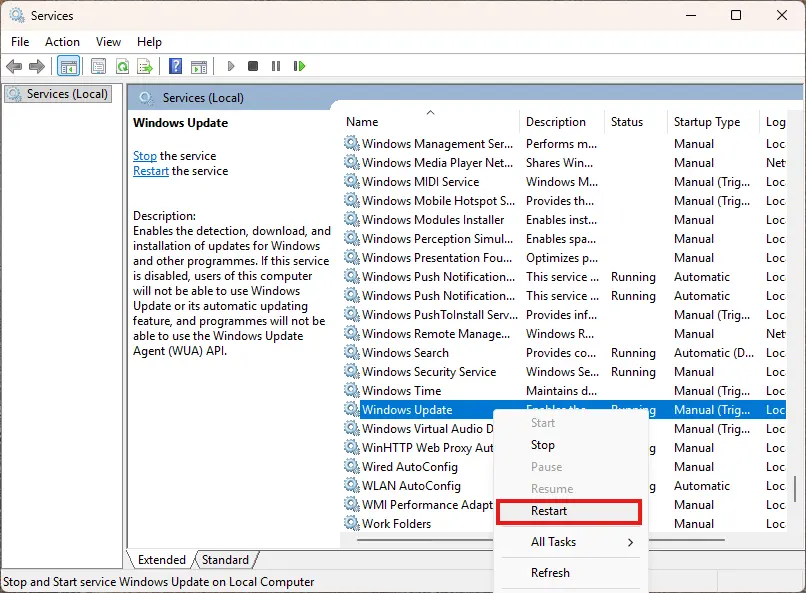
Now scroll down to Windows Update, right-click and select restart from the menu that appears.
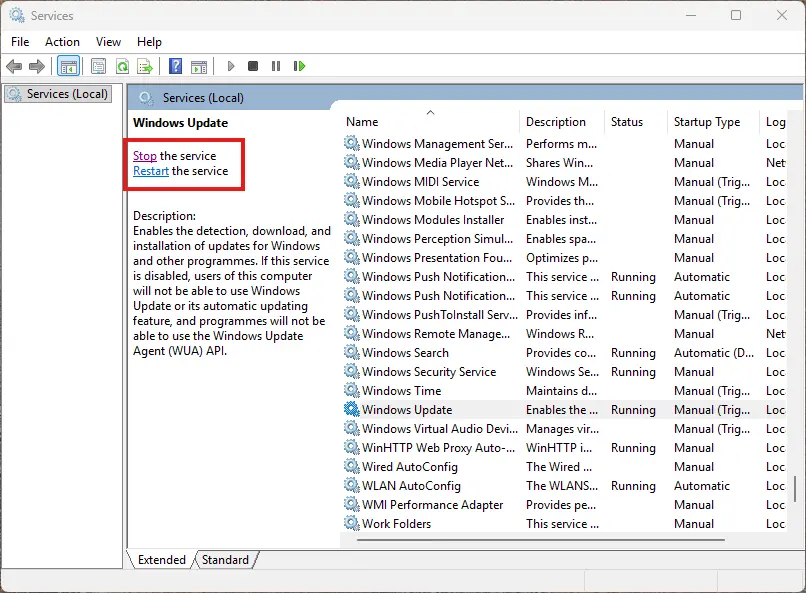
If the service appears frozen, choose Stop instead, wait 10 seconds, then select Start.
Once restarted, the update issue and your laptop’s slowness will have hopefully disappeared. If not, try clearing the update cache.
Clearing the update cache
A corrupted update cache can cause update and slowdown issues. To clear it, first stop the Windows update service as described above.
Next, navigate to
C:\Windows\SoftwareDistribution
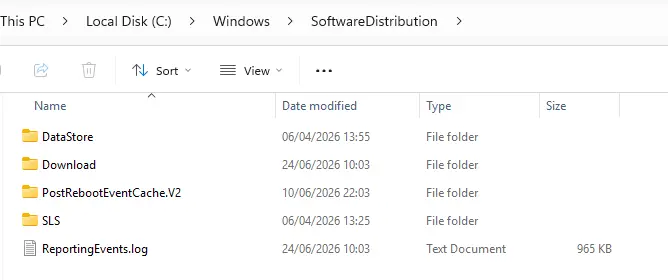
Now delete everything inside the folder and restart the Windows Update service. Once complete, updates should work properly again, and your laptop should feel more responsive.
Culprit no. 6 – System file corruption
A sudden power loss, forced shutdown, or interrupted Windows update can sometimes leave core system files damaged.
To rule out this kind of issue as a reason for a sudden slowdown, Windows includes two powerful repair tools: System File Checker (SFC) and the Deployment Image Servicing and Management tool (DISM). Running both gives you a complete integrity check of the operating system.
It’s best to start with SFC and to do so:
First type cmd in the Search box on your taskbar. Now right‑click Command Prompt that appears under Best match and choose Run as administrator.
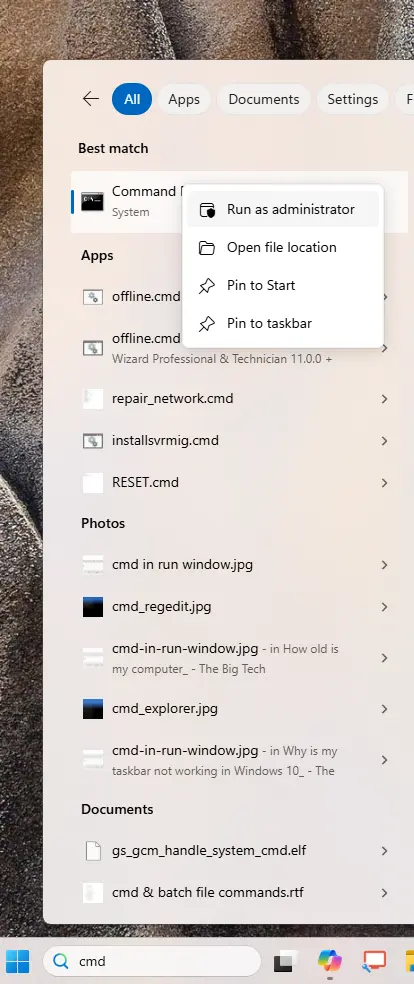
Say Yes when the User Account Control window appears and then type the words below (followed by the Enter key):
sfc /scannow
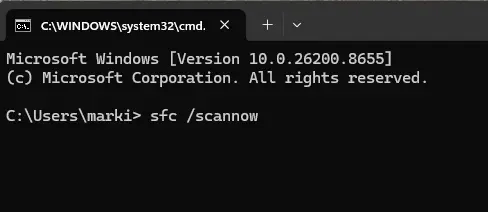
The System File Checker will scan for corrupted or missing system files and automatically replace them.
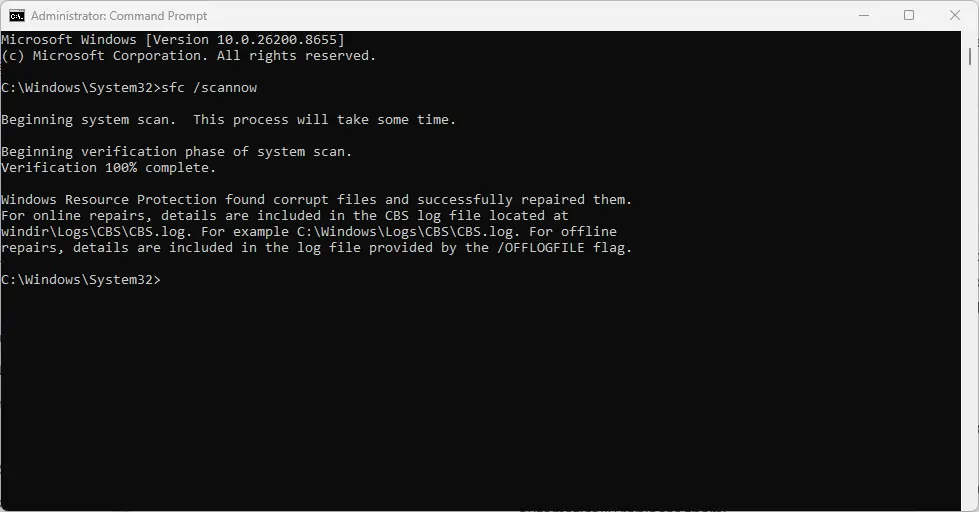
If SFC reports errors it couldn’t fix – or if your system still feels unstable – move on to DISM. This tool repairs the underlying Windows image that SFC relies on, making it essential for deeper corruption.
To use DISM:
If you haven’t already got the command prompt windows open, type cmd in the Search box on your taskbar. Now right‑click Command Prompt that appears under Best match and choose Run as administrator.
Say Yes when the User Account Control window appears and then type the following followed by the Enter key.
DISM /Online /Cleanup-Image /RestoreHealth
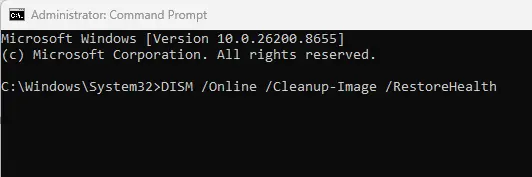
Once DISM completes, restart your laptop, then run sfc /scannow again to confirm that all issues have been resolved.
This two‑stage repair process fixes the vast majority of Lenovo laptop slowdowns caused by corrupted system files or incomplete updates.
More advice from Mark
About The Author

Mark Parvin
NEXT UP


