Trending Topics

 Trending
How do I find my Wi-Fi password on Windows 10 and 11?

For most of us, the Wi‑Fi password is something we enter once and forget forever. However, if you need it to set up a new device, help a family member, or just avoid disturbing everything cluttered around your router, Windows 10 and 11 can show your Wi‑Fi password.
Here’s how to find your Wi-Fi password on Windows using three different methods.
Before you start: what Windows can (and can’t) show you
Windows can reveal the Wi‑Fi password if:
- Your PC has connected to that network at least once
- The network profile still exists on your system
Windows cannot show the password if:
- You’ve never connected to that wireless network
- You deleted the network profile.
- You’re trying to view the password for a wired (Ethernet) connection
Checking the router
If you’ve never connected to the wireless network before or Windows can’t display the password, you can always check the router instead. Most routers have a sticker with the Wi-Fi details printed on it.
The password may be listed under one of these labels:
- Wireless Key
- WPA Key
- Password
If you can’t find the sticker straight away, check underneath the router as well.
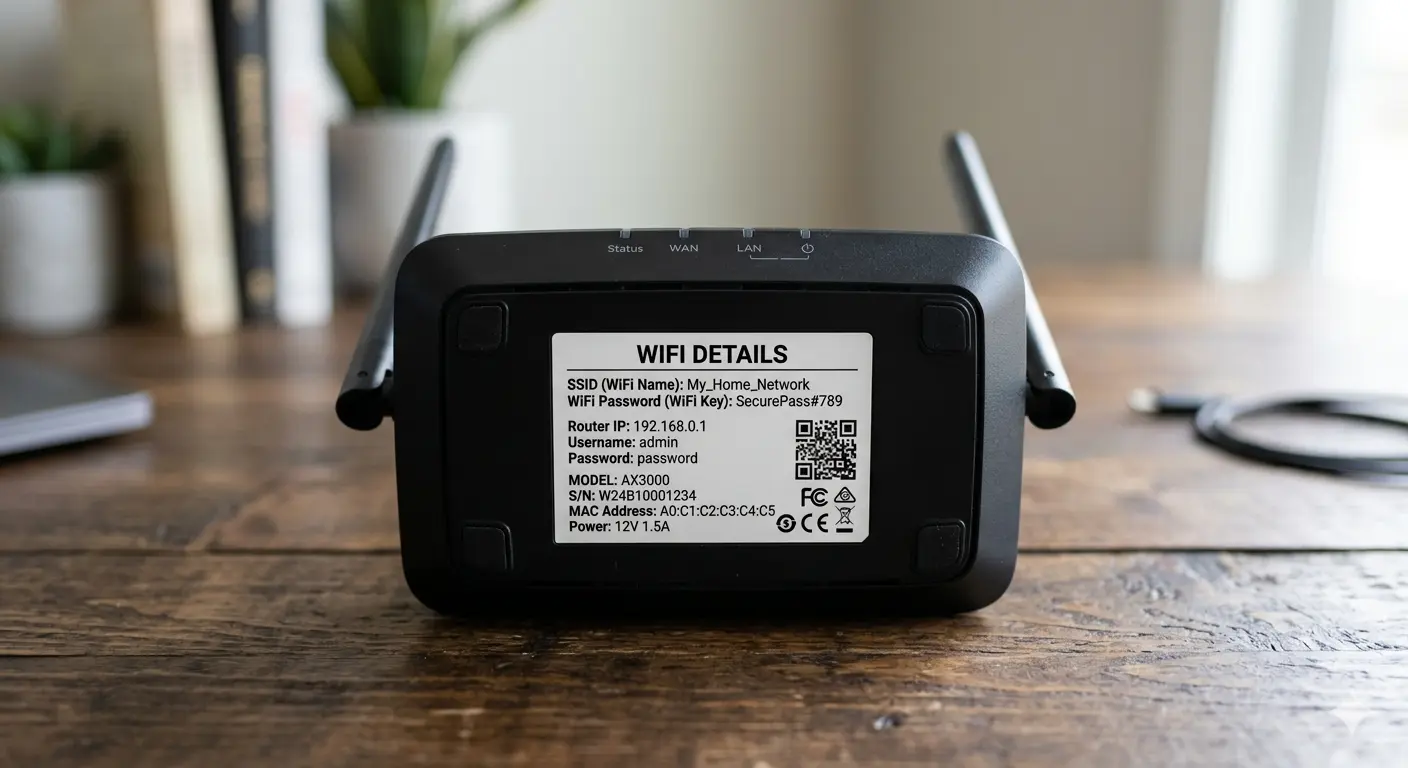
Otherwise, try the following methods depending on your version of Windows and the password information you need.
Method 1: View your Wi‑Fi password in Settings (Windows 11)
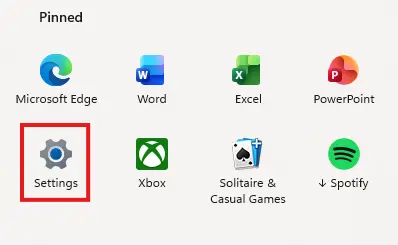
Open Settings in Windows 11.
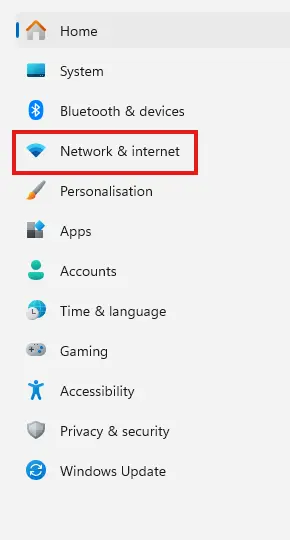
Go to Network & Internet on the left hand menu.
Select Wi‑Fi from the right hand pane.

Now click Wi‑Fi properties

At the top of the page, click the Show button to the right of Wi Fi network password.

Windows will display both the password and a QR code for the Wi-Fi you’re currently using.
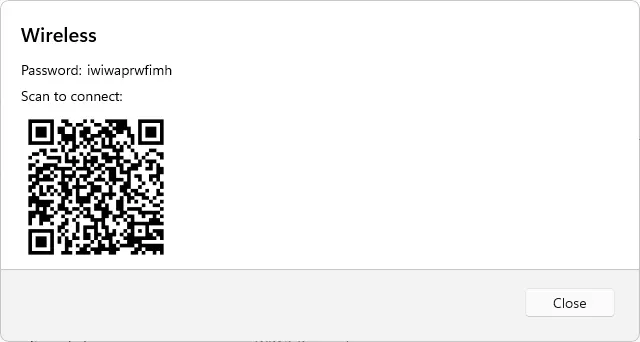
This is the simplest method if you are a Windows 11 user.
Method 2: View your Wi‑Fi password using Control Panel (Windows 10 & 11)
This classic method works on both versions of Windows and is ideal for Windows 10.
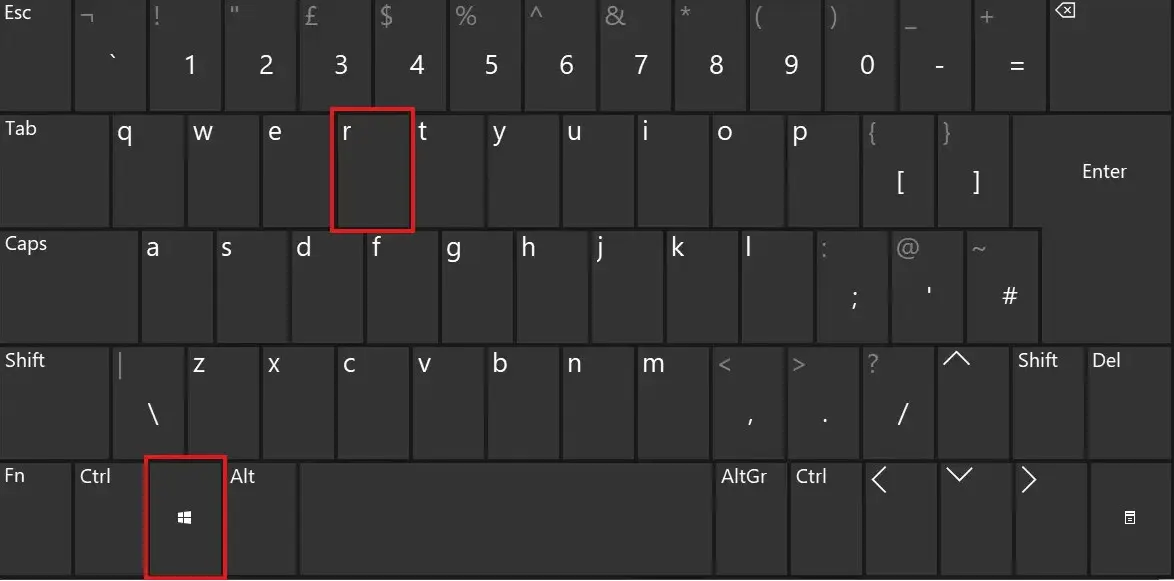
Press and hold the Windows key and then tap the R key.
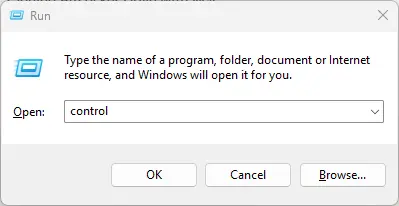
Type control into the run command box that appears and press the Enter key.
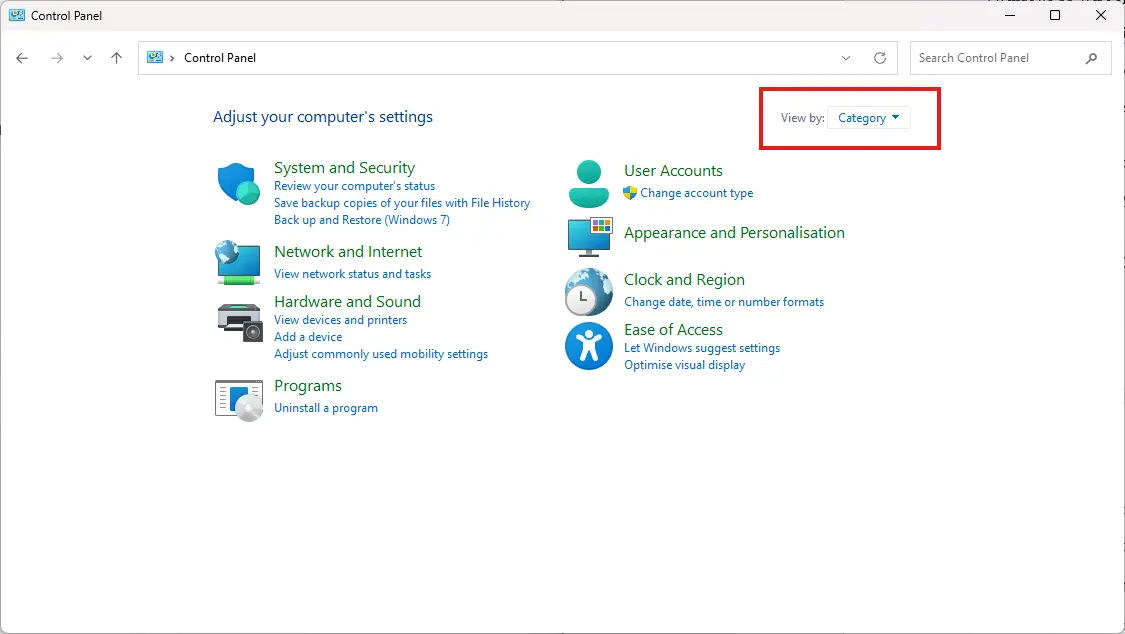
Now check which view control panel is in by looking at the View By option in the top right of the Control Panel window.
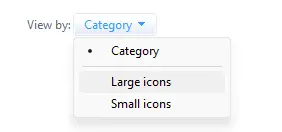
If it is in Category View, click on the word Category and choose Large Icons from the menu that appears. If it is already on large icons or small icons, carry on to the next step.
Select the Network and Sharing Centre icon
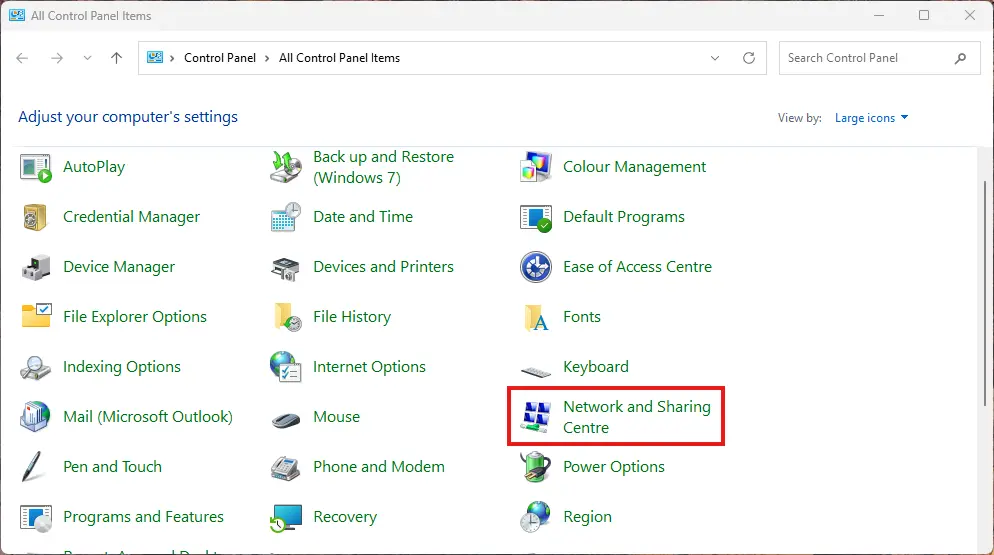
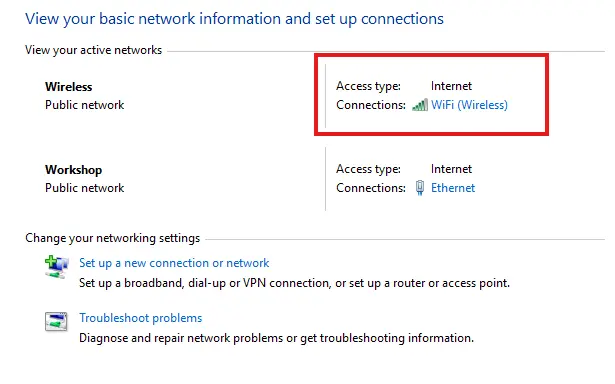
Now select your Wi‑Fi network name shown in blue.
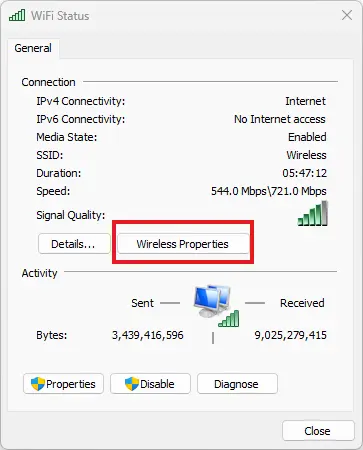
When the Wi-Fi status box appears, Select Wireless Properties.
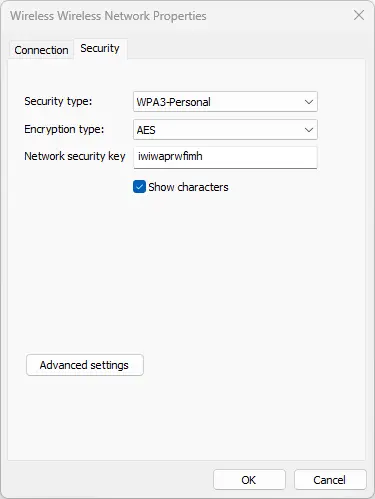
Now open the Security tab at the top of the Network Properties window.
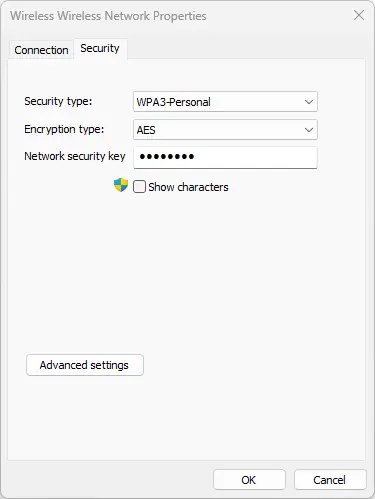
Finally, click the Show characters tick box to reveal the password in the Network Security Key box.
Method 3: View passwords for all saved Wi‑Fi networks (Windows 10 & 11)
This method works best when you need the password for a wireless network you’ve previously used, but you’re not currently connected to.
First, press and hold the Windows key and then tap the R key.
Now type cmd into the run command box that appears and press the Enter key.
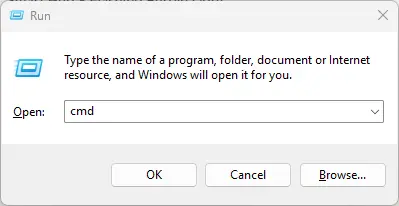
In the command prompt box that appears, type the following command and press Enter.
netsh wlan show profiles
This will display all the Wi-Fi networks you have connected to on the device you are using.
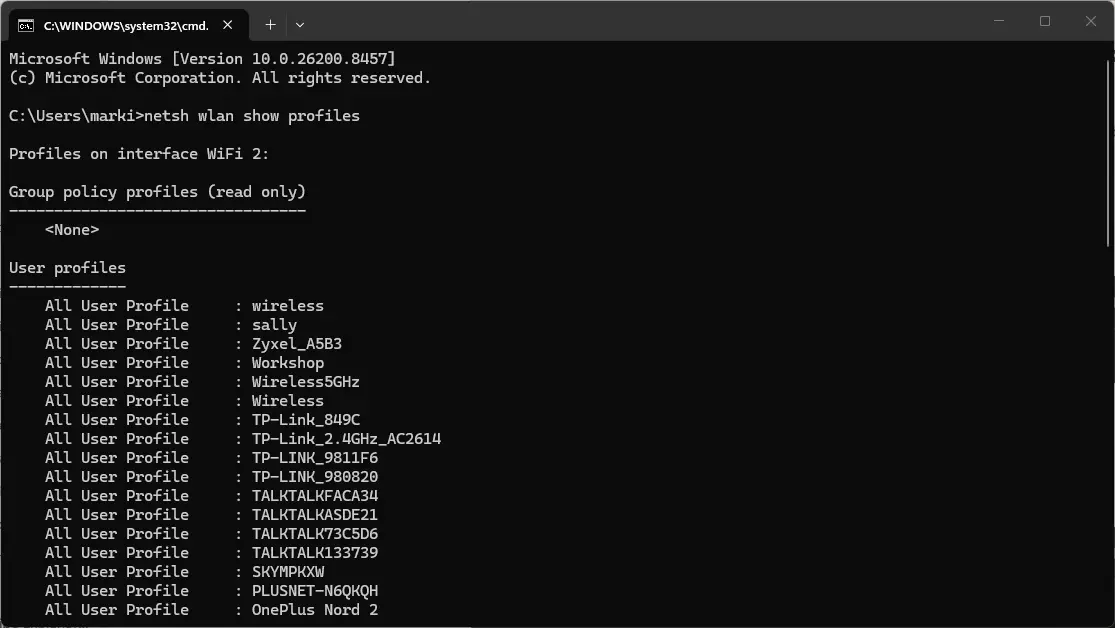
Next, select the network whose password you wish to retrieve. Then, carefully type the following command into the command prompt window and hit Enter.
(Also make sure you replace “wireless” with the name of your chosen network, keeping the quotation marks.)
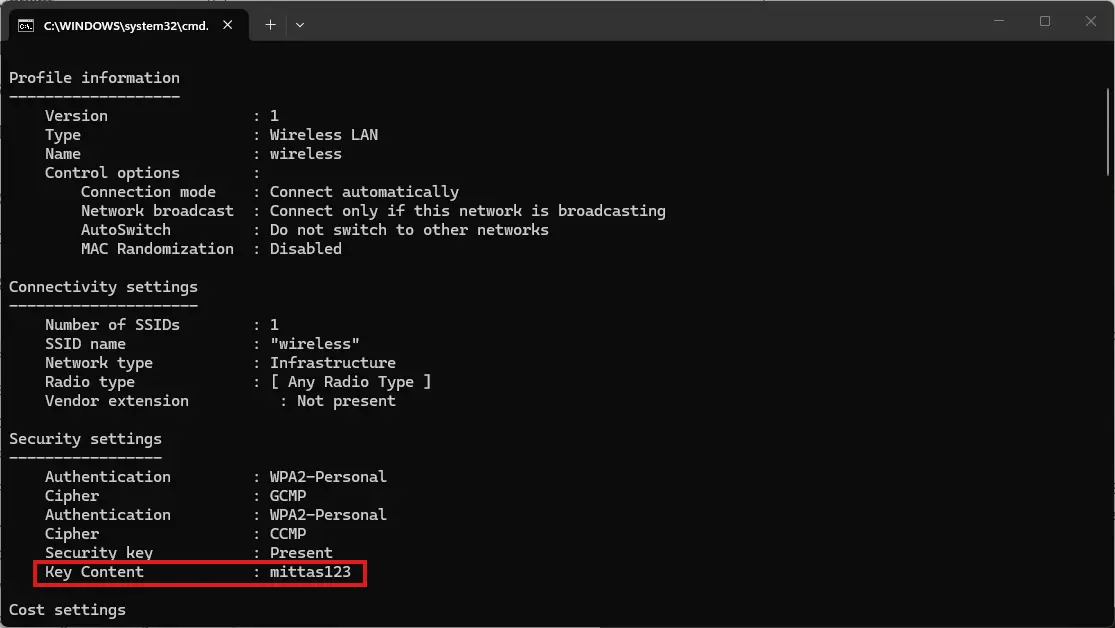
netsh wlan show profile name=”wireless” key=clear
Lots of information will appear, but scroll up a little to the Security settings section, and you’ll find the password to the right of Key Content.
About The Author

Mark Parvin
NEXT UP


