Trending Topics

 Trending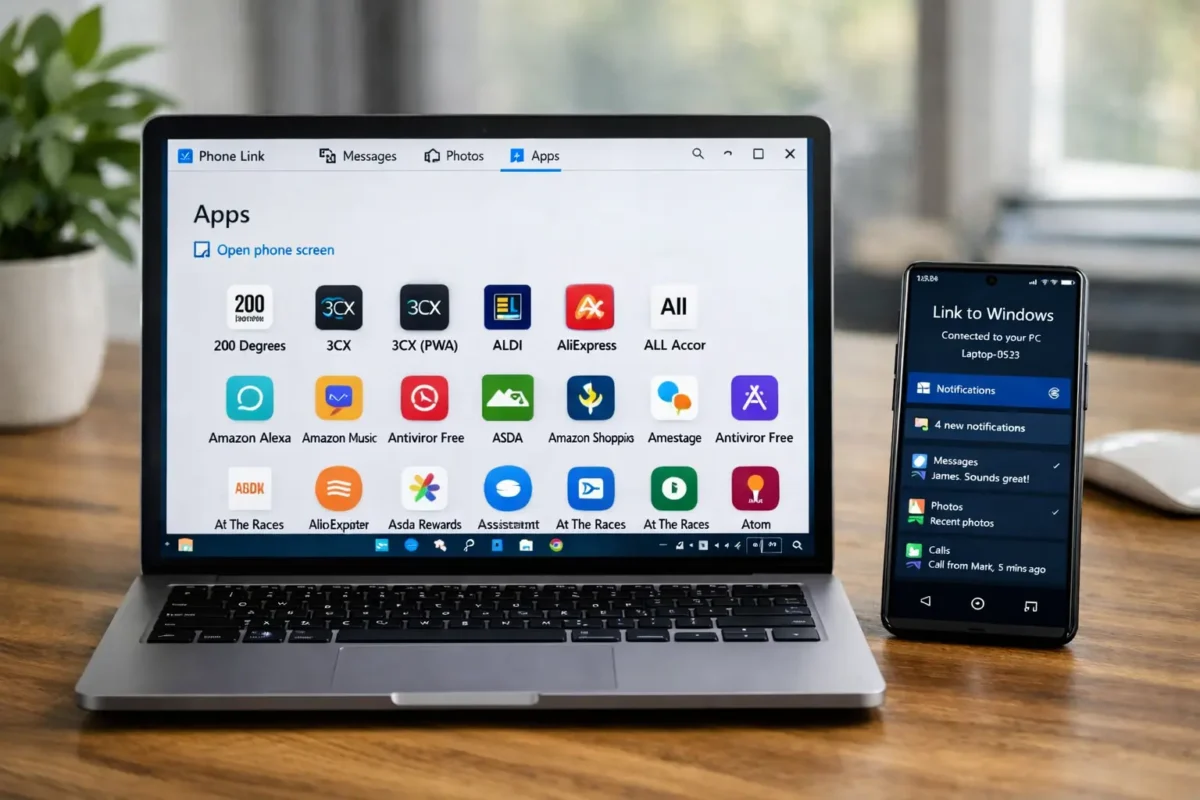
What is Microsoft Phone Link?

Microsoft Phone Link is Windows’ built‑in system for connecting your Android or iPhone to your PC. Once paired, you can see your notifications, send and receive texts, make calls, view recent photos, and – if you’re on Android – even run your mobile apps directly on your desktop.
It’s designed to minimise device‑switching and make your PC the central place where you can get things done.
Here’s how to set Microsoft Phone Link up and start using it.
Technical requirements for Microsoft Phone Link
Before using Microsoft Phone Link, your devices must meet the following baseline specifications:
- On the PC: A computer running Windows 10 (with the May 2019 Update or later) or Windows 11.
- On an Android Phone: Android 7.0 or higher.
- On an iPhone: iOS 14.0 or higher.
Also, ensure that both your PC and smartphone connect to the same Wi-Fi network and have Bluetooth enabled to support features like voice calling.
How to set up Microsoft Phone Link
Setting up Phone Link takes only a few minutes, but the steps differ slightly depending on whether you use Android or an Apple iPhone.
How to set up Microsoft Phone Link with Android
To get things working, first open Phone link on you PC. The easiest way to do this is to search for Phone Link in the Windows Search bar or Start menu.
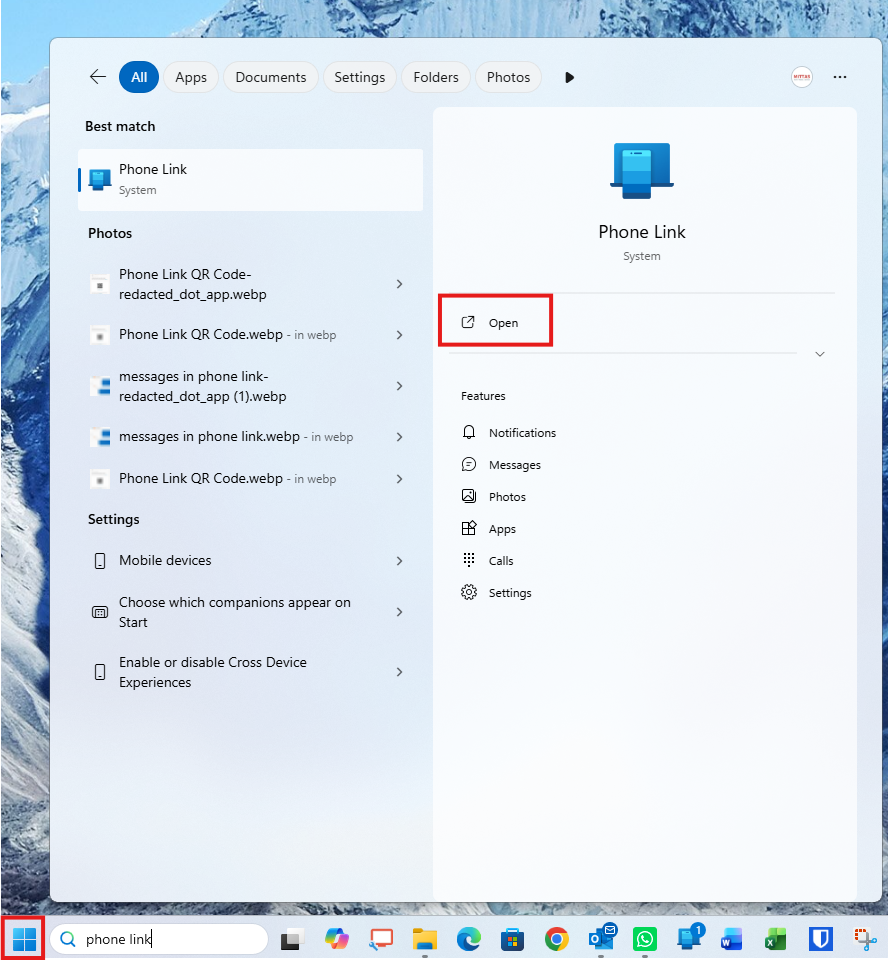
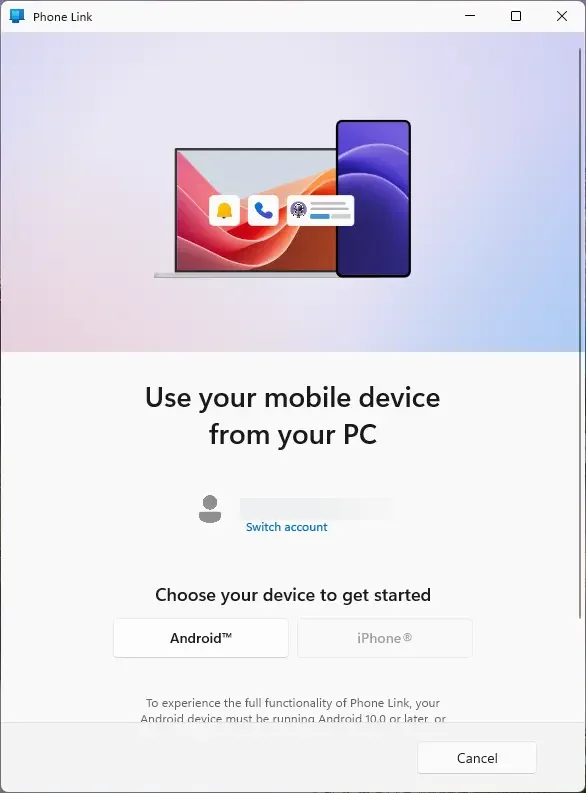
Once the app is open, choose Android from the options available.
Now scan the QR code that appears with your phone camera.
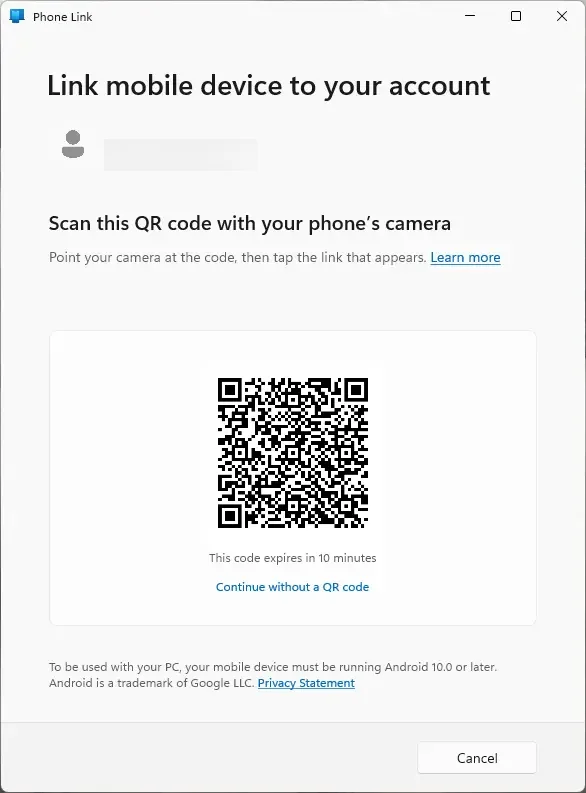
This will open the Link to Windows app on your phone, and the app will ask you to enter the code showing on your PC. If you don’t have Link to Windows installed, your phone will point you in the right direction and, once installed, the process will continue.
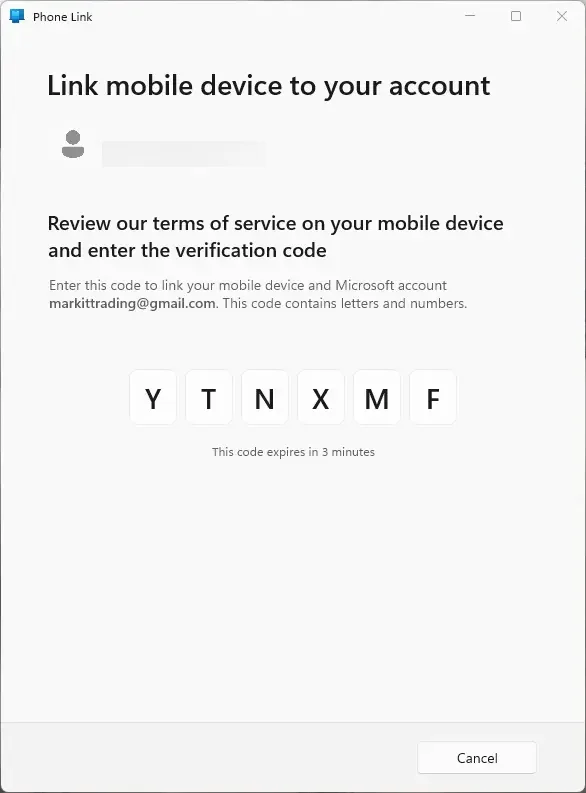
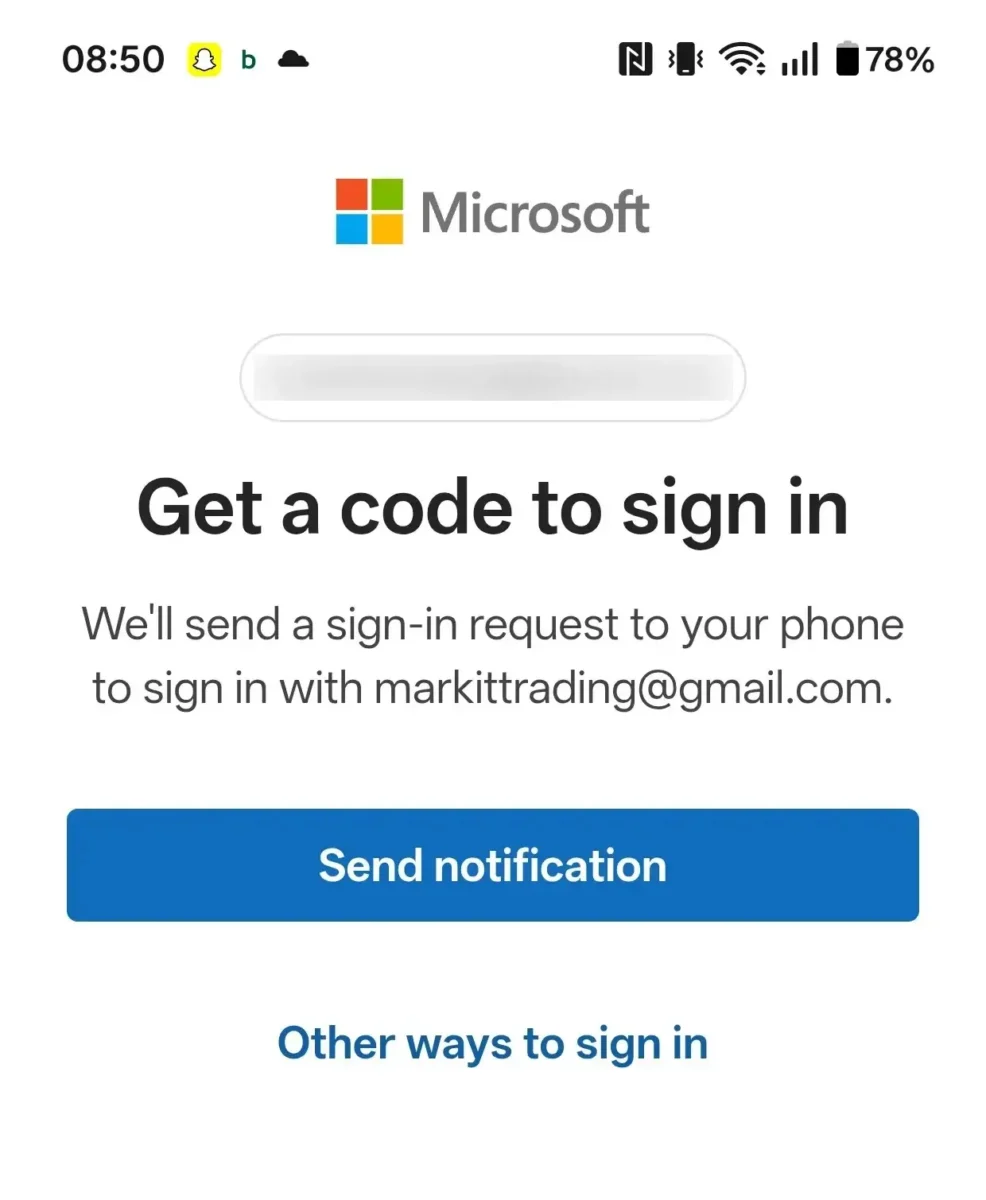
You’ll now need to sign into the Microsoft account associated with your PC on your phone. You do this via the Authenticator app, a password, or however you normally sign in.
The Link to Windows app may now ask whether you want to share optional diagnostic data. You can accept or decline without affecting how the app works.
The app may also ask for permission to access notifications, contacts, messages, and photos. You should allow access to enable the features you’ll use later.
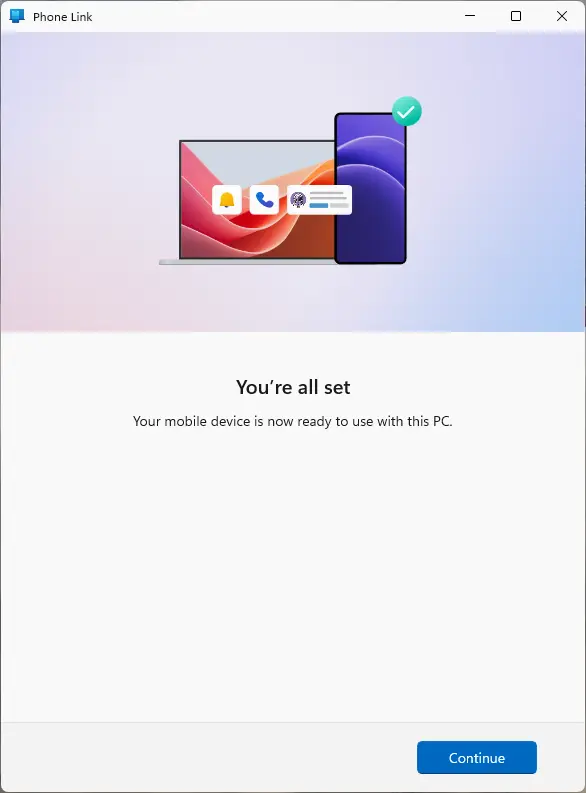
Once done, the PC will let you know it’s ready to go. Just click the Continue button to open the app.
How to set up Microsoft Phone Link with an iPhone
To set up Microsoft Phone link on an Apple iPhone, first open Phone Link on your PC. The easiest way to do this is to search for Phone Link in the Search bar or Start menu.
Once the app is open, choose iPhone from the options available.
Microsoft Phone Link needs Bluetooth on your PC to connect to an iPhone. If Bluetooth is unavailable or turned off, you’ll find the iPhone option will appear greyed out.
Once you’ve selected the iPhone option, scan the QR code that appears with your phone camera.
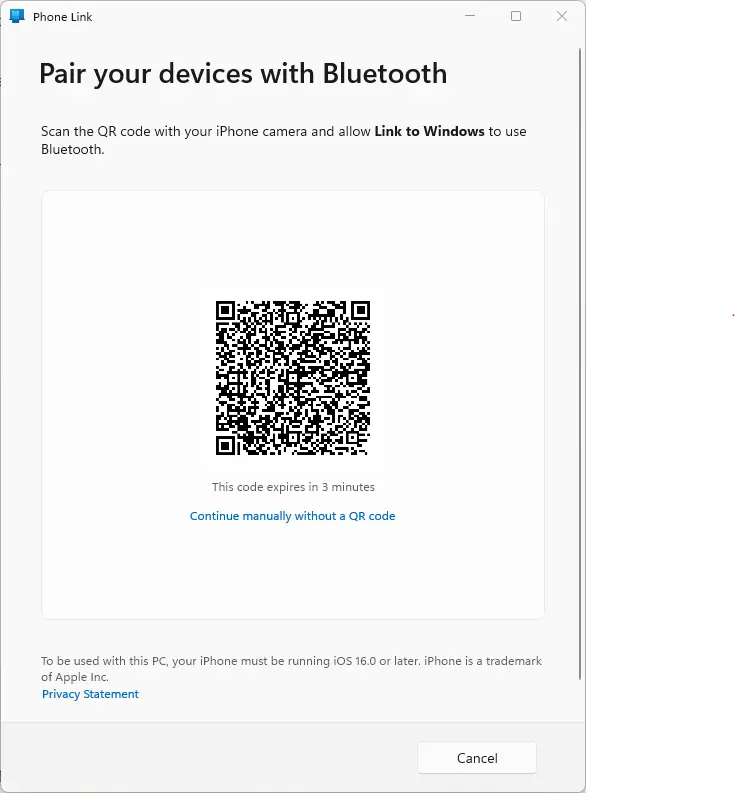
Your PC will now display a pairing code. Confirm the same code on your iPhone by selecting the blue Pair button on your phone and the PC.
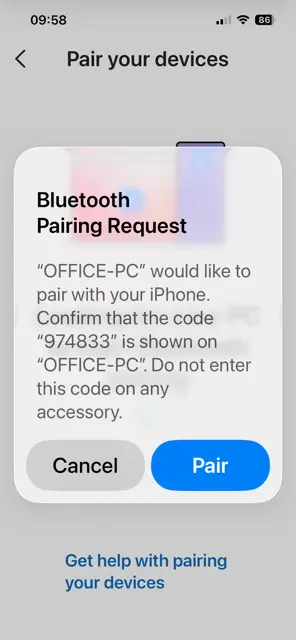
Once done, click the Continue button on your PC to open the app.
When you first open the app, it may request access to your contacts and messages and show you how to grant it. You should allow access so you can use these features later.
What you can do with Microsoft Phone Link
Once everything is connected, Microsoft Phone Link becomes a control panel for your phone, and the menu across the top of the app lets you choose the various options.
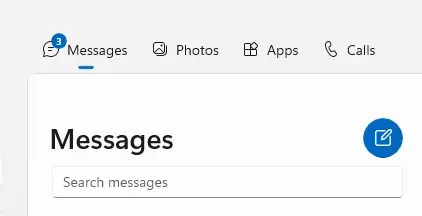
Here’s how each part works:
Messages in Microsoft Phone Link
When using Android
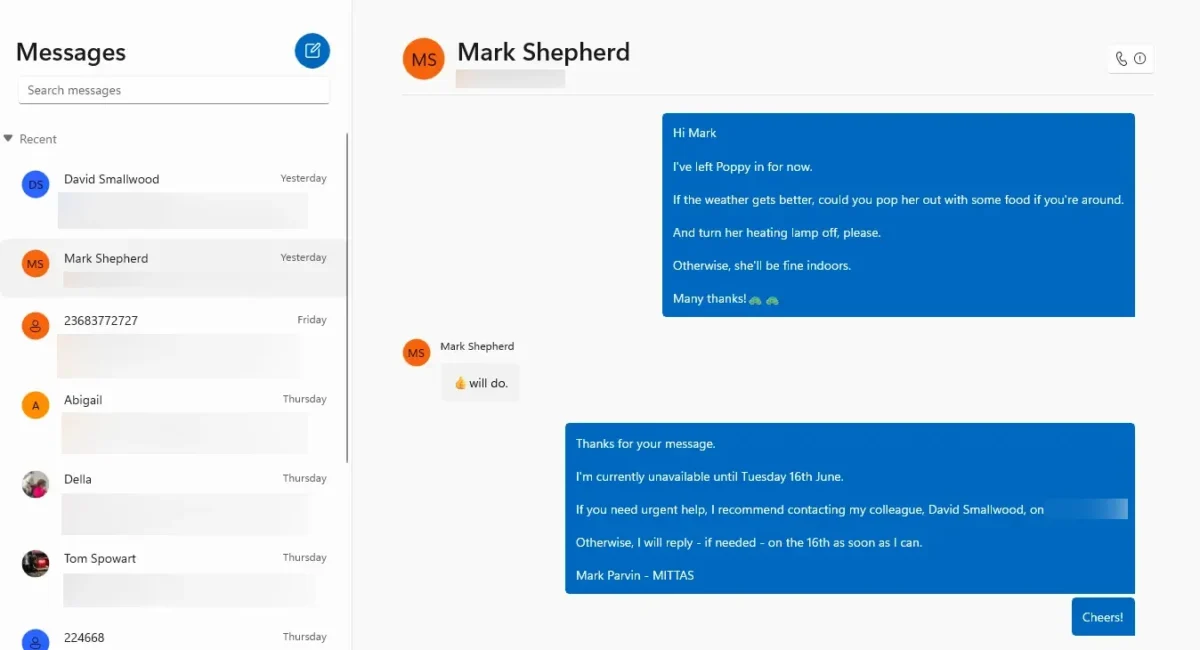
You can send and receive SMS and MMS directly from your PC, and conversations appear in a clean, desktop‑friendly layout.
When using an iPhone
You can also send and receive SMS messages but, unfortunately, no iMessage or group chats. This limitation is due to Apple’s Bluetooth restriction
Photos in Microsoft Phone Link
Phone Link can show your most recent photos from your phone. As well as view them, you can also:
- Drag photos straight into apps like Word, Outlook, or Photoshop
- Open them in your default photo app
- Save them to your PC
- Share and delete them
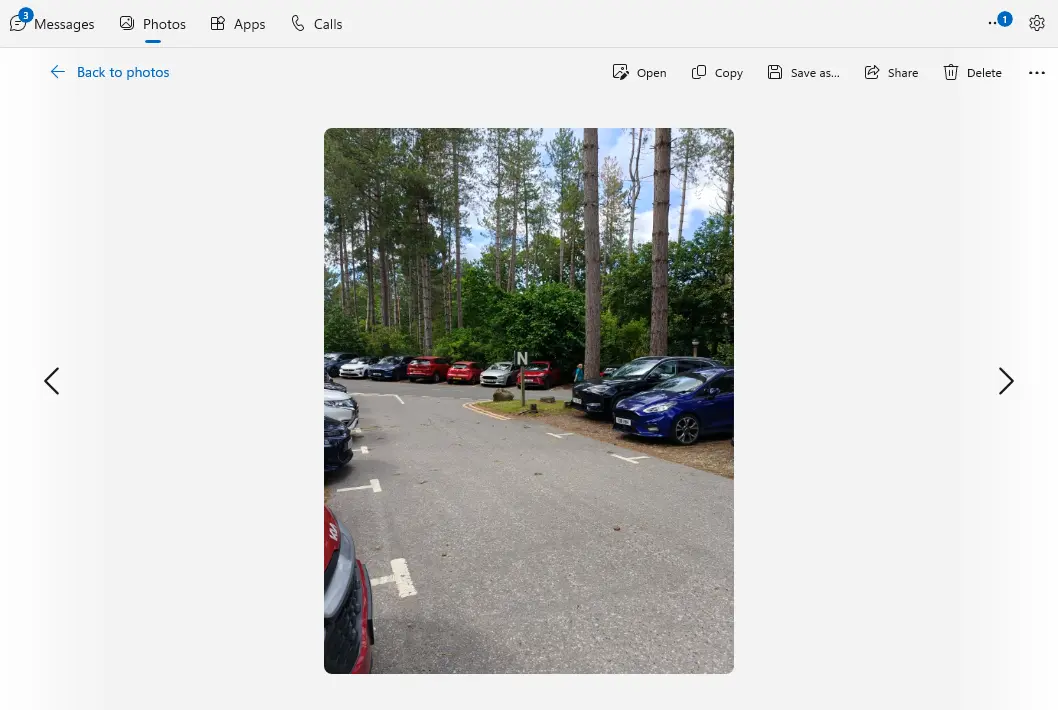
While Android offers full access to recent photos, iPhone support is more limited and may only show a small set of recent images.
Apps in Microsoft Phone Link (Android only)
Most modern Android phones support this feature, which allows you to open and use the apps from your phone on your PC.
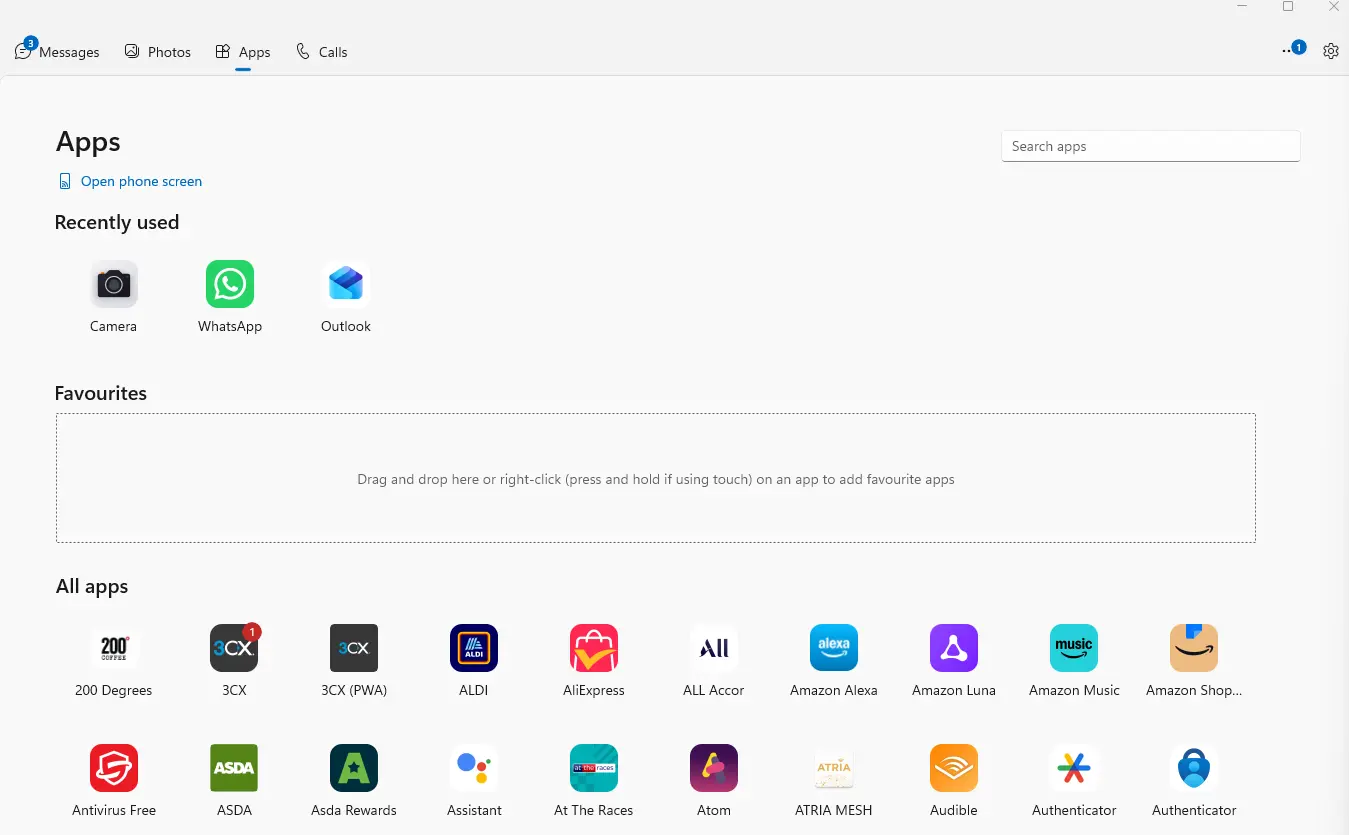
When you select an app, your phone will ask permission to cast its screen to your PC. Click Allow, and the app will open just as it appears on your phone.

Once you’ve opened an app, you can also pin it to the taskbar and resize the window for a better view.
It’s also possible to mirror your entire phone screen by clicking Open phone screen at the top of the window. You can then select the apps directly as you would on your phone.

Unfortunately, iPhone does not support app streaming or mirroring at the time of writing.
Making Calls in Microsoft Phone Link
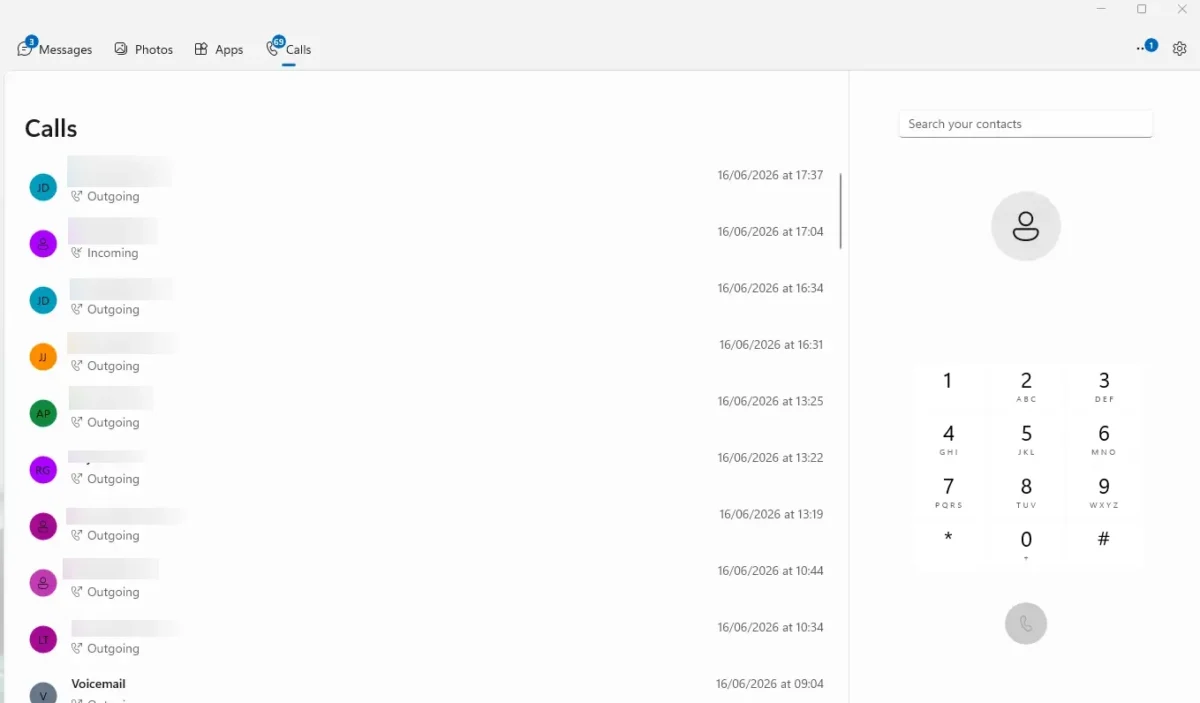
Phone Link lets you make and receive calls through your PC’s microphone and speakers. Both Android and iPhone support calling, although the PC needs to have Bluetooth enabled for it to work.
Using this feature allows you to:
- Dial numbers directly from the Phone Link app
- Answer incoming calls without touching your phone
- View your call history
Notifications in Microsoft Phone Link
Phone Link mirrors your phone’s notifications directly onto your desktop, which you can see on the left hand pane of the app.
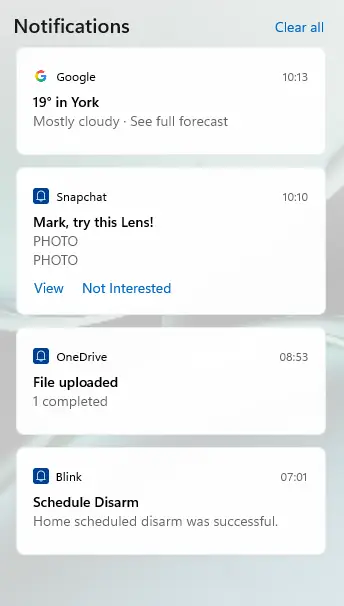
This feature allows you to:
- Read alerts as they arrive
- Clear them from your PC (which clears them on your phone too)
- Turn off notifications from specific apps
- Reply to messages from supported apps
File transfer in Microsoft Phone Link
You can also use Microsoft Phone Link to transfer files to and from your phone and PC
Using Android to transfer files using Microsoft Phone link
From PC to Android Phone
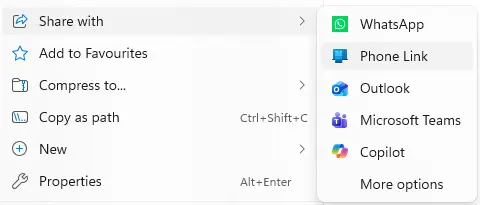
- Right-click the file you want to send on your PC.
- Select Share with from the menu that appears.
- In the sub menu,select Phone Link.
- The file will transfer wirelessly to your phone’s Internal Storage > Downloads folder.
From Android Phone to PC
- Open your phone’s file manager (like Files or My Files)
- Select the files or photos you want to move and tap the Share button.
- Scroll through the app options and select Link to Windows.
- Tap your PC’s name. The files will be saved to the Mobile Devices subfolder in your default Downloads folder.
Using an iPhone to transfer files using Microsoft Phone Link
From iPhone to PC
- Open the Files app or your Photos app on your iPhone.
- Select the file(s) or photo(s) you want to transfer.
- Tap the Share icon (the square with an arrow pointing up).
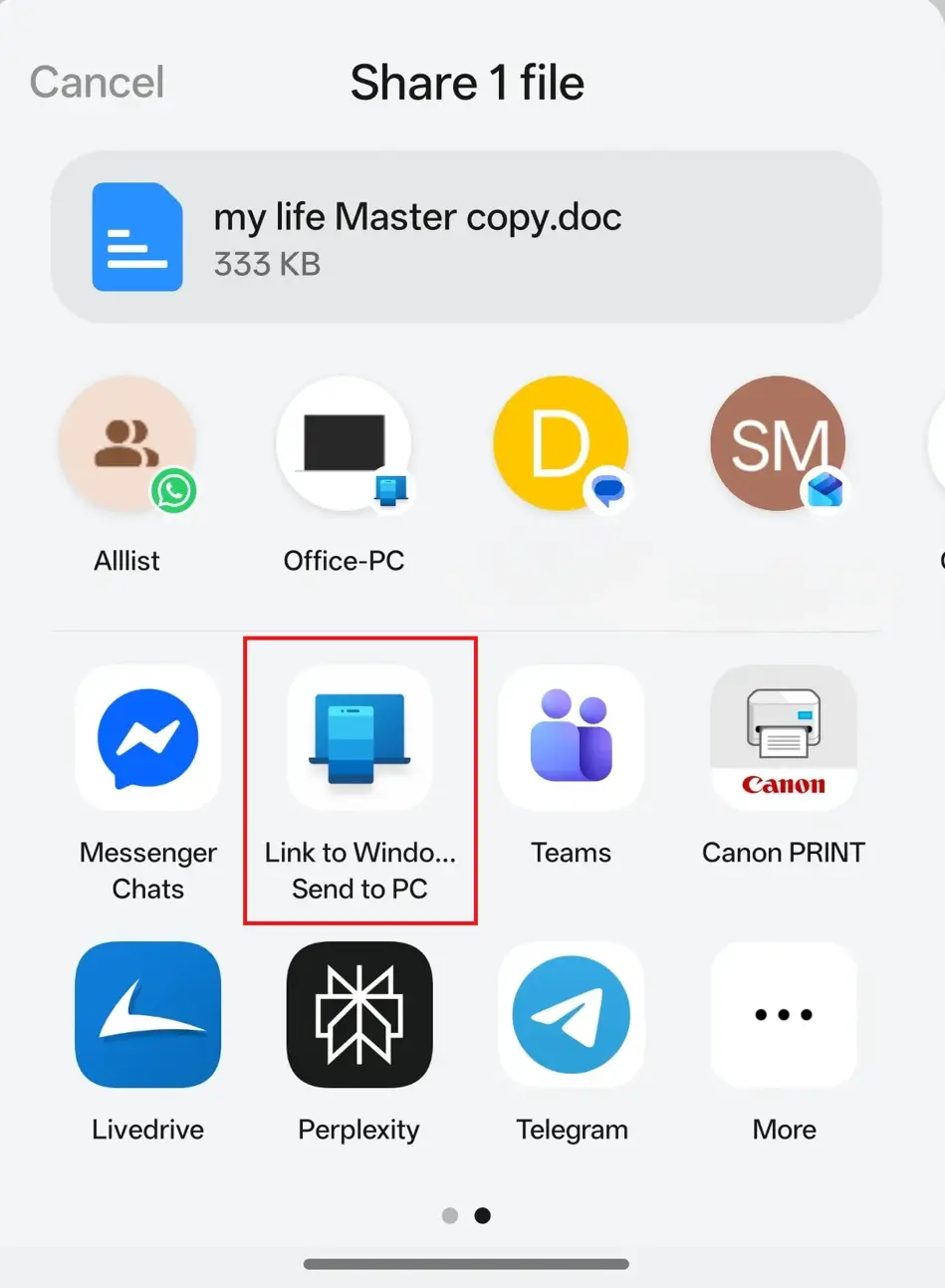
- Look through your row of apps and select Link to Windows.
- Tap the name of your connected Windows PC. The file will transfer wirelessly and be saved to the Phone Link subfolder in your default Pictures folder.
From PC to iPhone
- On your PC, locate the file you want to send.
- Right-click the file and select Share With.
- In the sub menu,select Phone Link.
- The file will be sent wirelessly to your phone. Open the Link to Windows app on your iPhone and go to the Received files section to view or save it.
About The Author

Mark Parvin
NEXT UP


