Trending Topics

 Trending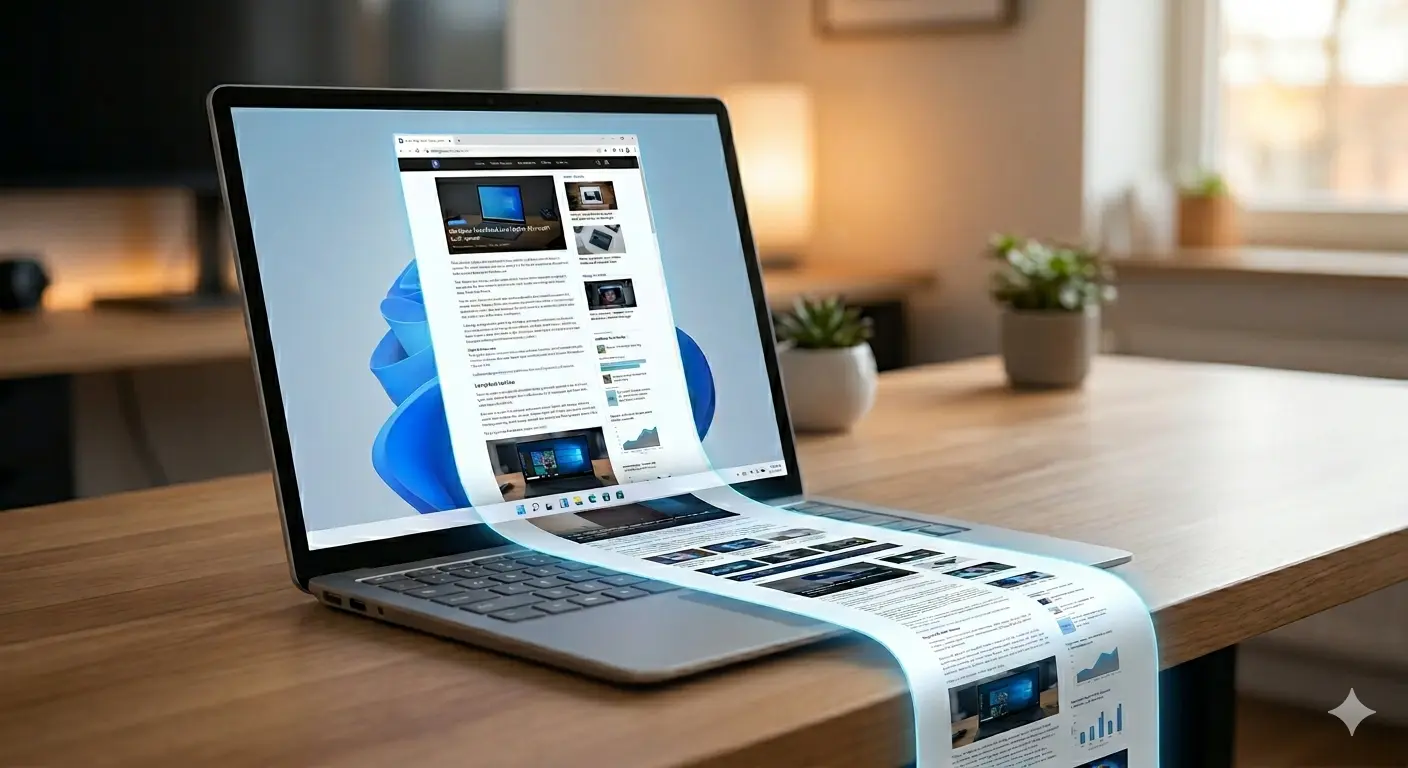
How to take a scrolling screenshot in Windows 11

If you’ve ever tried to capture a long webpage or lengthy email in Windows 11, you’ll know the frustration: the built‑in Snipping Tool simply can’t scroll. It only captures what’s visible on your screen.
Fortunately, you don’t need to buy premium software to take a scrolling screenshot in Windows 11. Here is how to capture everything from top to bottom, whether it’s inside a browser or using a desktop app.
How to take a scrolling screenshot of a webpage
A common reason for taking scrolling captures is to save web pages that continue well beyond your monitor screen. There’s how to do it using three of the most popular browsers: Edge, Firefox and Chrome.
Using Microsoft Edge to capture a scrolling screenshot of a webpage
Edge has a built‑in scrolling screenshot tool called Web Capture. To use it:
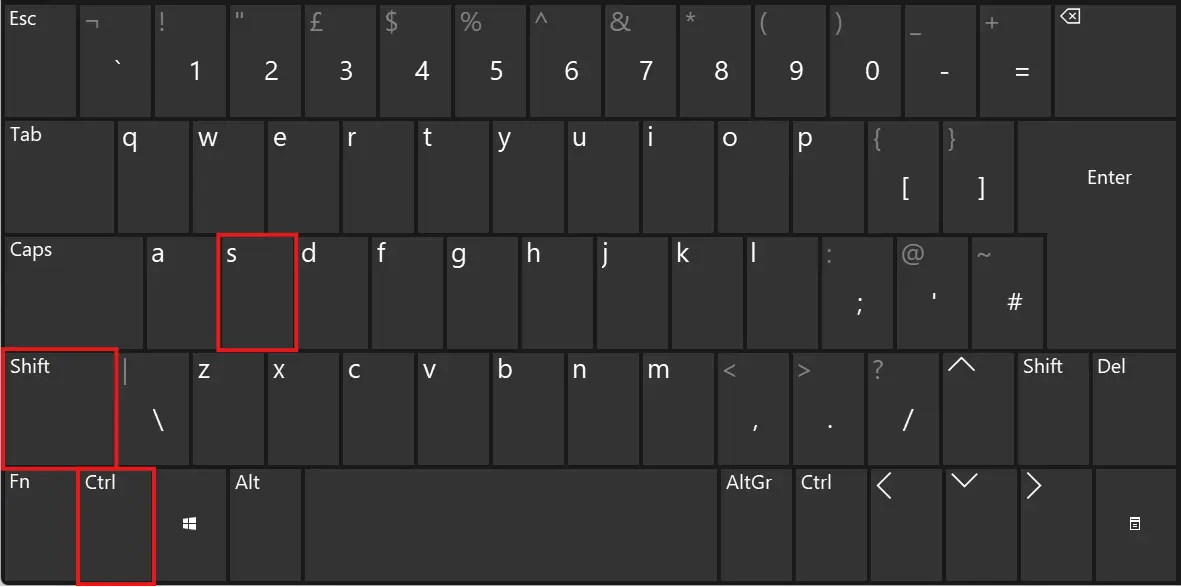
Open Edge and find the webpage you wish to capture. Now press Ctrl + Shift + S together.
Select Capture full page from the web capture box that appears at the top of the screen.

A scrolling preview now appears, allowing you to annotate it, share it, or save it using the floppy disk icon.

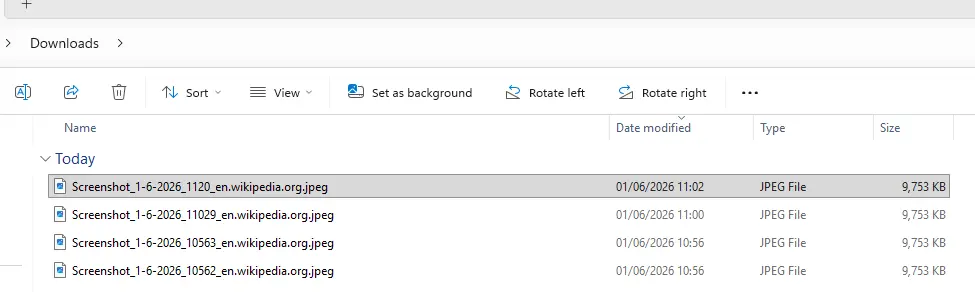
When you save the webpage, it goes into the Downloads folder in Jpeg format.
Using Firefox to capture a scrolling screenshot of a webpage
Firefox also includes a full‑page screenshot tool.
First, open Firefox and get to the web page you need to save. Then, right-click anywhere on the page and select Take Screenshot from the menu that appears.

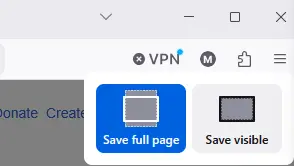
In the top right corner of the web page, click on Save full page.
A preview of the web page now appears, and you can copy or download the full page by selecting the options in the top right of the preview screen.

If you save the page, it goes into the Downloads folder as a PNG file.
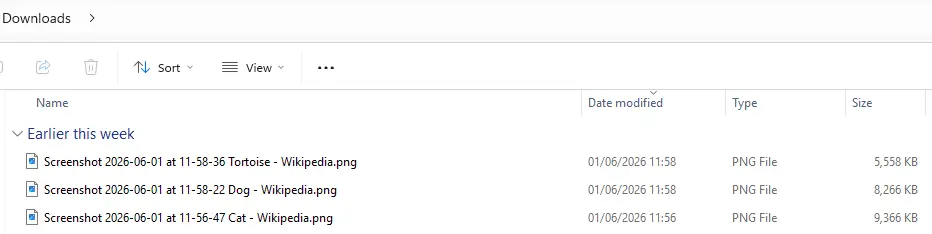
Using Chrome to capture a scrolling screenshot of a webpage
Chrome can also capture a full page natively, though it requires a bit more work.
First, open chrome and go to the webpage required. Next press F12 on your keyboard to open the Developer Tools pane that will appear on the right hand side of the screen.
Now press the Ctrl + Shift + P keys at the same time.

Pressing these keys opens the command bar at the top of the Developer Tools window.
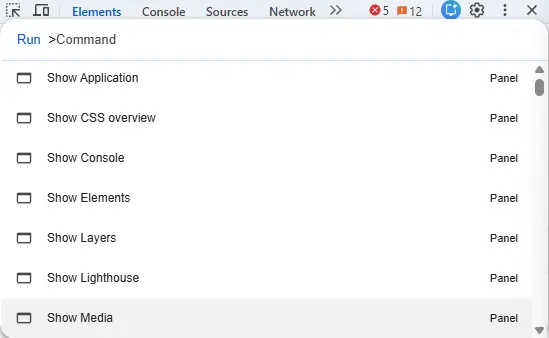
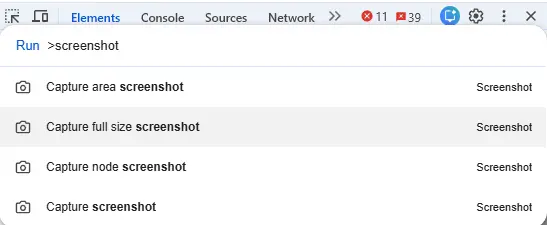
Next type screenshot into the command line search bar, and select Capture full size screenshot from the menu that appears.
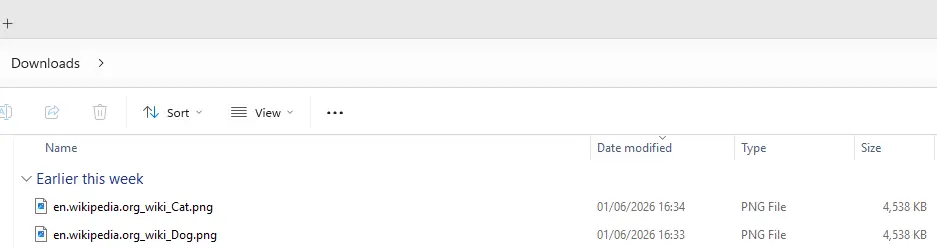
Chrome will now do its magic and drop a PNG file of the full webpage into your Downloads folder.
A warning about PDF documents
If you open a PDF document in your browser, full-page screenshot tools usually won’t work. This is because the built-in PDF viewer already lets you save or copy the whole document. If you need the PDF as an image file, such as a PNG, then use one of the apps mentioned below.
How to take a scrolling screenshot of everything else
If you need to capture a scrolling window outside of a browser – such as a long document, or an email conversation that goes on forever – then you’ll need a dedicated tool.
A great option is ShareX, which is free, lightweight, and contains no ads.
It is also worth noting that ShareX is a powerful utility; it can record GIFs, capture video, grab text from images using OCR, and much more. In fact, its feature list is so massive it can feel a bit overwhelming at first glance. However, for this guide, we are going to ignore its advanced bells and whistles and focus solely on the scrolling capture tool.
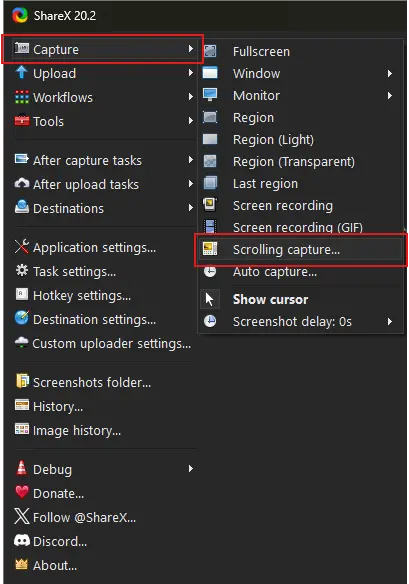
You can download ShareX from the Microsoft store or via the website. Once downloaded and installed, open the app and go to Capture → Scrolling capture
Now hover your mouse pointer over the app window or the specific scrolling area you want to record and left click.
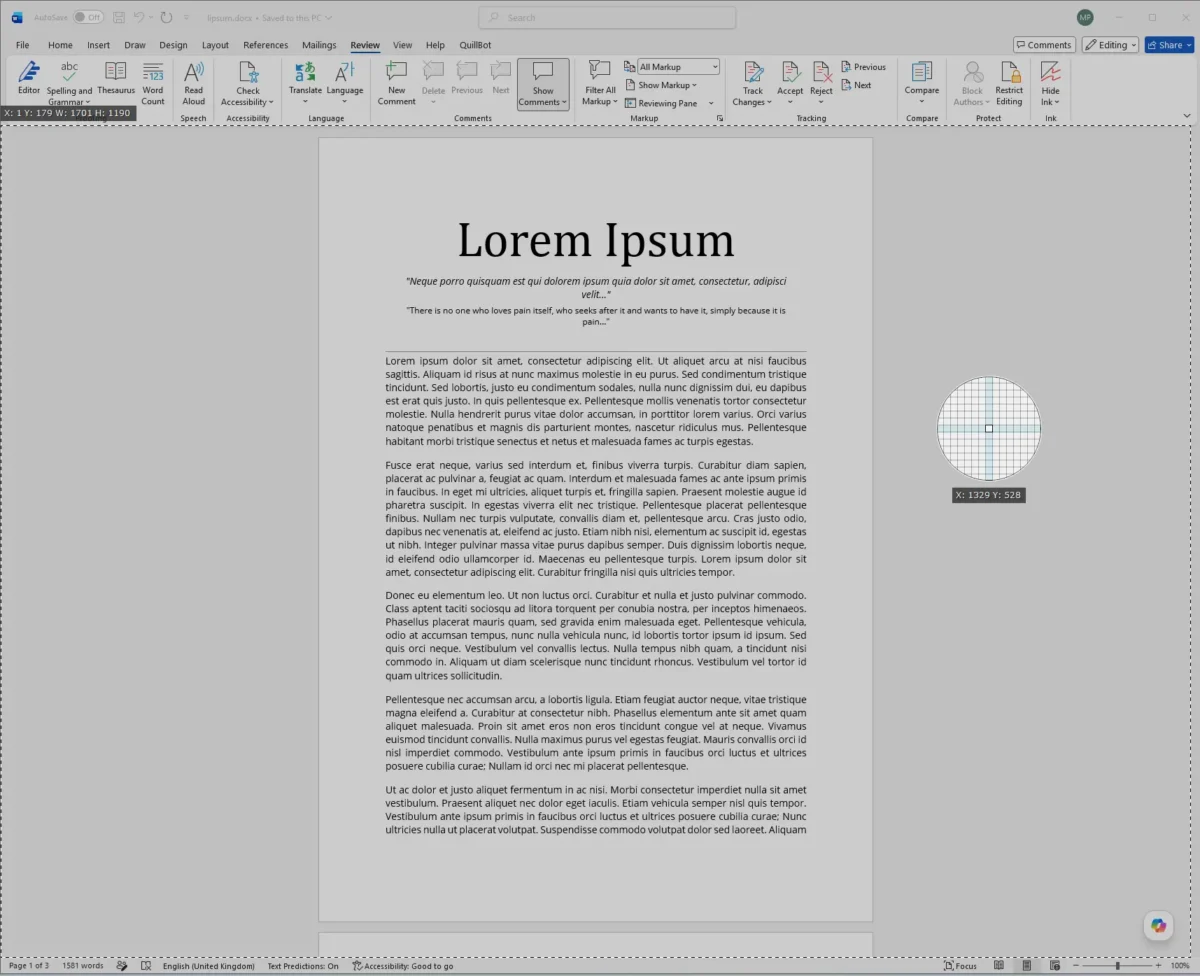
ShareX automatically scrolls through the selected area, captures everything, and opens the result in a new window, where you can save, upload, or copy it.

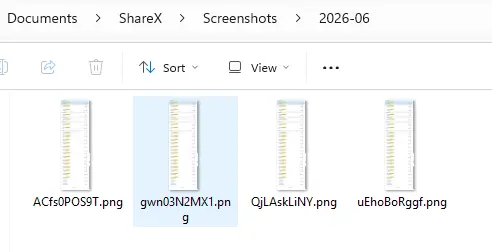
ShareX saves the scrolling captures as a PNG file, and stores them by default in the following folder:
Documents\ShareX\Screenshots
Inside that folder, ShareX then creates subfolders by year and month to make them easier to locate later.
If ShareX doesn’t do what you need
While ShareX works well for capturing most scrolling screenshots, it’s not perfect. If it falls short of your expectations, here are a couple of alternatives.
PicPick: This is free for personal use, easy to use, and has a modern Microsoft Office feel to it.
Faststone Capture: It’s a pay-for product, but the one-time fee is reasonable. It also includes a 30-day trial, giving you time to decide whether it meets your needs before parting with your cash.
About The Author

Mark Parvin
NEXT UP


