Trending Topics

 Trending
What do the lights mean on a Shell Energy router?

If you’re wondering what the lights mean on your Shell Energy router, the first thing to do is check which router you have. Shell Energy has taken over the broadband arm of a few companies, including First Utility and the Post Office, meaning several boxes exist. You’ll find each current router listed below, so check out yours and then see what the lights mean on your Shell Energy router.
You can jump straight to the section for your router by clicking on the links below:
- Technicolor TG589/DWA0120/DGA 0122
- Techincolor TG588
- Techincolor DGA4231/DGA4134/DGA2231
- Zyxel AMG1302
- Zyxel VMG3925
Technicolor TG589/DWA0120/DGA 0122 router
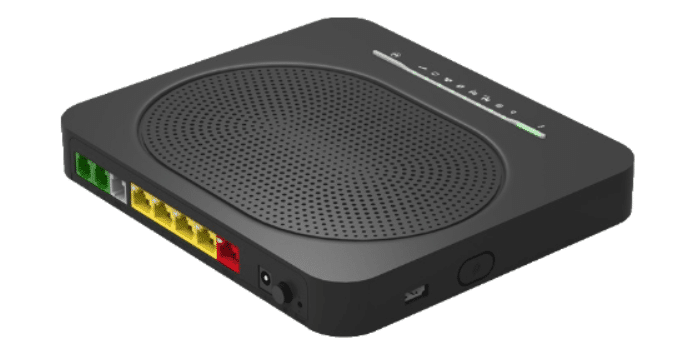
This router has nine LED lights. Here’s what each light means from left to right:
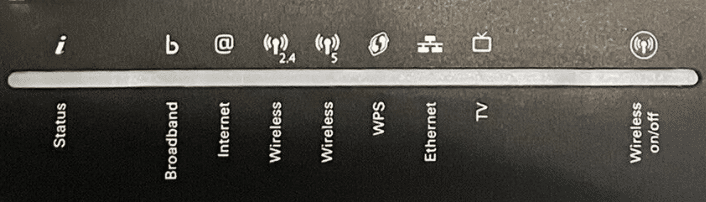
Status light
The status light gives you general information about the state of the router. It can be:
- Green – The router is working normally.
- Red – There is an error or a problem with your router. If this is the case, either reboot or contact Shell Energy.
- Off – The router is turned off, or no power is getting to it.
Broadband light
The broadband light lets you know whether there is a working broadband connection.
- Solid Green – Connected to broadband.
- Flashing Green – The router is synchronising with your broadband connection. When you restart the router, the light will flash green before it goes solid. If it continuously flashes green, check your connections and try turning your router off and back on. If that doesn’t solve it, it’s worth contacting Shell Energy support.
- Off – The router has no broadband connection. If no light shows, check your cables and try restarting your router. If that doesn’t work, contact Shell Energy support.
Internet light
The internet light shows if you have internet access.
- Green – You have internet access, and all should work okay.
- Blinking green – The router is transferring or receiving data.
- Flashing red – There is no internet access available. If this is the case, then check your cables and try restarting your router. If that doesn’t work, contact Shell Energy support.
- Off – No internet is available. Check your cables and try restarting your router. If that doesn’t work, contact Shell Energy support.
Wireless 2.4GHz and 5GHz Lights
These lights let you know if you have wireless connectivity on the router’s two bands:
- Green – You have wireless connectivity.
- Blinking green – The router is transmitting or receiving data.
- Off – The wireless function on the router is disabled. This router model can vary, but it could have a Wireless On/Off button to the far right of the lights. If you need Wi-Fi, press the button for around five seconds to turn the Wi-Fi and the wireless lights back on.
WPS Light
If you need to use WPS to connect a device to your Wi-Fi, then you’ll find a WPS button on the side of the router. Press it for around three seconds to activate it, and the WPS light will flash orange while attempting to pair. Otherwise, the lights can be:
- Off – Inactive.
- Red – Pairing has failed.
- Green – Pairing is successful.
- Flashing orange – Trying to pair.
Ethernet Light
If you have attached any of your devices via an Ethernet cable, then this LED will be green. It will also flash when the router is transmitting or receiving data through the cable.
TV / Phone
The router may also have a TV or Phone LED. This light will be green if you have a digital phone or TV package with Shell Energy.
Power Light
The Power light will either be:
- Orange – The router is starting up.
- Green – The router is ready and powered up.
- Off – The router is turned off, or no power is getting to it.
You might also be interested: Why is my TalkTalk router flashing orange?
Techincolor TG588 touter
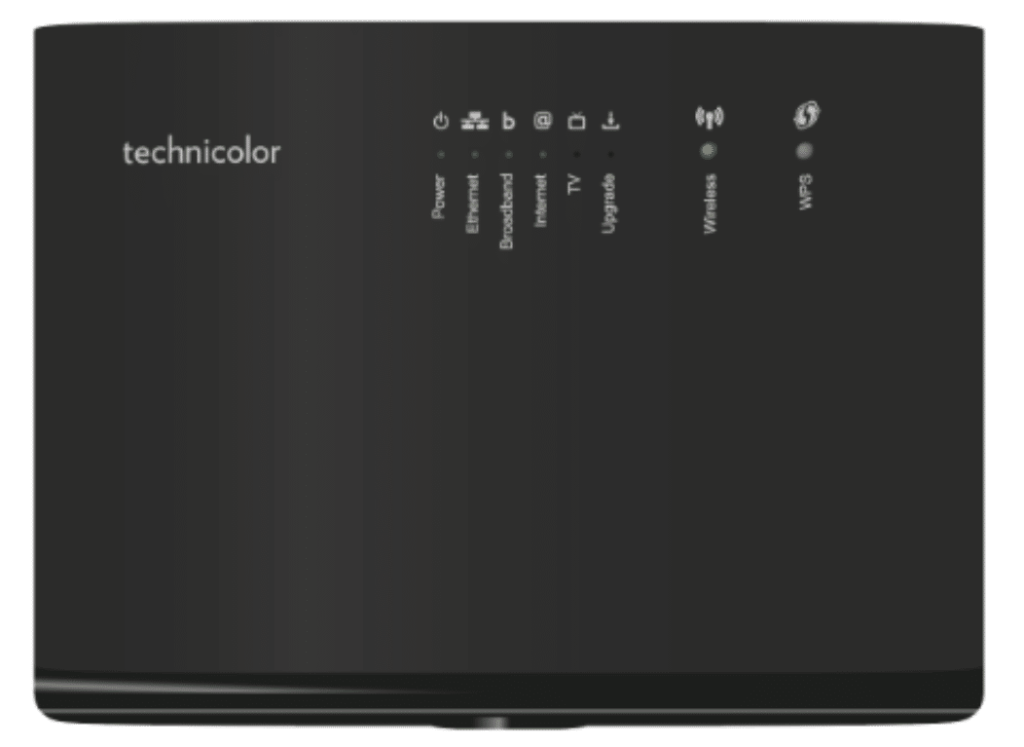
This router has eight LED lights. Here’s what each light means from left to right:
Power light
The Power light will either be:
- Orange – The router is starting up.
- Green – The router is ready and powered up.
- Off – The router is turned off, or no power is getting to it.
Ethernet light
This LED will be green if you have attached any of your devices via an Ethernet cable. It will also flash when the router transmits or receives data through the cable.
Broadband light
The broadband light lets you know whether there is a working broadband connection. It will show either:
- Solid Green – Connected to broadband.
- Flashing Green – The router is synchronising with your broadband connection. When you restart the router, the light will flash green before it goes solid. If it continuously flashes green, check your connections and try turning your router off and back on. If that doesn’t solve it, it’s worth contacting Shell Energy support.
- Off – The router has no broadband connection. If no light shows, If no lights show, check your cables and try restarting your router. If that doesn’t work, contact Shell Energy support.
Internet light
The internet light shows if you have internet access. It can be:
- Green – You have internet access, and all should be fine.
- Blinking green – The router is transmitting or receiving data.
- Flashing red – There is no internet access available. If this is the case, then check your cables and try restarting your router. If that doesn’t work, contact Shell Energy support.
- Off – No internet is available. Check your cables and try restarting your router. If still no joy, then contact Shell Energy support.
TV light
This light will show green if you have a digital TV package with Shell Energy.
Upgrade light
The upgrade button will show green if a software upgrade is underway. If it is, then do not power off or disconnect any cables while it is upgrading. Interrupting the procedure may make your router unusable.
Wireless light
This light lets you know if you have wireless connectivity. It will show either:
- Green – You have Wi-Fi.
- Blinking green – The router is transmitting or receiving data.
- Off – The router’s wireless function is disabled. This light also works as a wireless button. If the LED is off and you need Wi-Fi, then press and hold the button for five seconds. The wireless light/button should turn green, and Wi-Fi will be available.
WPS light
If you need to use WPS to connect a device to your Wi-Fi, this light is also the WPS button. Press it for around three seconds to activate, and the WPS light will flash orange while attempting to pair. Otherwise, the lights can be:
- Off – Inactive.
- Red – Pairing has failed.
- Green – Pairing is successful.
- Flashing orange – Trying to pair.
Techincolor DGA4231/DGA4134/DGA2231 router
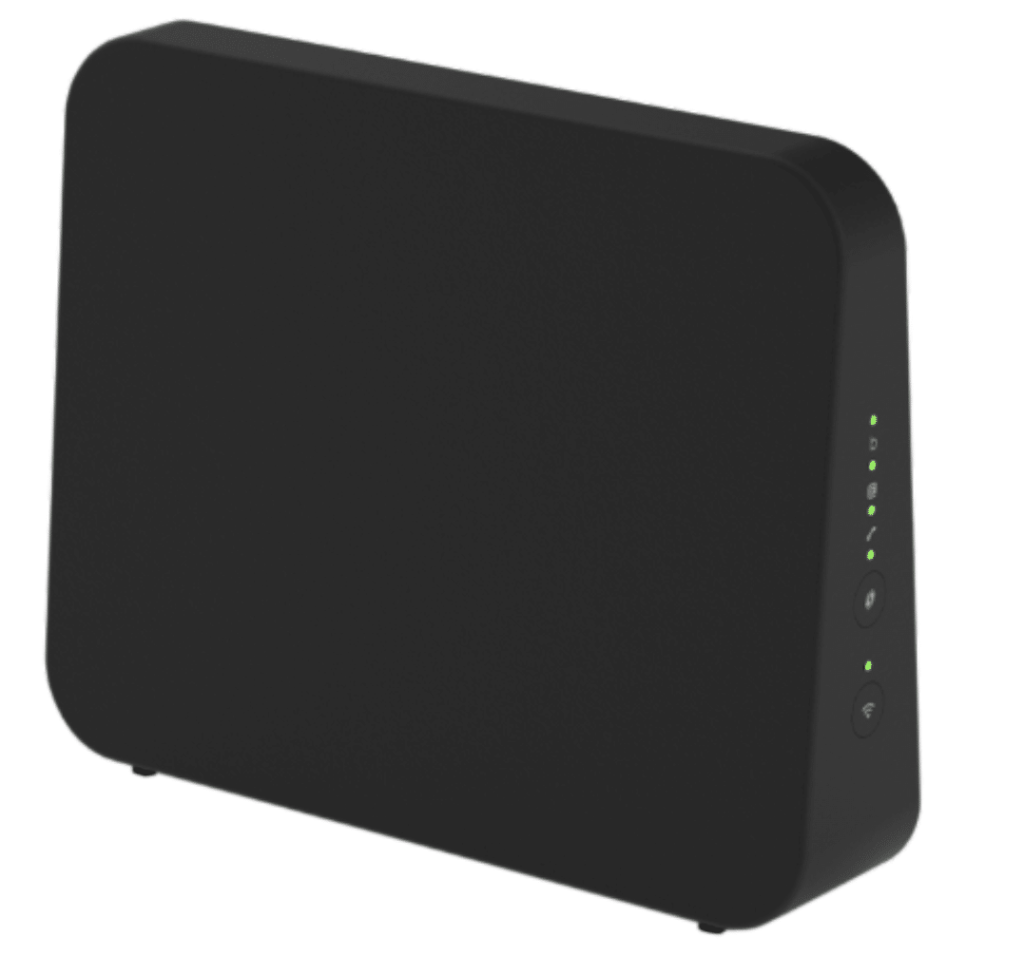
This router has five LED lights. Here’s what each light means from top to bottom:
Info light
The info light gives general information about the state of the router. It can be:
- Green – The router is working normally.
- Orange – The router is starting up.
- Red – There is an error or a problem with your router. If this is the case, either reboot or contact Shell Energy.
- Off: The router is turned off, or no power is getting to it.
Broadband light
The broadband light lets you know whether there is a working broadband connection. It will show either:
- Solid Green – Your router is connected to broadband.
- Flashing Green – The router is synchronising with the broadband connection. When you restart the router, the light will flash green before it goes solid. If it continuously flashes green, check your connections and try turning your router off and back on. If that doesn’t solve it, it’s worth contacting Shell Energy support.
- Off: The router has no broadband connection. If no light shows, check your cables and try restarting your router. If that doesn’t work, contact Shell Energy.
Internet light
The internet light shows if you have internet access. It will be:
- Green – You have internet, and all should work okay.
- Flashing green – The router is transferring or receiving data.
- Flashing red – There is no internet access available. If this is the case, check your cables, try restarting your router, and wait for the light to go solid green. If the light stays flashing red, contact Shell Energy support.
- Off: No internet is available. Check your cables and try restarting your router. If that doesn’t work, contact Shell Energy support.
Phone light
This light will be green if you have a digital phone package with Shell Energy.
WPS light
If you need to use WPS to connect a device to your Wi-Fi, press the WPS button just above this light. The WPS light will be orange while attempting to pair. Otherwise, the lights can be:
- Off – WPS is inactive.
- Red – Pairing has failed.
- Green – Pairing is successful.
- Orange – Trying to pair.
Wi-Fi light
The Wi-Fi light shares the same light as WPS, and lets you know if you have wireless connectivity. It will show either:
- Green – You have Wi-Fi.
- Blinking green – The router is transmitting or receiving data.
- Off – The router’s wireless function is disabled. It’s easy to accidentally turn off the wireless by pressing the Wi-Fi button below this light. If you need wireless, press the Wi-Fi button for around three seconds, and both the Wi-Fi light and the wireless should come back on.
You might also be interested: How do I access Virgin Media router settings?
Zyxel AMG1302 router

This router has nine LED lights. Here’s what each light means from left to right:
Power light
The Power LED will either be:
- Flashing green – The router is starting up.
- Solid green – Your router is ready and working.
- Red – There is an error or a problem with your router. If this is the case, either reboot or contact Shell Energy.
- Off: The router is turned off, or no power is getting to it.
Ethernet lights
The next four lights are for the Ethernet ports at the back of the router. If you have attached any of your devices via an Ethernet cable, the appropriate LED for that port will light up green. It will also flash when the router transmits or receives data through the cable.
WLAN Light
This light lets you know if you have wireless connectivity. It can be:
- Green – You have Wi-Fi.
- Blinking green – The router is transmitting or receiving data.
- Off – The Router’s Wi-Fi is disabled. If this LED light is off and you need Wi-Fi, press and hold the WLAN button on the side of the router for a few seconds. The wireless light/button should turn green, and Wi-Fi will be available.
WPS light
If you need to use WPS to connect a device to your Wi-Fi, then press the WPS button on the side of the router for around three seconds. The WPS light should now flash green while attempting to pair. Otherwise, the lights can be:
- Off – Inactive or pairing unsuccessful (the light will turn off after two minutes if the router does not make a connection)
- Green – Pairing is successful.
- Flashing green – Trying to pair.
DSL light
The DSL light lets you know whether there is a working broadband connection. The lights will be:
- Solid Green – Your router is connected to broadband.
- Flashing Green – The router is synchronising with the broadband connection. When you restart the router, the light will flash green before it goes solid. If it continuously flashes green, check your connections and try turning your router off and back on. If that doesn’t solve it, it’s worth contacting Shell Energy support.
- Off – The router has no broadband connection. If no light shows, check your cables and try restarting your router. If that doesn’t work, contact Shell Energy support.
Internet light
The internet light shows if you have internet access. It will show either:
- Green – You have internet, and all should work okay.
- Blinking green – The router is trying to transfer data between devices.
- Flashing red – There is no internet access available. If this is the case, then check your cables and try restarting your router. If that doesn’t work, contact Shell Energy support.
- Off – No internet is available. Check your cables and try restarting your router. If it’s still turned off, contact Shell Energy support.
You might also be interested: How do I access TalkTalk router settings?
Zyxel VMG3925 router

This router has 11 LED lights. Here’s what each light means from left to right:
Power light
The Power LED will either be:
- Flashing green – The router starting up.
- Green – Your router is ready and working.
- Red – There is an error or a problem with your router. If this is the case, either reboot or contact Shell Energy.
- Off – The router is turned off, or no power is getting to it.
DSL light
The DSL light lets you know whether there is a working broadband connection. The lights will be one of the following:
- Solid Green – Your router is connected to broadband.
- Flashing Green – The router is synchronising with the broadband connection. When you restart the router, the light will flash green before it goes solid. If it continuously flashes green, check your connections and try turning your router off and back on. If that doesn’t solve it, it’s worth contacting Shell Energy support.
- Off – The router has no broadband connection. If no light shows, check your cables and try restarting your router. If that doesn’t work, contact Shell Energy support.
Internet light
The internet light shows if you have internet access. It will show either:
- Solid green – You have internet, and all should work okay.
- Flashing green – The router is trying to transfer data between devices.
- Red – There is no internet access available. If this is the case, then check your cables and try restarting your router. If that doesn’t work, contact Shell Energy support.
- Off – No internet is available. Check your cables and try restarting your router. If that doesn’t work, contact Shell Energy support.
WAN light
You may have a separate modem connected to the router via an Ethernet cable. You’ll find the cable attached to the blue port at the back of the router. If this is the case, then this light should show green. It will also flash when data transfer occurs.
Ethernet lights
The next four lights are for the yellow Ethernet ports at the back of the router. If you have attached any of your devices via an Ethernet cable, the appropriate LED for that port will light up green. It will also flash when the router transmits or receives data through the cable.
WLAN Light
This light lets you know if you have wireless connectivity. It will be one of the following:
- Green – You have Wi-Fi.
- Flashing green – The router is transmitting or receiving data.
- Off – The router’s Wi-Fi is disabled. If this LED light is off and you need Wi-Fi, press and hold the WLAN button on the side of the router for a few seconds. The wireless light/button should now turn green, and Wi-Fi should be available.
WPS light
If you need to use WPS to connect a device to your Wi-Fi, press the WPS button on the side of the router for around three seconds. The WPS light should now flash amber while attempting to pair. Otherwise, the lights can be:
- Off – Inactive or pairing unsuccessful (the light will turn off after two minutes if the router does not make a connection).
- Green – Pairing is successful.
- Flashing amber – trying to pair.
USB light
If you’ve connected something to the USB port on the router, such as a hard drive to share files, this LED will turn green.
About The Author

Mark Parvin
NEXT UP


