Trending Topics

 Trending
How to use an Insignia TV remote app on iPhone

This is a sponsored article brought to you by TVRem
Why more people are using TV remote apps
A physical remote isn’t always available when you need it. It might get lost, stop working because of dead batteries, or simply be left in another room. Since most people already have their iPhone nearby, using it as a TV remote can be a practical alternative.
Remote apps also offer features that aren’t available on traditional remotes, such as an on-screen keyboard for searching, touch navigation, and quick access to popular streaming services.
Does an Insignia TV work with an iPhone remote app?
Many Insignia smart TVs can be controlled from an iPhone, although compatibility depends on the operating system running on the TV. Some Insignia models use Fire TV, while others are based on Roku.
Because of this, there isn’t a single official remote app that supports every Insignia TV. Instead, many users choose universal remote apps that are compatible with multiple smart TV platforms.
Features to look for in an Insignia TV remote app
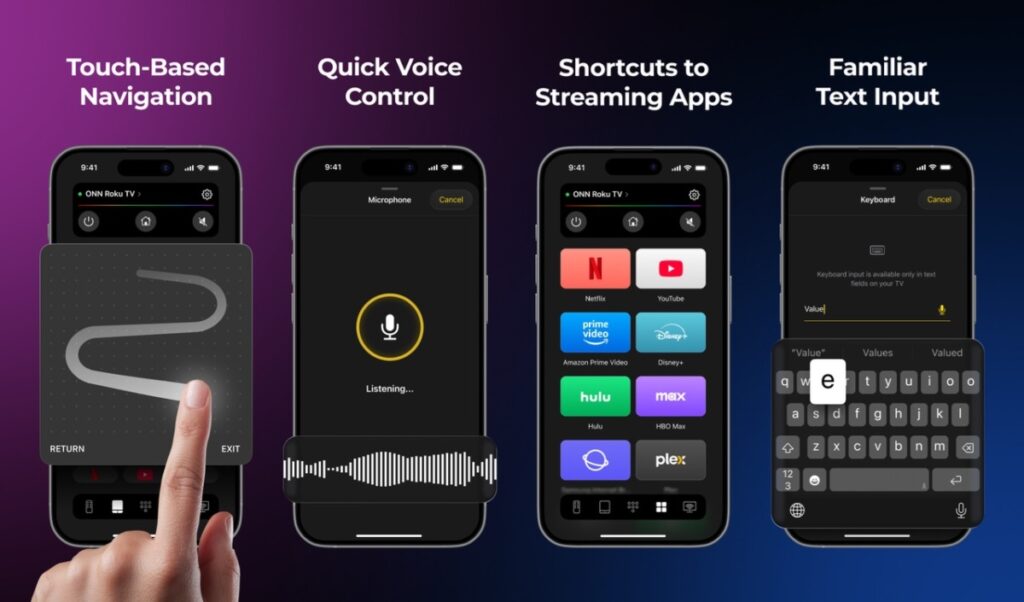
When choosing a remote app for your iPhone, it’s worth looking for features that make everyday navigation easier.
Some of the most useful include:
- Automatic TV detection
- Wi-Fi pairing
- Volume and playback controls
- Touchpad navigation
- Built-in keyboard
- Quick launch buttons for streaming apps
These features can make using your TV more convenient than relying on a traditional remote.
How to connect your iPhone to an Insignia TV
Most remote apps follow a similar setup process.
- Connect your iPhone and TV to the same Wi-Fi network.
- Open the remote app.
- Wait for your TV to appear in the list of available devices.
- Select your TV and confirm the pairing request if necessary.
Once connected, you can control navigation, playback, volume, and other supported functions directly from your iPhone.
Using a universal Remote App
If you own more than one smart TV brand, a universal remote app can be a convenient option.
For example, TVRem is an iPhone remote app designed to work with multiple compatible smart TV platforms. Depending on your TV model, it can provide navigation controls, a touchpad, a built-in keyboard, and quick access to streaming services.
The app is available on the App Store as TVRem – Universal TV Remote App.
Troubleshooting connection issues
If your TV doesn’t appear in the app, try these steps:
- Make sure both devices are connected to the same Wi-Fi network.
- Restart your iPhone and TV.
- Install the latest software updates for your television.
- Reopen the remote app and scan again.
- Check that remote control over the network is enabled in your TV settings.
Most connection issues can be resolved with one of these simple steps.
Final thoughts
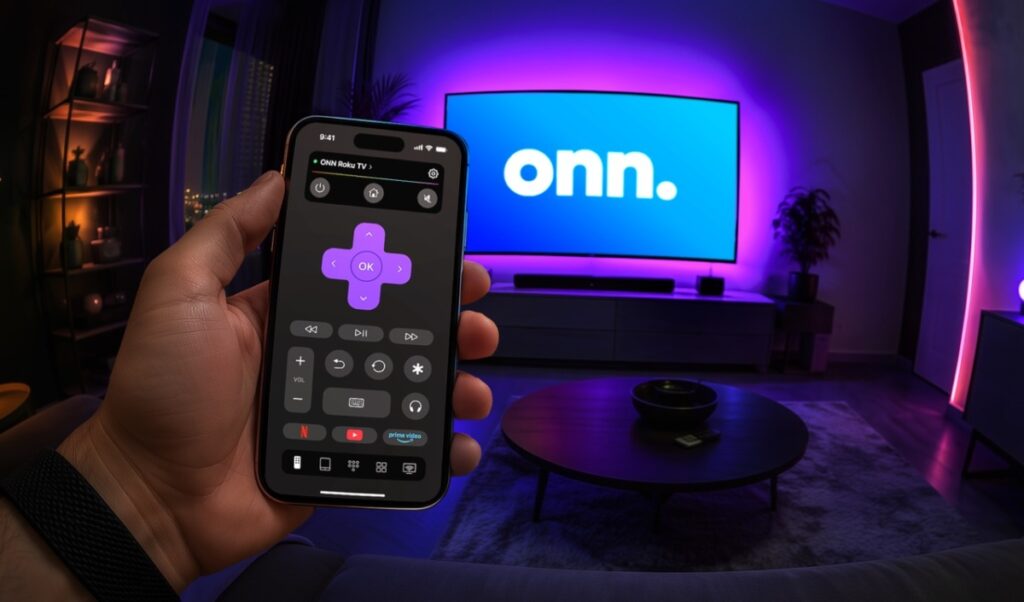
An iPhone remote app can be a useful replacement when your physical remote isn’t available. Whether you need basic navigation, volume controls, or easier text input, remote apps provide a convenient way to interact with compatible Insignia smart TVs without purchasing another remote.
About The Author

Gabriel Jones
NEXT UP