Trending Topics

 Trending
How do you separate first and last name in Excel?

You’ve got yourself a spreadsheet full of people’s names, and some idiot has failed to format the spreadsheet columns into first and surname, making it impossible to sort by surname. That idiot was me. Luckily, Excel is one step ahead of us morons, making it easy to split a column full of names into two separate columns with first and last names. Here’s how.
1. Insert a blank column
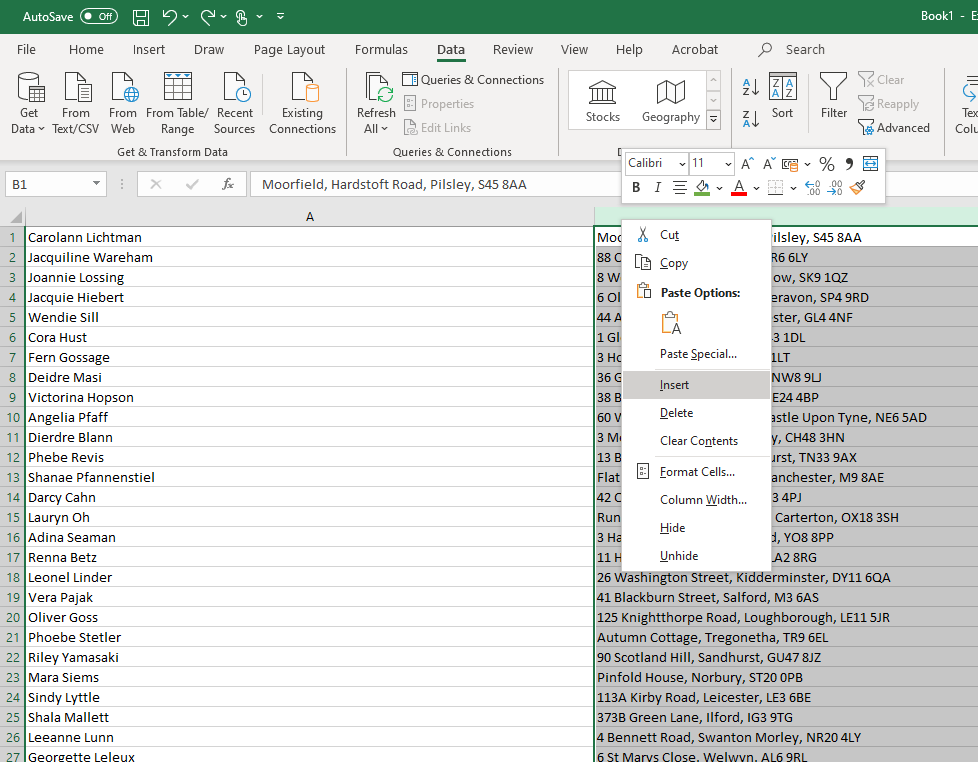
If you don’t have a blank column to the right of the one currently holding your names, you need to insert a blank one. This is where your surnames will be placed. To insert a column, right-click on the letter at the top of the adjacent column (in our case B), click Insert, and a blank column will appear.
2. Select Text to Columns
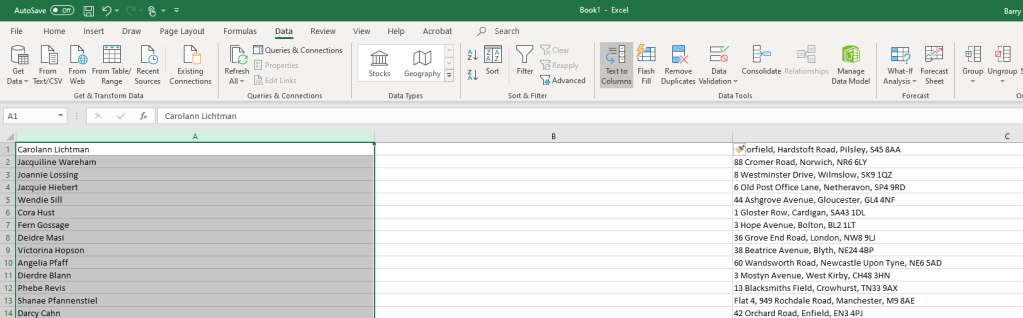
Now click on the letter at the top of your names column (in our case A), and the names should all be highlighted. In the menu at the top of the screen, click the Data tab and then click on Text to Columns.
3. Choose delimited by space
Now we need to tell Excel how to separate the two names. In our spreadsheet, the first and last names are separated by a space. In the pop-up window that appears, choose Delimited and click Next.
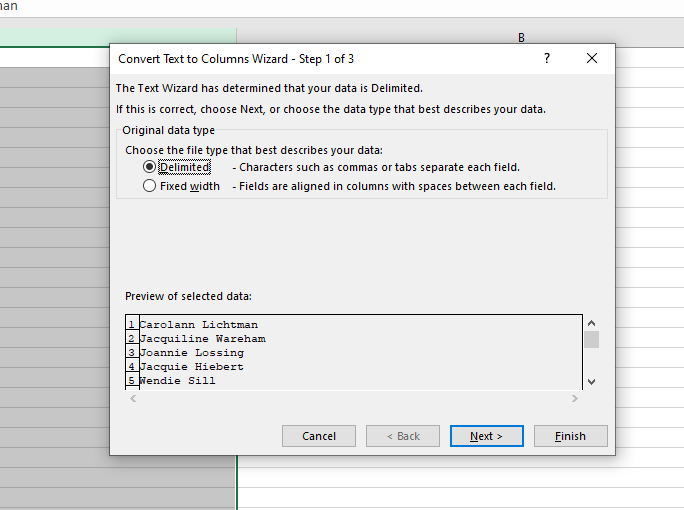
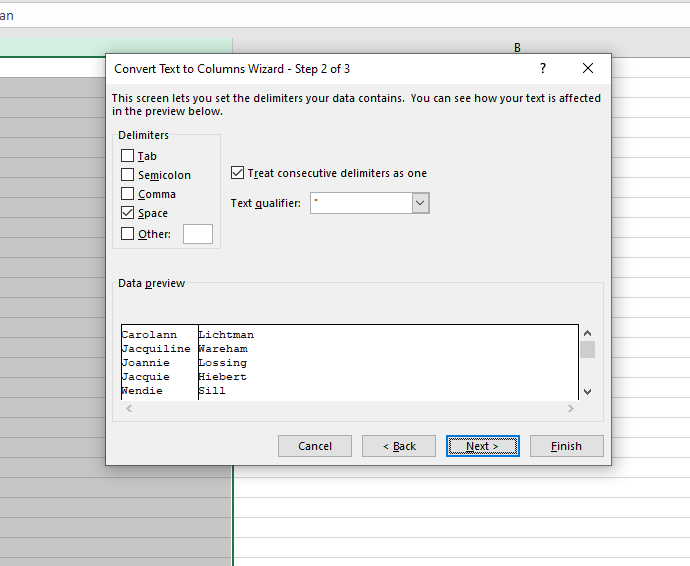
Then, on the next screen, choose Space and click Next once more:
4. Finalise the separation
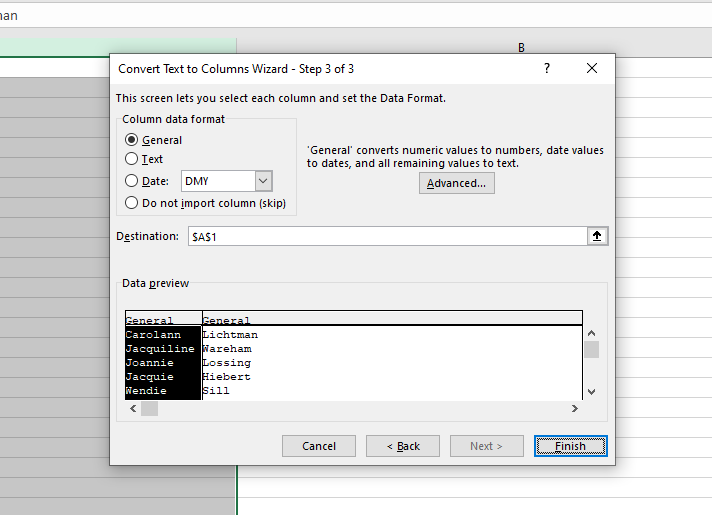
Another screen will pop up, giving you a preview of how your names will be separated. Click Finish.
5. Check your data
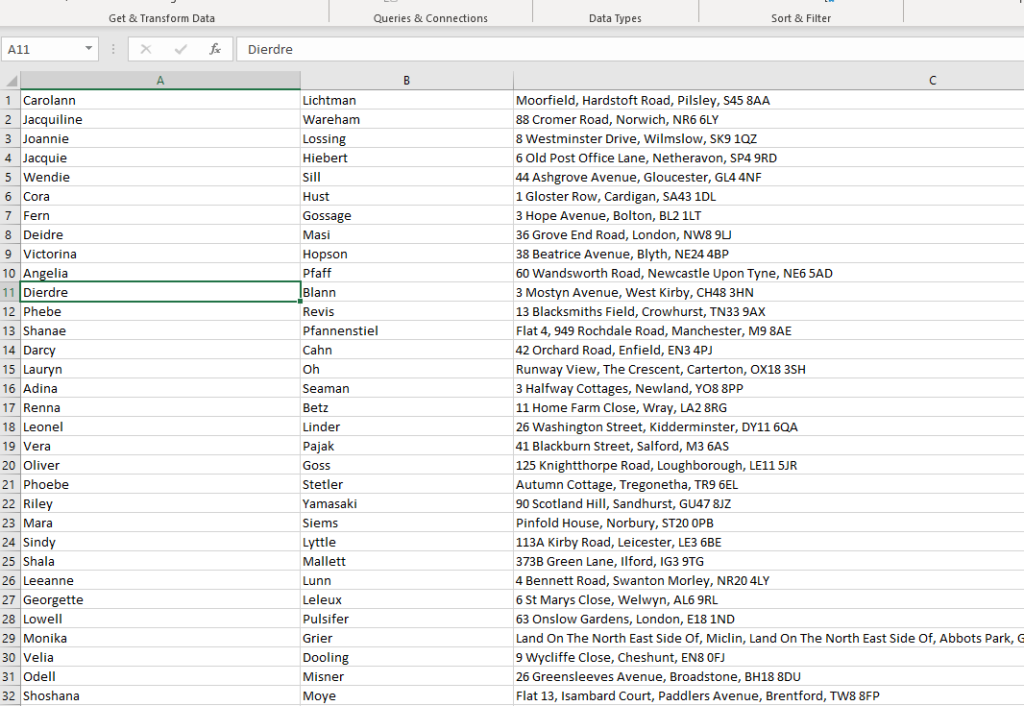
Your spreadsheet should now have two columns, one with first names and one with surnames. You will need to adjust the headings on the columns (if you have them) and maybe adjust the cell widths. It’s also worth combing through your data to make sure no errors have been introduced- double-barreled surnames with a space in between might need fixing, for example.
Additional explainers you might be interested in
About The Author

Barry Collins
NEXT UP


