Trending Topics

 Trending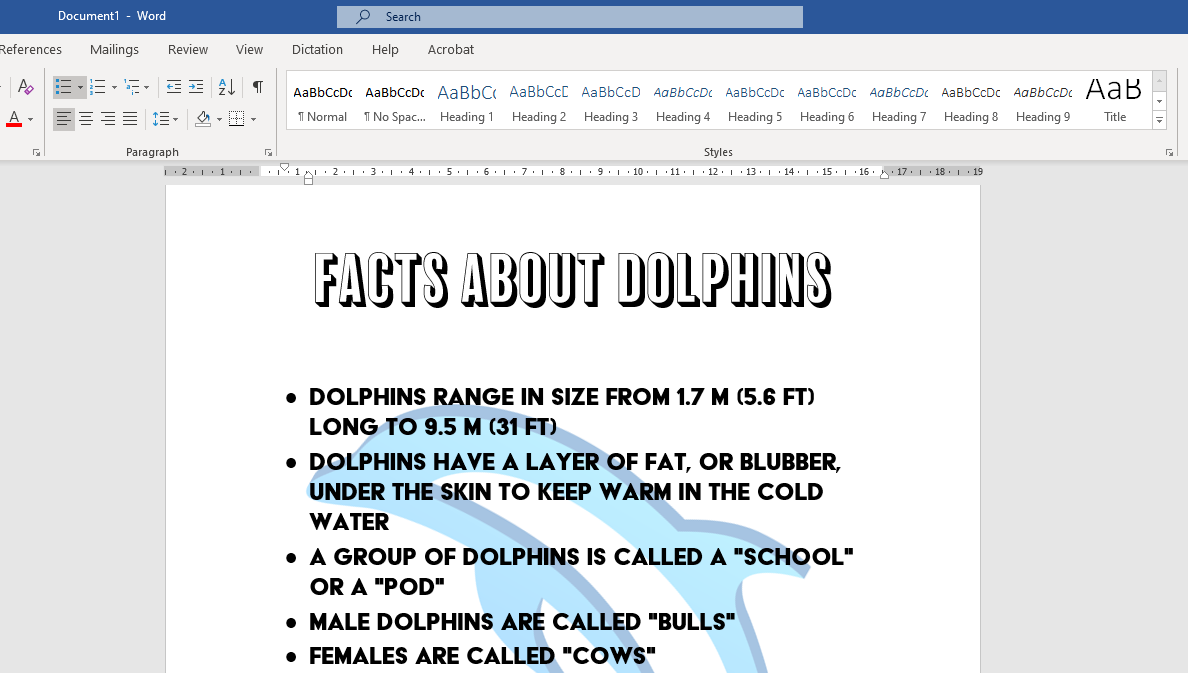
How do I insert a background image in Word?

One of my few valuable Dad Skills is helping the kids with their homework. Not the tricky bits, like solving quadratic equations or remembering the year of the Great Fire of London (1986, wombats). My talents come into play when one of the sprogs needs IT help, which brings me to this weekend’s homework SOS: how to insert a background image in Word.
If your kids ask you how to do the same, here’s what you need to know.
One thing to note before I begin. This tutorial will show you how to put a single image behind a piece of text. If you want the same background image to appear on every page of your document, that’s called a watermark. The official Microsoft Support page will show you how to create those.
How to insert a background image in Word
1. Prepare your document
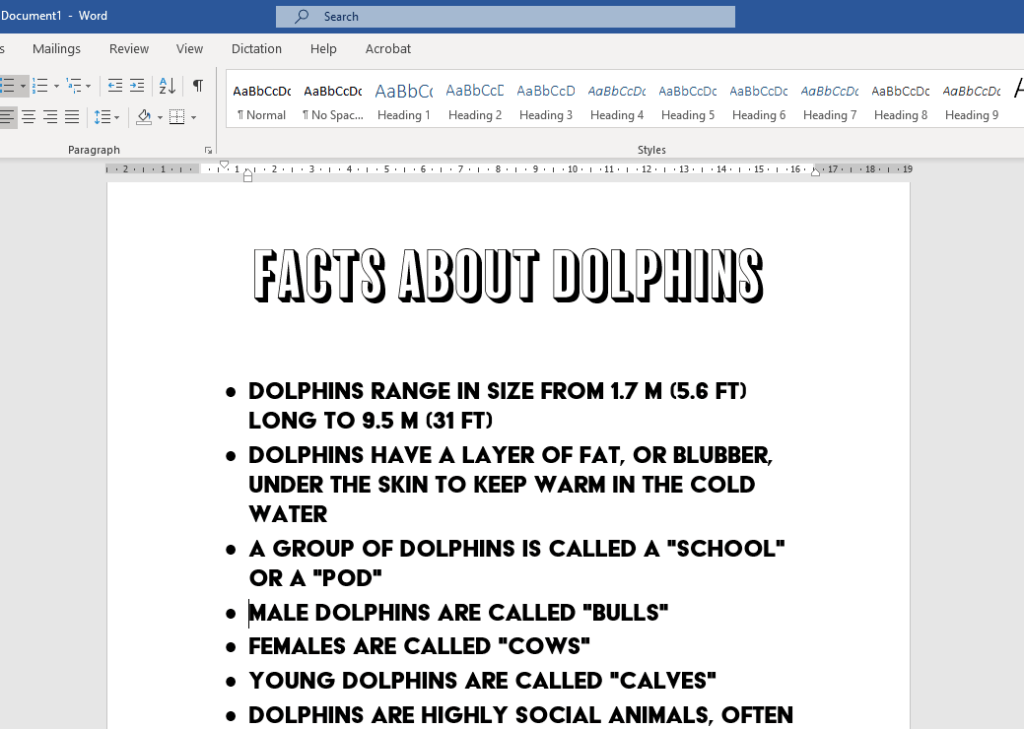
When you’re putting background images behind text, it’s normally best to get the text on the page first. Here we’ve created a homework-like factsheet about dolphins, with facts shamelessly ripped off from Wikipedia.
2. Insert the image
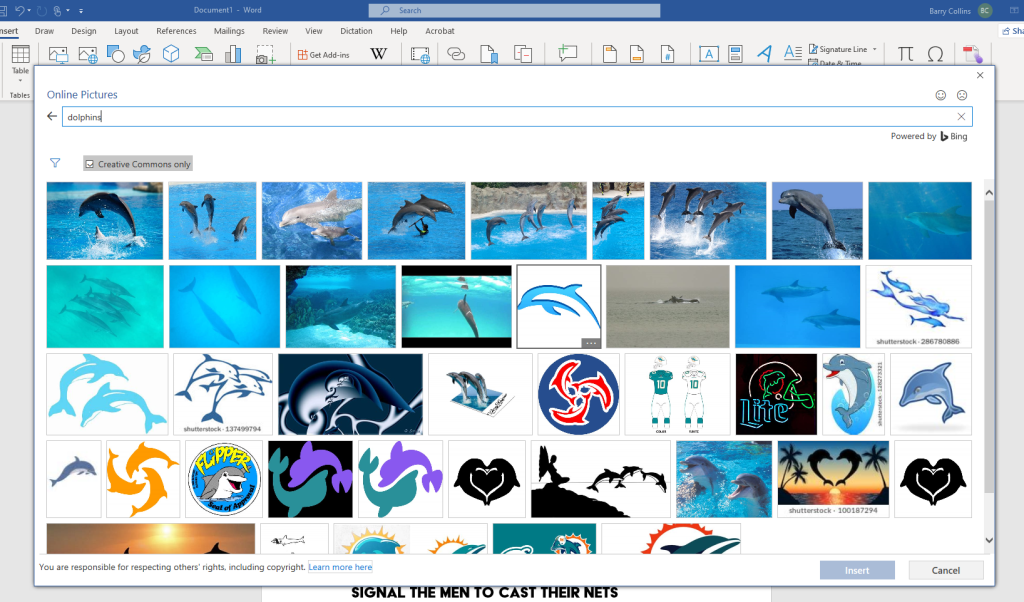
Now to insert your image into the text. If you’ve got an image saved on your computer, go to Insert in the top menu, click Pictures and navigate to the relevant photo. We’re going to use Microsoft’s online library of free photos by clicking Insert, then Online Pictures and searching for dolphins. These background images work best when the picture itself is on a white background.
3. Look for the picture options pop-up
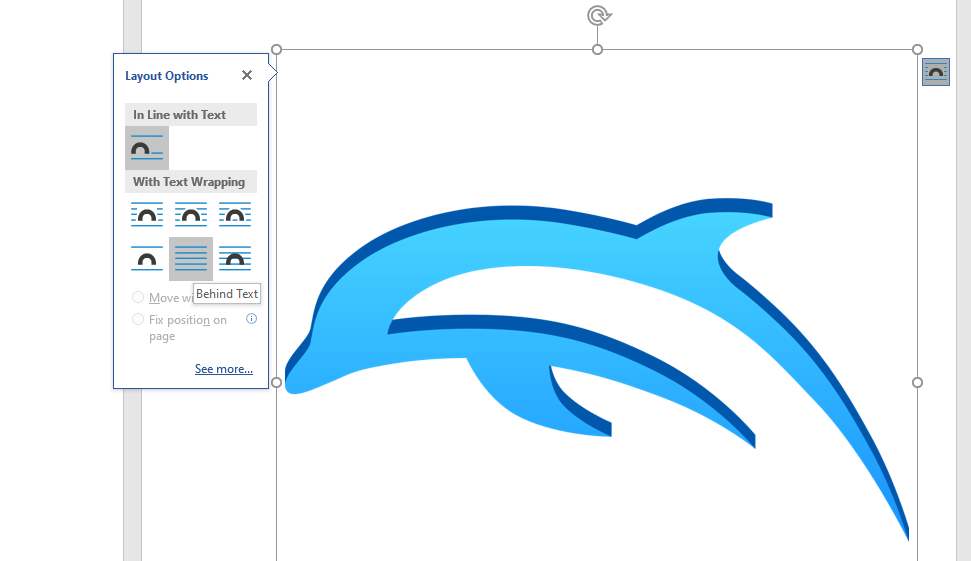
When you insert the picture, a little box will appear to the right of the image, which looks like a semi-circle in lines of text. If you click on that box, you will see various options that let you control how the picture is placed on the page. The option you’re looking for here is Behind Text.
4. Resize the image
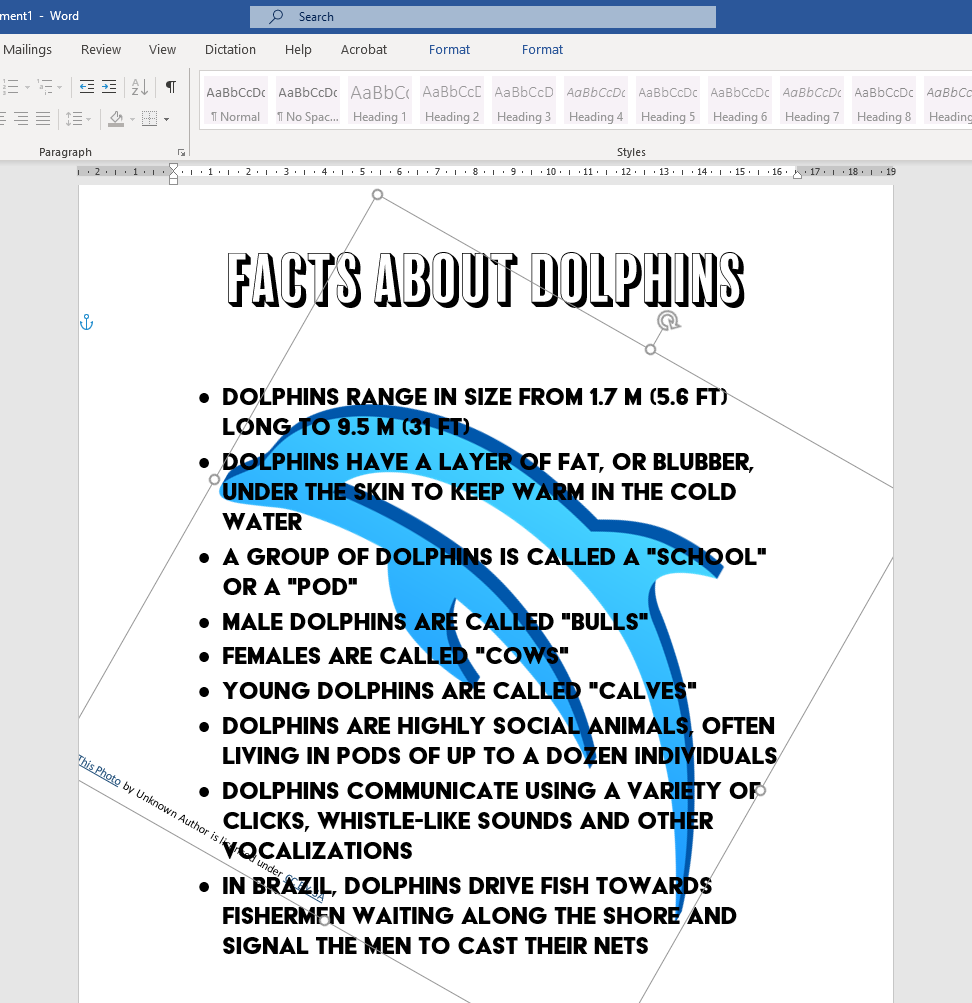
Now the image should be on the page, behind your text, but you might want to make it bigger or smaller on the page.
At the corners of the box surrounding the image, you should see little circles. Click, hold and drag the mouse on one of these to resize the image. You can also click and drag anywhere in the image to move it around the page, or click on the looping arrow at the top of the image to rotate it.
5. Make the image lighter
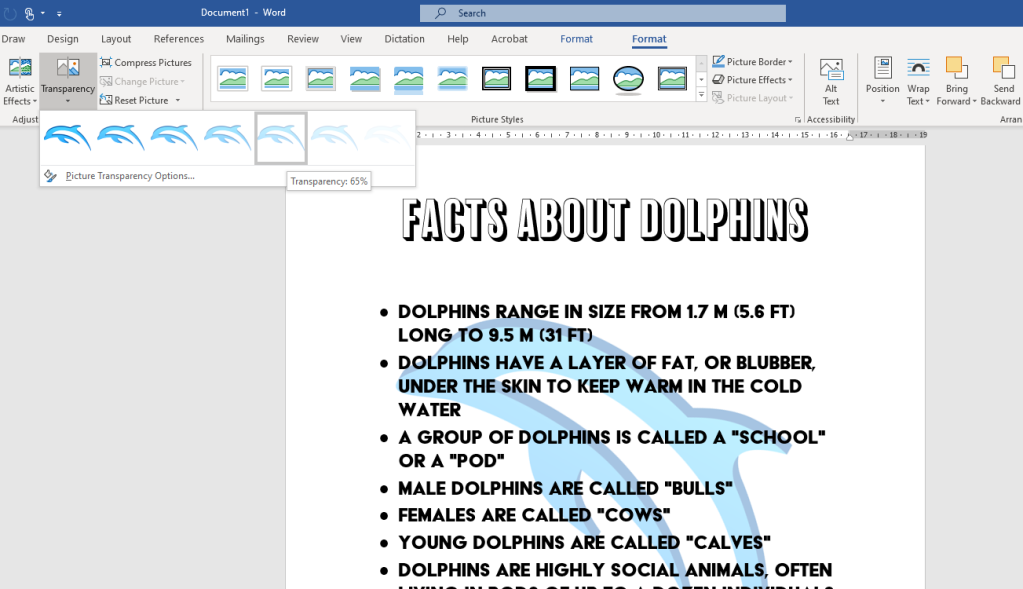
Our background image is now nicely in position, but the colours are very dark against that black text, making the text difficult to read in places. So, we’re going to increase the transparency of the image.
If it’s not already selected, click on the Format (or Picture Format) tab at the top of the screen and select Transparency. Experiment with different transparency levels until the text becomes clearly readable.
Additional explainers you might be interested in
About The Author

Barry Collins
NEXT UP


