Trending Topics

 Trending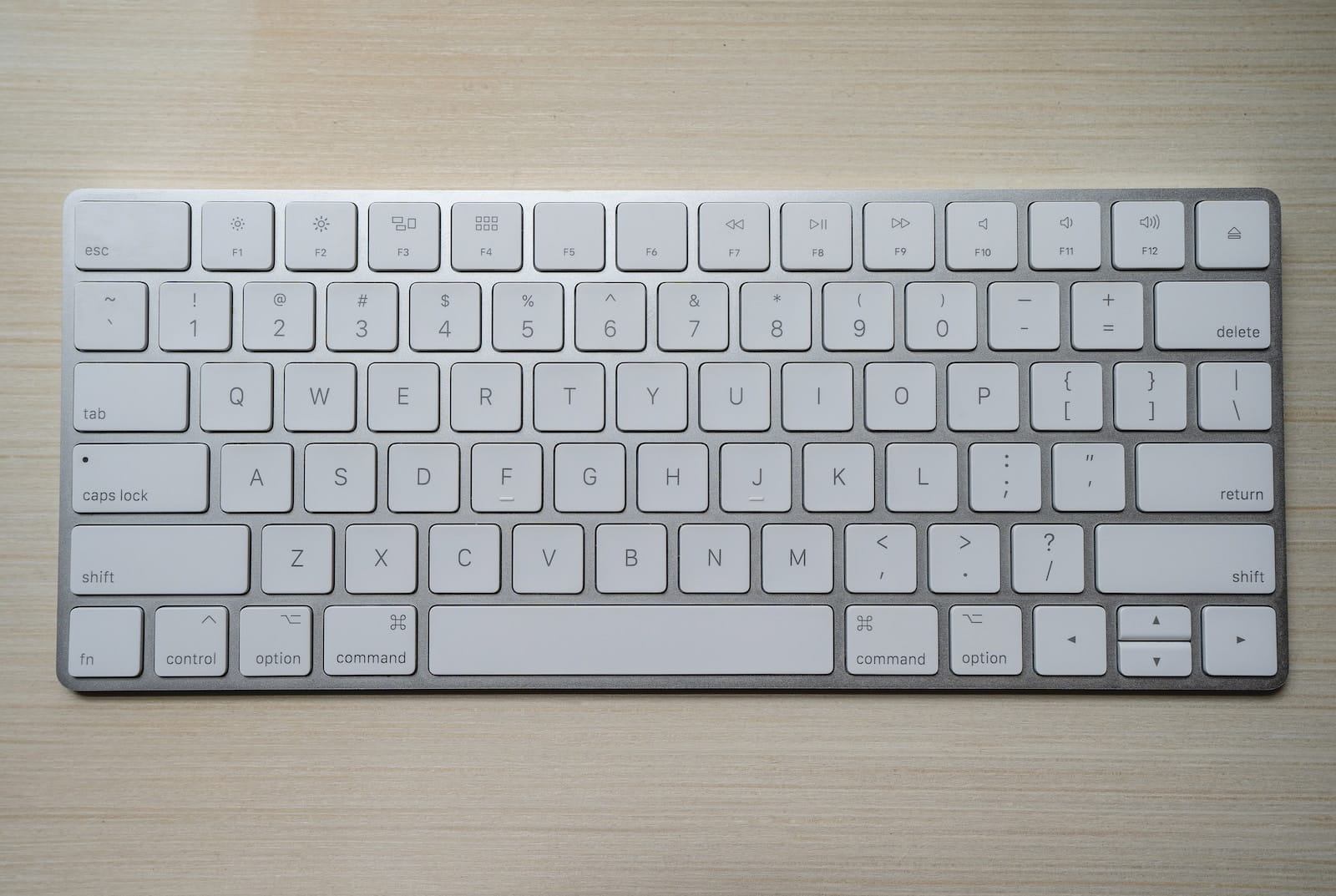
How do I use the F keys on a Mac?

If you’re playing a game such as Minecraft on your Mac, you might want the top row of keys to be used as function keys (F1, F2, etc.) rather than shortcuts for brightness, volume, etc. So how do you use the F keys on a Mac? There are a couple of ways…
Use F keys on a Mac: the quick way
If you only want to make occasional use of those F keys, you can simply press the fn key (bottom left on a MacBook keyboard) and the relevant key (F1, F2, etc.) to use it as a function key rather than a shortcut.
But if you’re playing a game such as Minecraft, which makes constant use of the F keys, you don’t want to be constantly pressing two buttons simultaneously. Instead…
How to make the F keys the default on a Mac
To turn that top row of keys into F keys first, shortcuts second, you can fiddle with the Mac’s settings.
- Click the Apple icon in the top corner of the screen and select System Settings
- Select Keyboard from the list of settings down the left of the settings window
- Click the Keyboard Shortcuts button on the next screen
- Select Function Keys from the list on the left and click the option to Use F1, F2, etc. as standard function keys
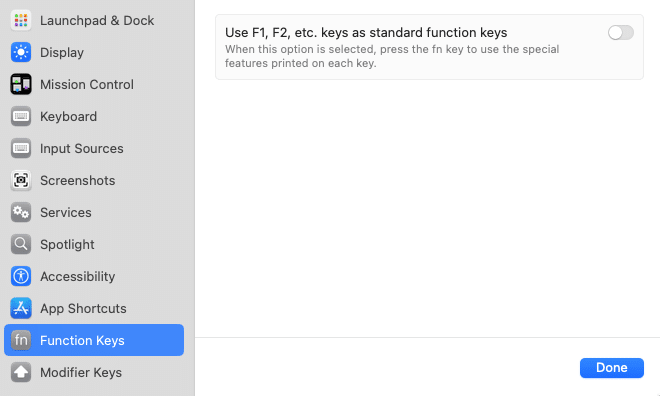
When you’re in this mode, pressing Fn and, say, F1 will reduce the screen brightness or whatever the relevant shortcut is.
Additional explainers you might be interested in
About The Author

Barry Collins
NEXT UP


