Trending Topics

 Trending
How do I force Dropbox to sync all my files on a Mac?

If you’ve installed Dropbox on a Mac recently, you might have noticed things are a bit different. Instead of automatically syncing all the files and folders to your computer, Dropbox encourages you to leave most files “online-only”, which means you don’t have local copies of the files. If you want the reassurance of having local copies of all your files, here’s how to force Dropbox to sync all your files on a Mac.
Change your Dropbox preferences
The first thing to do is to make sure you change your Dropbox preferences, so that all files are properly synced.
If you’ve got Dropbox installed on your Mac, click on the Dropbox icon in the Menu Bar at the top of the screen. In the window that opens, click on your initials in the top-right corner and select Preferences from the drop-down menu.
Now click the Sync tab and change the New files default to Available offline.

Select Dropbox folders to sync
Don’t assume that’s the job done. Now, under Select Folders to sync to this Mac click the Select folders button. Choose Select All at the top and then Update to make sure all of your Dropbox folders will be synced to the Mac.
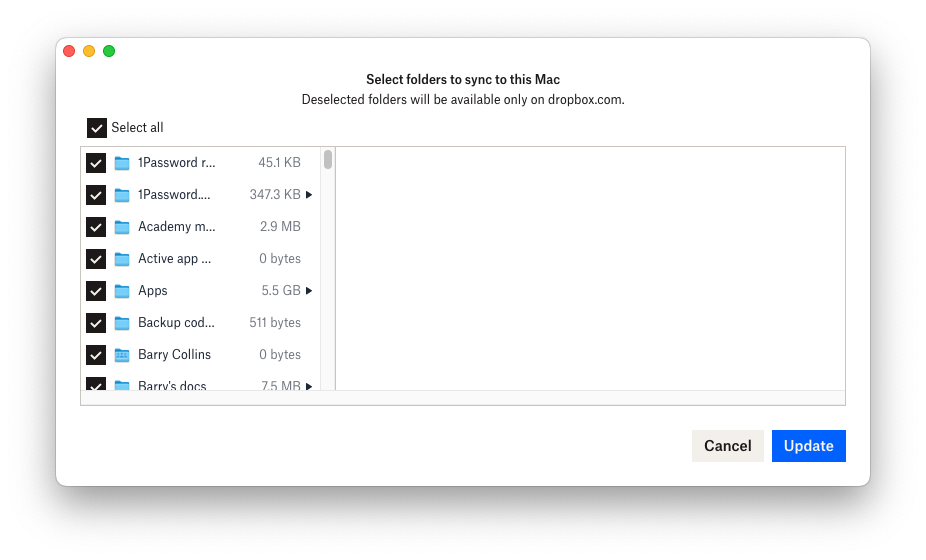
Force all Dropbox files to sync
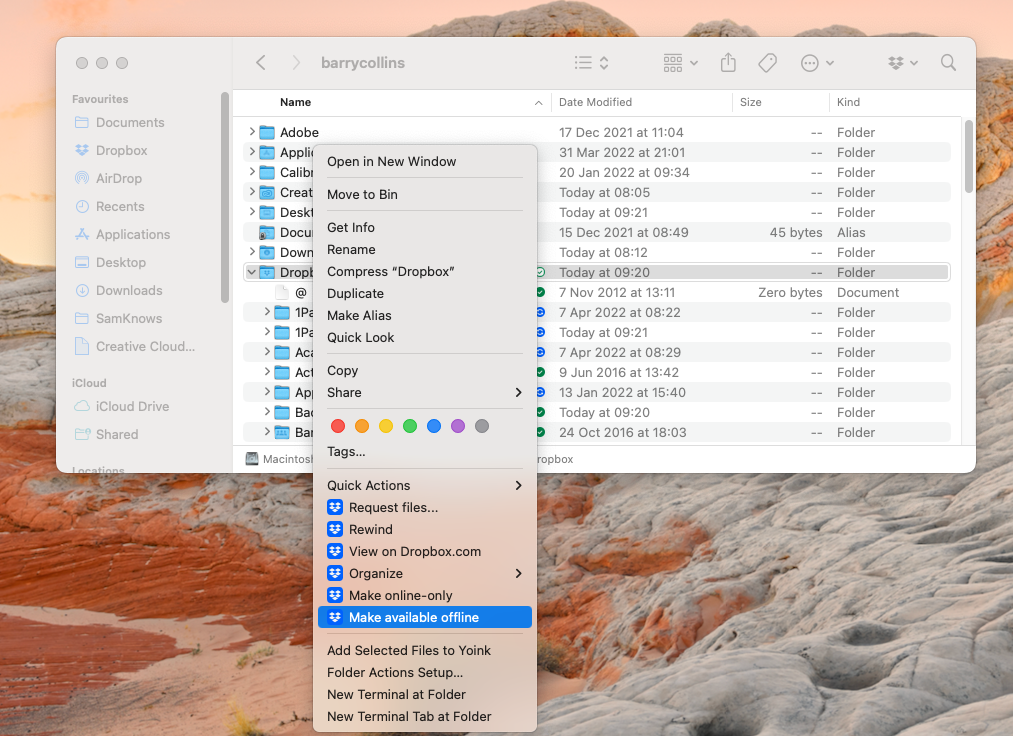
You’re still not done! If you’ve previously been using online-only folders, you need to force them all to sync with the Mac. You can do this on an individual basis, but the easiest way to do this is to force the entire Dropbox folder to be available offline.
To do this, open the Finder and from the Menu Bar at the top of the screen click Go and then Home.
You should find the Dropbox folder in the Home folder. Right click on the Dropbox folder and select Make available offline.
You should now see the folders in your Dropbox folder have a little blue arrow icon next to them, indicating they are being synced. When a folder is completely synced to your Mac, a green tick appears. You can see both icons in the screenshot below.
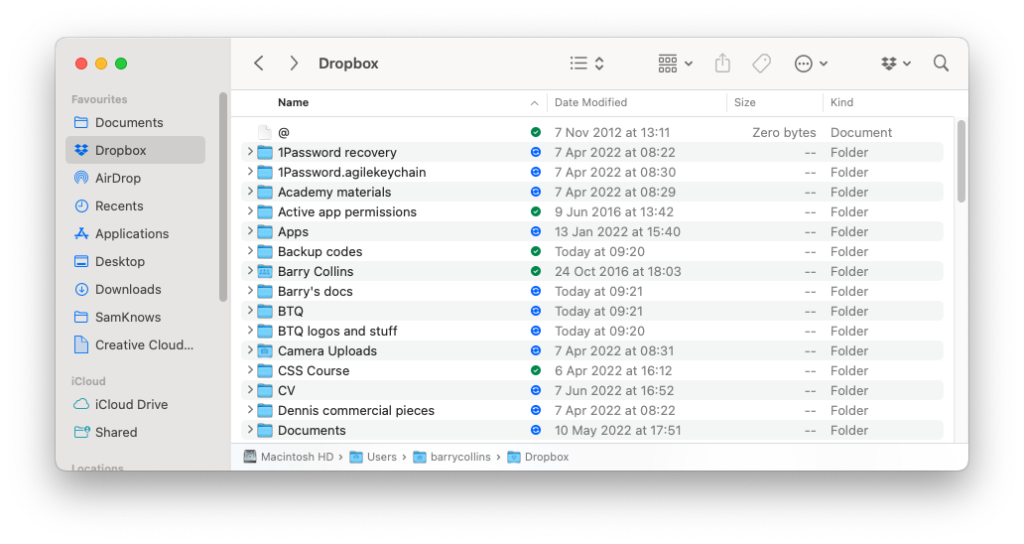
If you’ve got a lot of files and folders, the sync might take a fair while. When it’s done, you can rest assured you have a local copy of all the files in your Dropbox, meaning you don’t need to panic if you should find yourself locked out of your account.
Related Storage content
About The Author

Barry Collins
NEXT UP


