Trending Topics

 Trending
Can ChatGPT truly summarize a PDF? A user’s guide to AI summarization

This is a sponsored article brought to you by EaseUS Software
Part 1: Can ChatGPT Directly Summarise PDF Documents?
Are you wondering if ChatGPT can summarize a PDF? Yes, particularly after the recent ChatGPT-4 update. OpenAI has released a new capability where users can upload and work with files, such as PDF, Word, and presentation files. This update follows from the Advanced Data Analysis (initially called Code Interpreter) and is meant to deliver enhanced performance in text-based files. You can now upload a PDF directly and instruct ChatGPT to summarize or analyze its content, saving you time and effort.

Who can access the feature?
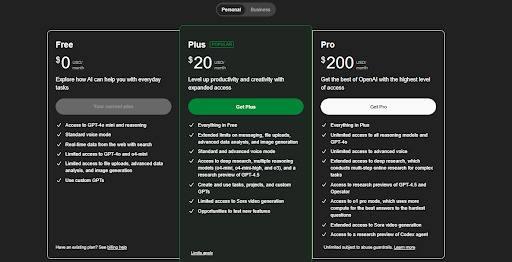
The feature is available in web and mobile versions for all ChatGPT Plus and Enterprise users. Free accounts also have restricted availability, and there’s a capacity for importing up to 3 files daily, while paying customers can upload up to 80 files every 3 hours. Remember, though, that lengthy documents can still need section-by-section summarizing because of token constraints, and PDFs with intricate formatting (such as tables or columns) can’t convert accurately into plain text.
How does ChatGPT process input?
ChatGPT’s fundamental task is to work with plain text and respond accordingly. If a PDF must be summarized, the AI does not “read” the file format objectively. Rather, its contents need to be extracted and translated into readable text. This is normally done by copying and pasting PDF content or extracting content using third-party programs. GPT-4 file upload makes this step easier for you by converting internally, but this background process remains essential to how ChatGPT processes document information.
Part 2: Key Restrictions on Summarizing a PDF using ChatGPT
Although ChatGPT-4 currently has direct summary and PDF upload support, certain limitations can impact accuracy and quality results. Listed below are some technical and content-related issues users should anticipate encountering.
Technical Limitations:
- File upload access depends upon the version: Only ChatGPT-4 Plus and Enterprise users are allowed to upload files without restrictions. Free users have restricted access—only up to 3 uploads daily—which could hinder the tool’s functionality for intensive document processes.
- Input length and token constraints: Although capable of reading files, ChatGPT has a finite number of tokens (segments of text) that can be reviewed for each response. Large PDFs result in ChatGPT typically “seeing” just part of an item at a time, and users need to summarize in sections or specify page ranges.
- Incompatibility between file formats and encoding problems: Although ChatGPT can retrieve content from all but poorly formatted or non-standard character-encoded PDFs (e.g., scanned, symbols, or odd fonts), these may not be properly interpreted—resulting in garbled summaries or missed content.
Content Extraction Challenges:
- Multilevel layouts are challenging: PDFs containing multi-columned text, embedded tables, or infographics can mislead the AI. The AI reads words out of order or misinterprets tabled data, which lessens the coherence in summary making.
- 2. Loss of formatting and context in conversion: If manually copied and pasted from a PDF into a text format, a PDF can lose structural indications such as headers, lists, and spaces—becoming less understandable for ChatGPT in terms of the document’s flow and context.
Impact on Summary Quality:
All such limitations can lead to incomplete, disjointed, or misleading summaries. When ChatGPT runs into context limits or formatting losses, it can leave out important details or misinterpret the purpose for which a document was created. Although GPT-4’s file upload capability does diminish some such problems, it does not eradicate them completely.
Pro tip: To get the best results, divide longer documents into small sections, employ clear prompts (e.g., “Summarize pages 1–5”), and upload well-formatted, text-based PDFs where possible.
Part 3: Exploring AI Tool Alternatives to Summarize a PDF Effectively
If you need a free, AI-based PDF summarizing solution that can effectively substitute expensive platforms such as ChatGPT-4, then EaseMate AI ChatPDF is a viable choice. With an easy and seamless mechanism for uploading, analyzing, and extracting important information from files without requiring previous knowledge or installation, EaseMate makes it easy to review academic papers, business reports, or even medical journals and transform lengthy PDFs into actionable summaries within seconds.
With advanced AI-based models and OCR technology embedded, this service summarizes and allows natural-language querying of uploaded files, enabling you to ask targeted questions and get direct answers back. It accommodates various file types along with support for different file formats such as DOC, PDF, and PPT.
Key features of EaseMate AI ChatPDF:
- Free and unlimited access: Upload and chat with as many PDFs as you want—no login required for basic usage.
- Natural conversation interface: Ask questions, get summaries, and explore content like chatting with an assistant.
- Multi-format support: Works with PDF, DOC, and PPT files for maximum flexibility.
- Advanced AI models: Integrated with top-performing models like GPT-4o-mini, Claude 3 Haiku, DeepSeek V3/R1, and LLaMA 3.3 70B.
- OCR-powered recognition: Extracts text even from scanned or image-based PDF files.
How To Use EaseMate AI ChatPDF in 3 Simple Steps?
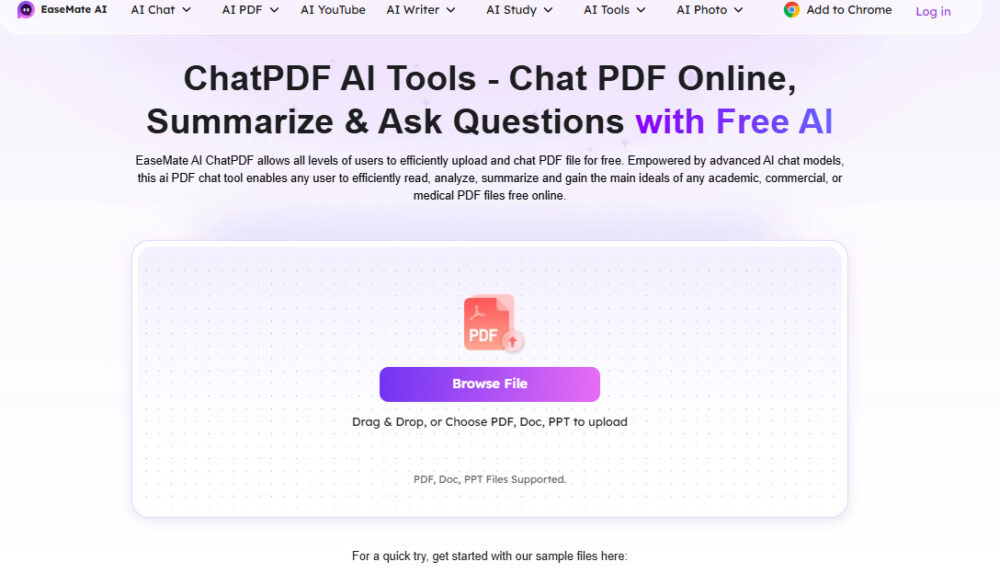
Step 1: Upload Your PDF File
Visit EaseMate AI ChatPDF and drop your PDF, DOC, or PPT file into the upload zone, or click “Browse File” to select it from your device.
Step 2: Let AI process your document
Once loaded, EaseMate’s AI processor automatically scans and interprets your file through its built-in models and OCR (as required). Your document will be available for use—summarized and divided into sections for easy understanding—in mere minutes.
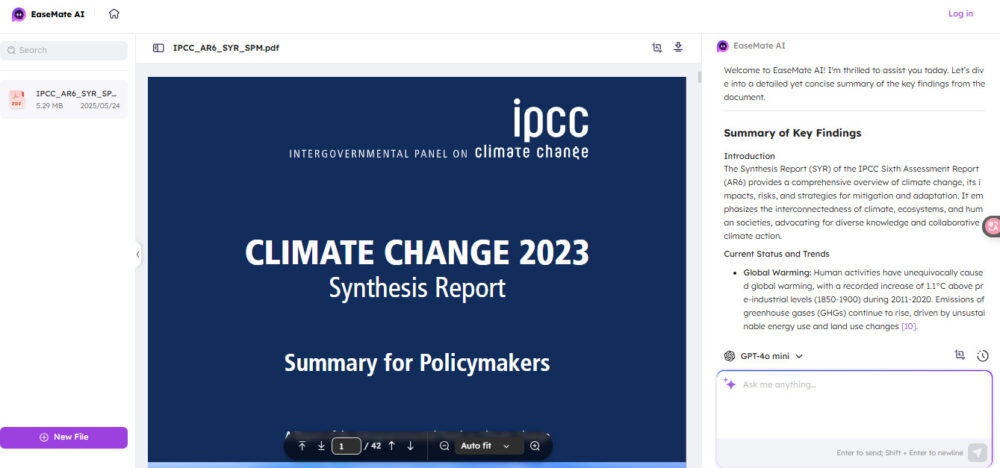
Step 3: Chat, ask questions, and investigate summaries
Utilize the chat functionality to query any given section, ask for an overall summary, or dig deeper into any subject described in the file. The AI will reply in natural language, providing straightforward explanations and concise responses.

Part 4: Indirect Methods for Using ChatGPT with PDFs
Copy-pasting PDF text into ChatGPT
The straightforward copy and paste from a PDF onto ChatGPT is one of the simplest and easiest ways for beginners. You can use it to paste a quick piece or section for rewriting, explanation, or summarizing. This is best suited for brief texts or focused excerpts where formatting does not matter much.
Converting PDFs into Plain Text
PDF-to-text converters provide a cleaner way of working with ChatGPT. By converting your PDF into .txt or .doc, you can remove content easily and eliminate much of the formatting hassle involved in copy-pasting directly. This is specifically helpful for long texts since you can get cleaner inputs for AI processing in return. Adobe Acrobat, Smallpdf, and OCR-based platforms would be examples for converting regular PDFs and image-based ones.
Using Extensions or Third-Party Integrations
Several browser extensions and third-party integrations now offer hassle-free solutions for working with PDFs through ChatGPT. These extensions normally scan content from PDFs and directly link them to AI models, enabling you to query or summarize content within one single interface. However, not all extensions are equal; solid ones will save you time by automating content parsing and maintaining content organization. But you should screen these extensions for safety, compatibility, and accuracy if you’re working with sensitive or official content.
Assessing Effectiveness for Indirect Methods
While indirect means will never provide the same accuracy as dedicated AI PDF tools, in many cases, they are still remarkably useful for people working without premium plans or intricate integrations. People can extract useful insights despite working without premium subscriptions or complex integrations.
Part 5: Conclusion
When summarizing, analyzing, or working with PDFs through AI, there are a lot of choices—but not all are as effective or convenient. Indirect approaches such as copy-pasting or relying on third-party integrations can prove useful in some situations but often need additional steps and human-facilitated adjustments that could slow up your workflow or reduce accuracy.
For a fast, effective, and robust experience, EaseUS ChatPDF is just what you need. You are all set with multi-model AI-enabled support for all file formats, integrated OCR, secure computation, and all the functionality you need for effective chat discussion with your PDFs!
Part 6: FAQs
How accurate are AI-generated PDF summaries?
The quality of AI output in PDF summarizing relies heavily upon the nature of the input content and the level of sophistication of the AI algorithm. EaseUS ChatPDF uses highly sophisticated AI models, including GPT-4o-mini and DeepSeek V3, which can generate highly accurate and contextualized summaries.
Are there free AI tools that can summarize a PDF?
Yes, there are various free AI-based PDF summary tools available. EaseUS ChatPDF is a leading free tool with no file size restrictions or needs for logging in while uploading for summary purposes. Apart from summarizing PDFs, this tool even permits users to chat and interact with the document using AI-based chat functionality.
How long does it take for AI to summarize a PDF?
The summarizing process tends to be quite fast. Most AI-based technology, such as EaseUS ChatPDF, takes just seconds to a minute, subject to how complex and lengthy the document is. OCR-supported technology may take a bit longer when handling scanned image-based PDFs, though the process remains time-saving and fast overall.
Sponsored articles are not part of TechFinitive’s editorial content and do not constitute an endorsement of the products, services, solutions, or otherwise mentioned in them.
About The Author

Cedric Grantham
NEXT UP


