Trending Topics

 Trending
How to repair corrupted MOV files [fixed!]

This article is brought to you by our sponsor, EaseUS.
MOV files are used for high-quality video. However, corruption can make them unusable. You may get “Cannot open file” error, sluggish playback, missing audio, or freezing frames. These errors can be irritating, especially with crucial videos.
MOV file corruption has various causes. During video editing, an unexpected system shutdown may harm the file. Corruption might also result from botched downloads or transfers. A media player failure or missing codec can prohibit file playback. A virus or malware attack can corrupt video files on a device in other circumstances.
There are several ways to fix corrupted MOV files. Simple solutions like VLC and QuickTime, online extensiosn, and more are covered in this guide. EaseUS Online Video Repair is fast and effective. Let’s find the best methods to repair corrupted mov files.
Common causes of MOV file corruption
MOV files can corrupt for several causes. Know these causes to avoid file harm and discover the best solution. The most common MOV file malfunctions are listed below.
1. Media Player Malfunction
A malfunctioning media player may not play MOV files. Outdated or missing codecs may prevent the player from supporting the video format. Playback issues can also result from software bugs, making the file appear corrupted. Use a reputable, updated media player to avoid similar troubles.
2. Sudden System Shutdown
It may be damaged if your computer crashes while playing or editing a MOV file. A power outage, system crash, or forced restart can cause this. Interrupted file processing causes incomplete or damaged video data. A UPS or frequent backups can prevent this issue.
3. Interrupted or Incomplete Download
Downloading MOV files online demands a steady connection. A weak network or sudden shutdown may interrupt the download, corrupting the file. Missing file structure sections might cause playback issues or video not opening. Download videos from reliable sources and maintain a stable connection to avoid this.
4. Improper File Transmission
Device transfers can corrupt MOV files. An unstable connection, unexpected storage device removal, or file copying interruptions can cause this. Incomplete transfers might erase vital data, rendering the file unusable. Moving files safely requires safe ejection and no unexpected disconnections.
5. Malware or Virus Infection
Viruses and malware can damage computers and external drive MOV files. Malicious programs can change or remove file contents, preventing video playback. Regular antivirus scans and avoiding dubious downloads help prevent file corruption.
6. File Header Corruption
A MOV file’s format, size, and structure are in the header. The file may not open if software faults or inappropriate editing harm the header. Repairing the header or utilizing a recovery tool can restore the video.
Repair MOV files using online repair tools
Online restoration tools are easy to use for corrupted MOV files. These tools restore corrupted videos rapidly without software. Amongst all, EaseUS Online Video Repair is distinguished for its AI-powered repair, multi-format support, and user-friendly interface. It can fix MOV files damaged by transfer problems, power outages, file corruption, or erroneous conversions.
Free and powerful EaseUS Online Video Repair can fix corrupted MOV files and restore their quality. It supports MP4, MOV, AVI, MKV, FLV, and others. AI-powered EaseUS can correct grainy, stuttering, missing audio, or unplayable videos.
Key Features of EaseUS Online Video Repair
- Automatically finds and fixes corrupted video files with AI-powered video repair.
- Maintains original quality by repairing videos without compromising resolution, colors, or features.
- Use it quickly and easily to upload, restore, and download videos in just three clicks.
- Privacy-protected and does not keep uploaded files.
- Supports multiple devices for video repair, including cameras, smartphones, and storage devices.
Steps to Repair MOV Files with EaseUS Online Video Repair
Just follow these simple procedures to repair corrupted MOV files:
Step 1. Upload corrupted MOV
Click “Upload Video” on EaseUS Online Video Repair. Drag and drop the corrupted MOV from your device.

Step 2. Start the Repair Process
Type a valid email address. Click “Start Repairing” to start automated repair.
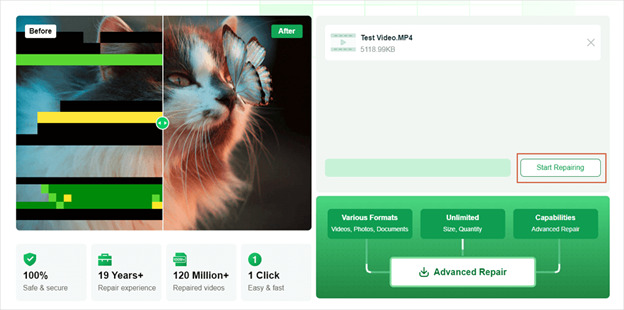
Step 3: Let the Repair Finish
Depending on file size, repair may take time. Keep the page open or work elsewhere while the tool functions.

Step 4: Retrieve the Repaired MOV File
After the repair, an email will be issued. Copy and paste the “extraction code” from the email into the webpage and click “OK.” Download the fully fixed MOV file.

Repair MOV Files Using VLC
VLC Media Player can fix corrupted MOV files. VLC, a free, open-source media player, can repackage broken MOV files. It’s great for correcting file header damage and recording disruptions. VLC runs on Windows and Mac, making it convenient for everyday users. It supports many encoding formats with its built-in FFmpeg library. Steps to fix MOV files with VLC:
Step 1. Start with VLC Media Player. Click “Media” in the top menu. Choose “Convert/Save” from the dropdown menu.
Step 2. Find the corrupted MOV file by clicking “Add” and browsing. Click “Convert/Save” to begin.
Step 3. Select “Customize” and choose the desired output format. Decide on MP4 or another format from the drop-down list.
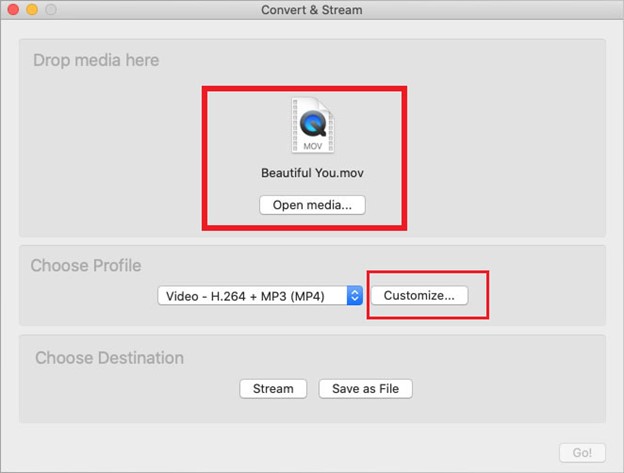
Step 4. Choose a new location for the repaired file. Repair begins with “Start.”
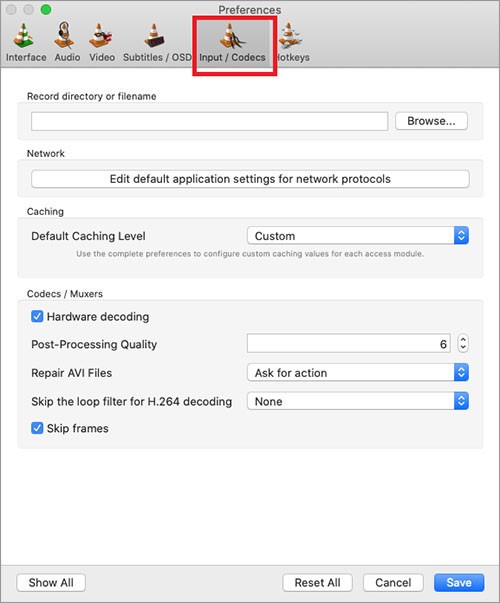
Step 5. Click “Preferences” from the “Tools” tab. Select “Always fix” under “Damaged or Incomplete AVI file.” Play the MOV file again after clicking “Save.”
Repair MOV Files Using QuickTime
QuickTime Player can fix minor corruption in MOV files that won’t play. Apple’s media player handles playback pauses and file header corruption because MOV is a native QuickTime format. This solution works best for Mac users. QuickTime’s ProRes encoder restores corrupted MOV files well. Repair your MOV file with these steps:
Step 1. Open QuickTime 7 Player. Click “File” and select “Open File” to open the corrupted MOV file.

Step 2. Select “Window” from the menu. Open the video details panel by selecting “Show Movie Inspector.”Step 3. Movie Inspector shows file format, FPS, resolution, and duration. If the MOV file is destroyed, QuickTime will display an error message in metadata. Find the error code online to identify the best fix.

Repair MOV Files Using Online Converter
Online video restoration tools may fix corrupted MOV files quickly and for free. Online Converter repairs MOV, MP4, and 3GP files without installing software. It can cure minor video corruption and convert videos.
Repair damaged video in minutes with a web browser on your PC or phone. Fix your MOV file online for free with these instructions.
Step 1. Visit Online Converter – Repair MP4 on your browser.
Step 2. Click “Choose File” and choose your broken MOV. Upload a functioning MOV file from the same device.
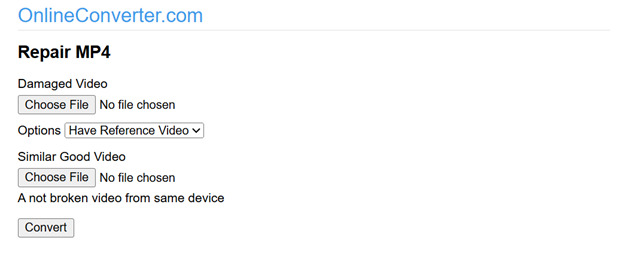
Step 3. Click “Convert” to fix the corrupted MOV file. The repair process will start.
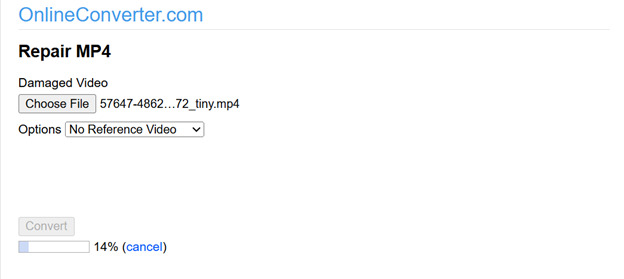
Step 4. Click “Download Now” to save the corrected video. Convert the repaired MOV file to MP4 as _fixed.mp4.
Manually modify the MOV file extension
If your MOV file isn’t playing properly, you can fix it manually by changing the file extension. This method requires no software and is 100% free. By renaming the file from.mov to.mp4, you may be able to avoid minor corruption concerns and restore video playback. Follow the steps below:
Step 1. Open Finder, right-click the MOV file, and choose “Rename”.

Step 2. Replace.mov with.mp4, then press “Return.”
Step 3. When prompted, select “Use.mp4” to confirm the change.
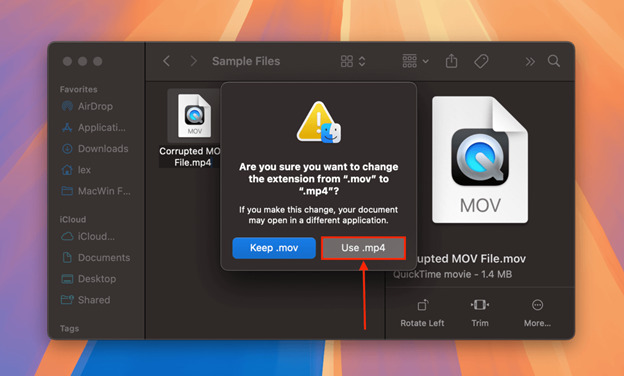
Step 4. Try opening the newly converted video to see whether the problem has been resolved.
Conclusion
Dealing with a corrupted MOV file might be frustrating, but you can rapidly recover your recordings with the correct tools and approaches. We looked into numerous options, including VLC Media Player, QuickTime Player, internet converters, and manual file extension adjustments. Each option offers advantages, depending on the type and severity of the file corruption.
For a more dependable and efficient repair process, we strongly recommend EaseUS Online Video Repair. This powerful program offers a user-friendly, cloud-based solution for repairing damaged videos without installing software. It supports various formats, including MOV, and can easily fix playback issues, missing audio, and broken video frames.
If your MOV file is still unplayable, use EaseUS Online Video Repair for a simple one-click solution. It’s fast, free, and available from any device, so you’ll never lose your valuable videos again.
About The Author

Jean Liu
NEXT UP


