Trending Topics

 Trending
How do you Track Changes in Google Docs?

Table Of Contents−
- Where to find Track Changes in Google Docs?
- How do you accept/decline Tracked Changes in Google Docs?
- How do you turn off Track Changes in Google Docs?
- Will Tracked Changes in Microsoft Word documents appear in Google Docs?
- How to track changes when sharing a Google Doc via a link
- Viewing a document’s version history in Google Docs
- Add-ons and extensions to enhance Track Changes functionality
- You might also want to read
Track Changes is one of those Microsoft Word features that has become an everyday staple of business life. But if your business has shifted over to Google Docs, you might struggle to find the same feature. Good news: you can Track Changes in Google Docs but the feature has a different name.
Where to find Track Changes in Google Docs?
Track Changes is called Suggested Edits in Google Docs. You can enter Suggested Edits mode by clicking the Editing button in the top-right corner of the screen, and selecting Suggesting from the drop-down menu.

If you’re in the Google Docs mobile app, click the three dots in the menu at the top and select Suggesting from the menu that appears.
Once you’re in Suggested Edits mode, you’ll find it works much like Track Changes. Anything you delete will be struck through in green, and any added text will be highlighted, as shown below:

How do you accept/decline Tracked Changes in Google Docs?
If you’re taking in other people’s Suggested Edits on a Google Doc, it’s pretty easy to accept or decline the amendments.
Down the right-hand side of the document, you should see a list of the Suggested Edits. If you don’t see them, you may be in Viewing mode. Click the Viewing label in the top-right of the Google Docs menu and select Editing.
The Suggested Edits will appear like this:
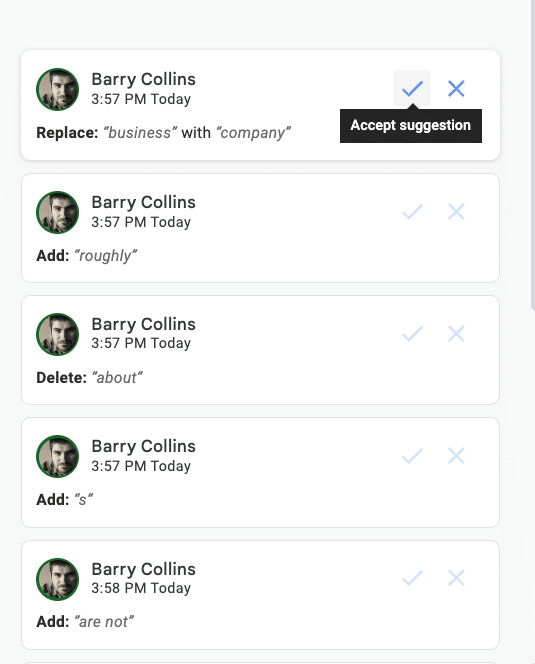
You can hit the tick or cross on each Suggested Edit individually to accept or reject. Alternatively, if you click Tools then Review Suggested Edits, you should be given the option to Accept All or Reject All.
How do you turn off Track Changes in Google Docs?
To stop making Tracked Changes in Google Docs, click on Suggesting in the top-right of the screen and switch to Editing. If you’ve got any unresolved Suggested Edits, you might want to accept or reject them as described above.
If you want to see the document as it would appear with Tracked Changes/Suggested Edits accepted, switch to Viewing from that menu.
Will Tracked Changes in Microsoft Word documents appear in Google Docs?
Yes, they will. If you upload a Word document to Google Docs and start to edit it, the Tracked Changes will appear as Suggested Edit
How to track changes when sharing a Google Doc via a link
If you’re sharing a Google Doc via a link rather than directly adding collaborators, it’s important to set the correct permissions so recipients can suggest edits rather than make immediate changes.
Here’s how:
- Click the Share button in the top-right corner.
- Under General access, set the access level to Anyone with the link.
- From the drop-down menu, select Commenter instead of Editor.
Why Commenter? Because Commenter access allows users to make Suggested Edits without giving them full editing control, preserving your document’s integrity while still gathering feedback.
Viewing a document’s version history in Google Docs
While Suggested Edits are useful, sometimes you need to see a full history of changes — especially if edits were made in Editing mode instead of Suggesting. Google Docs quietly keeps a comprehensive log of document revisions:
- Click File in the top menu.
- Choose Version history > See version history.
You’ll see a timeline of edits, showing who made changes and when. You can click any version to preview, name important versions for reference, or even restore an earlier version if needed. This feature acts as a safety net if someone accidentally makes unwanted changes outside of Suggesting mode.
Add-ons and extensions to enhance Track Changes functionality
While Google Docs’ Suggested Edits covers the basics, there are third-party add-ons that offer enhanced change-tracking and reviewing tools:
- DocuViz: A Chrome extension that visually maps out who edited what in a document, highlighting areas by contributor.
- Magic Revision History: Creates reports summarising edits, helpful for teachers or managers overseeing group work.
- Kaizena: Lets you leave audio comments alongside text suggestions — ideal for giving richer, contextual feedback on shared documents.
You can browse these and other add-ons by clicking Extensions > Add-ons > Get add-ons within Google Docs.
This article was updated on the 23rd June 2025 with additional suggestions.
You might also want to read
About The Author

Barry Collins
NEXT UP


