Trending Topics

 Trending
Why is my Windows 10 Taskbar not working?

The Taskbar and Start menu have been an integral part of the Windows desktop since its early days. While it may have changed over the years – sometimes for the worse – it has always been vital for easy access to files and apps. The Windows 10 Taskbar is no exception, so when it’s not working, it makes using your computer much more difficult. If your Taskbar is playing up, let’s look at what you can do to fix it.
Restart Windows
The easiest and most common solution to your Windows 10 Taskbar not working is to do a restart of your PC – and the emphasis is on a restart rather than a shutdown.
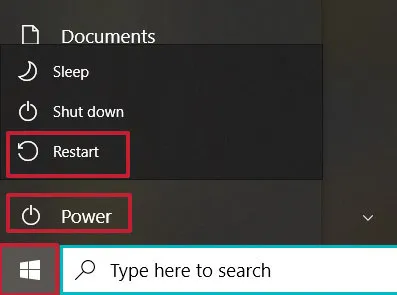
If you can do so, first click the Start menu, and then select Power. From the Menu that appears, choose Restart. Your computer may take a while to restart, so now is a good time to have a coffee. Hopefully, when you return, your Taskbar works again.
But the Start menu won’t open?
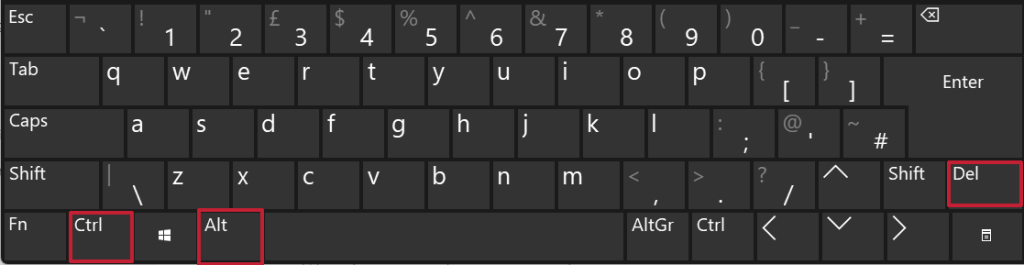
When the taskbar doesn’t work, the Start menu often breaks as well. If you can’t restart your PC from the Start menu, then press the Ctrl, Alt and Delete (or Del) keys on your keyboard at the same time.
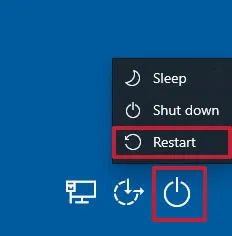
This will now bring up the Windows 10 Security menu. To restart, click on the power icon in the bottom right-hand corner and, from the menu that appears, select Restart. Again, be patient as the computer restarts and, once it has, the taskbar will hopefully be working.
Restarting didn’t work. What’s next?
If a computer restart didn’t work, you can always try restarting Windows Explorer. The Windows Explorer process looks after the Taskbar and Start menu, amongst other things, so restarting it may help if the Taskbar isn’t working.
To restart Windows Explorer, first press Ctrl, Shift and Esc together on your keyboard.
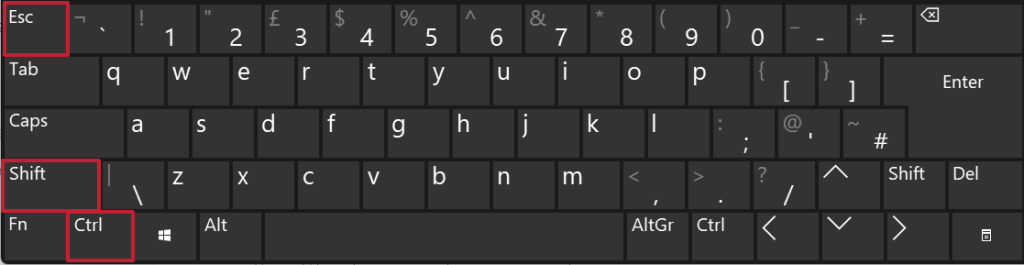
Task manager will now launch, and you should see various tabs along the top.
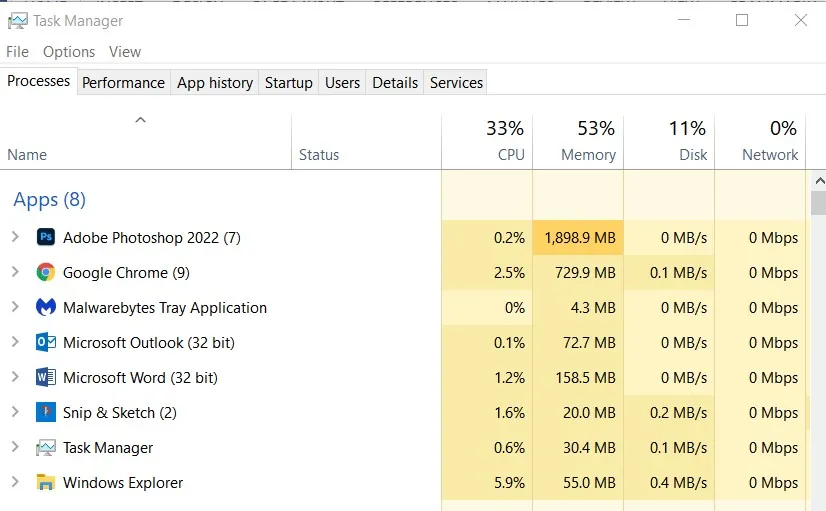
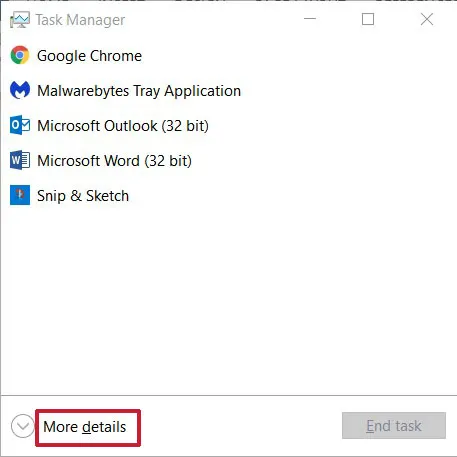
If you can’t see the tabs, click More details at the bottom of the window.
Now select the Processes tab, look down the list to locate Windows Explorer. Once found, right-click on it and choose Restart.
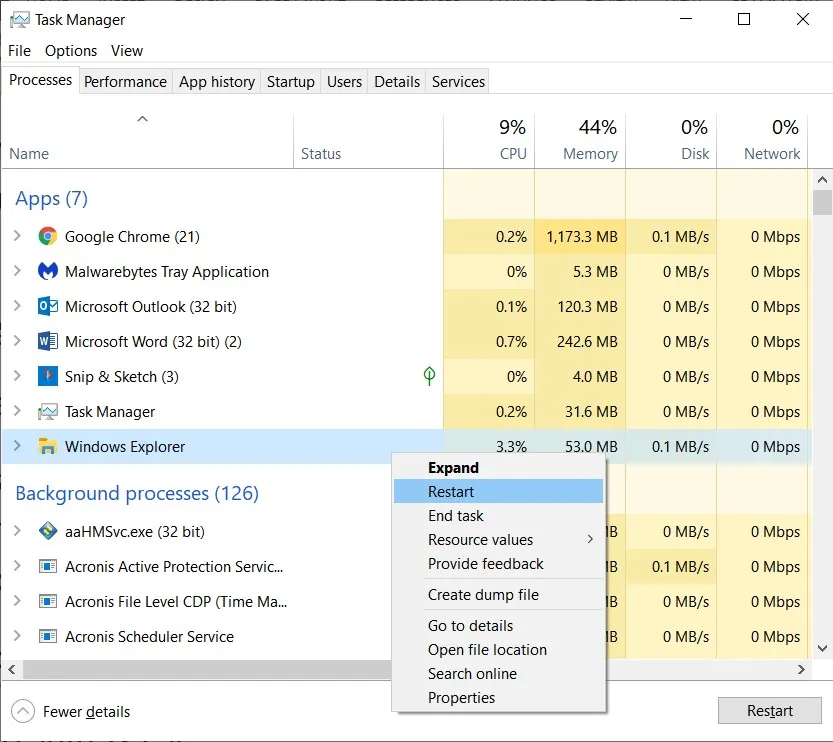
The Taskbar and Start menu may disappear for a second and then re-appear. Now you can test it and see if it’s working.
No luck with Windows Explorer. What’s next?
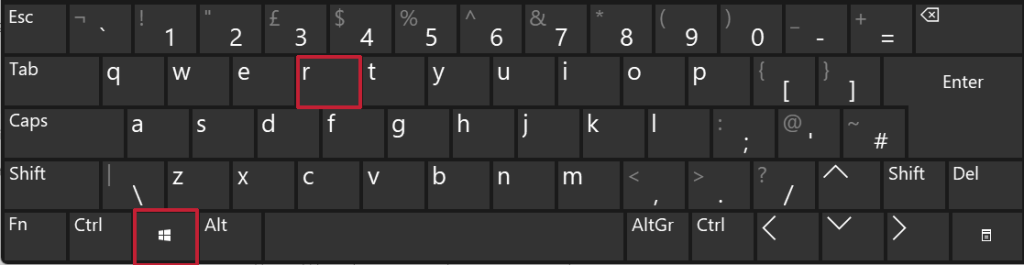
If the Taskbar still isn’t working, then it’s time to get a bit more technical and use the Windows System File Checker (SFC). This tool allows Windows 10 to check and fix corrupted system files, and it can sometimes repair a troublesome Taskbar. To use System File Checker, first open a Run window by holding down the Windows Key and then pressing the R key on your keyboard.
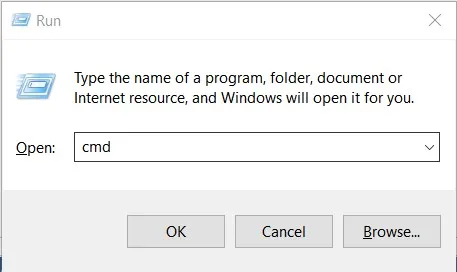
When the Run window appears, type cmd into the box.
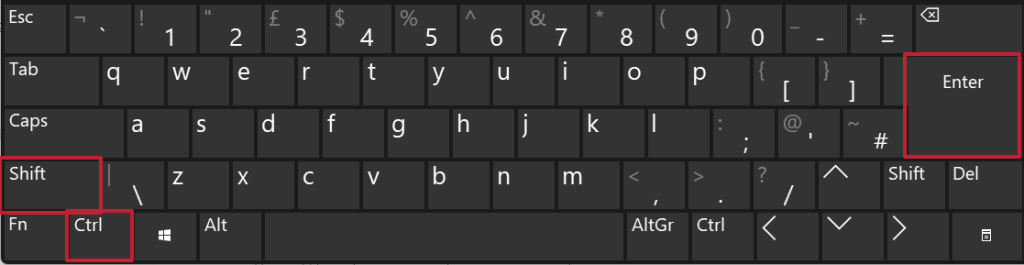
Now hold down both the Ctrl and Shift keys and then press the Enter (or Return) key on your keyboard. System File Checker needs to run with administrator privileges and using this key combination allows it to do so.
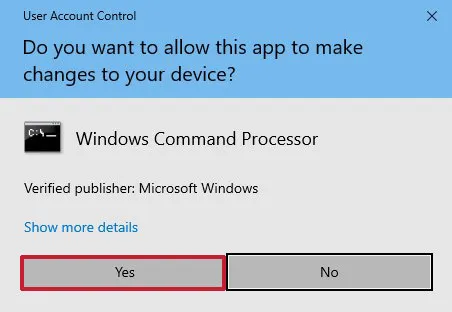
A User Account Control box will appear. When it does, click on Yes to allow the command prompt window to open.
When the command prompt window opens, type sfc /scanow and press the Enter (or Return) key. The System File Checker will now do a scan.
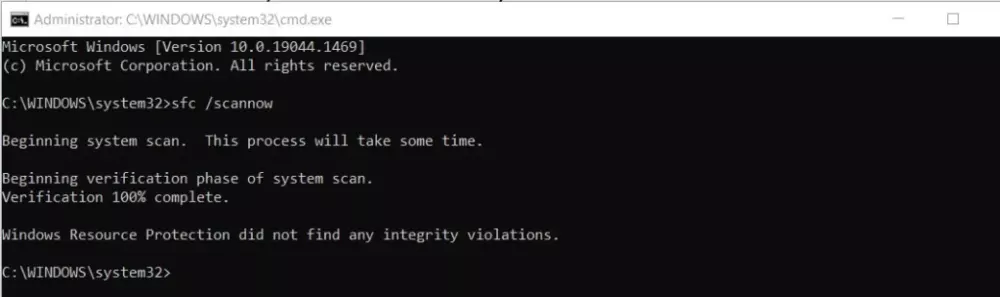
Once the scan is complete, it may or may not report any issues. Whatever the result, restart your PC and hopefully, your Taskbar will now spring to life.
System File Checker didn’t work. What’s next?
If none of the above solutions have worked, then it’s possible to re-register the Taskbar. To do so requires using Powershell, and it’s important to follow the steps carefully.
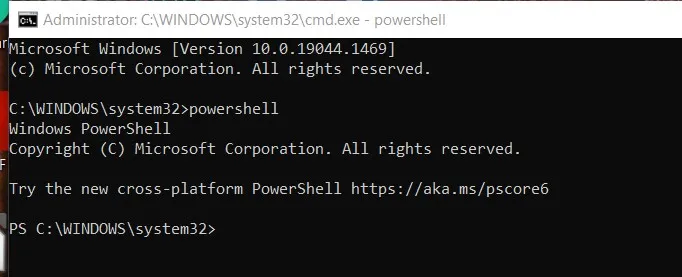
Powershell is a Windows Utility that acts like Command prompt. To open PowerShell, use the Run box to open Command Prompt as you did with System File Checker – and don’t forget to use the Ctrl, Shift and Enter keys to open it with admin privileges. Once the Command prompt is open, type powershell and press the Enter (or Return) key on your keyboard.
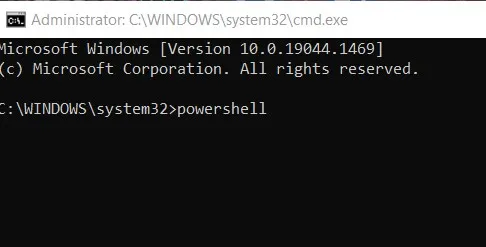
Powershell should now be ready to use.
With Powershell ready, copy the command below, paste it into the Command Prompt window, and press Enter (or Return).
Get-AppXPackage -AllUsers | Foreach {Add-AppxPackage -DisableDevelopmentMode -Register “$($_.Install location)AppXManifest.xml”}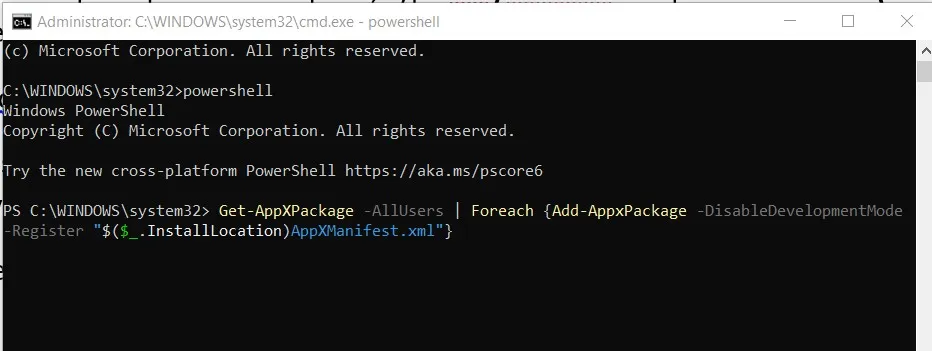
This command re-registers your apps in Windows 10, including the Taskbar. The process may take a while and don’t worry about what appears as it runs. When it finishes, close the Command Prompt window and restart your computer.
Still no luck. What’s next?
If your Taskbar still isn’t working, then an in-place repair of Windows 10 may be the answer. Check out this article for more details.
Recommended reading: Is Windows’ built-in Defender Antivirus good enough for business?
About The Author

Mark Parvin
NEXT UP