Trending Topics

 Trending
Dell UltraSharp 52 Thunderbolt Hub Monitor review

Pros
- Brilliant for city traders
- Can replace four screens on a desk
- Excellent image & audio quality
Cons
- It’s one heck of a beast
- The price is high
Dell had a clear set of buyers in mind when designing the Dell UltraSharp 52 Thunderbolt Hub Monitor. This is for anyone who currently uses two, three, four or even five monitors on their giant desk: financial traders, data scientists, engineers.
Dell launched the monitor at CES 2026, but I was fortunate enough to be invited to a pre-briefing event in December 2025. There, Yoon Lee, General Manager of Dell’s Display & Docks Product Group, provided a couple of interesting insights into the product’s development.
“Some people that I’ve seen were using two 27in [monitors] on the side with one 43in in the middle. That’s pretty massive. Other users were using three to four monitors side by side in various configurations,” said Lee.
This meant “bezel bricks… lots of cables, display alignment issues to make sure that you have consistent eye level, and also you just don’t have enough desk space to accommodate all those monitors”.
In the story Lee presents, they then went to the R&D team and said: “How can we give our customers all that screen space in one seamless display and still be able to use it like how they’re using the multi monitors like today.”
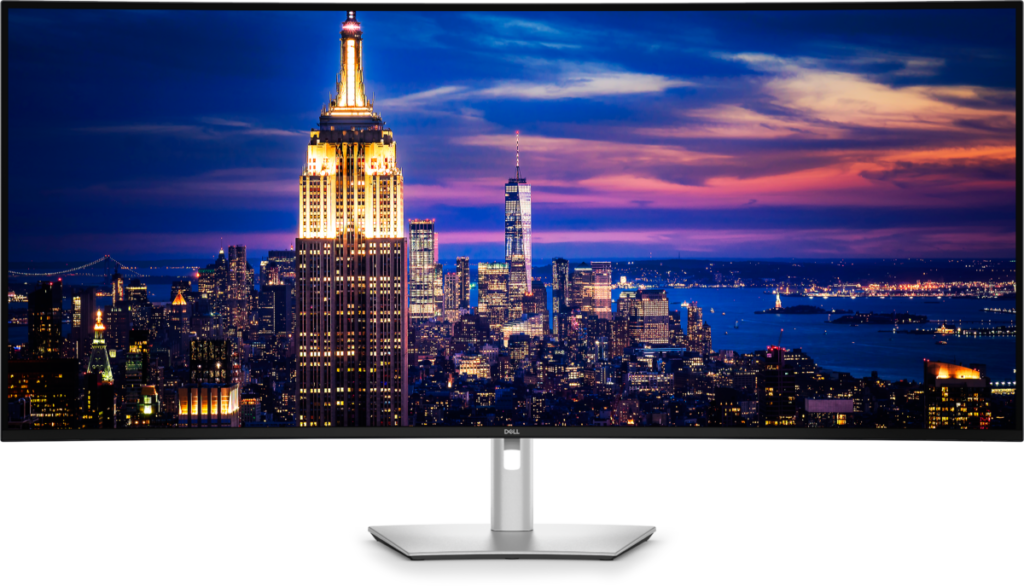
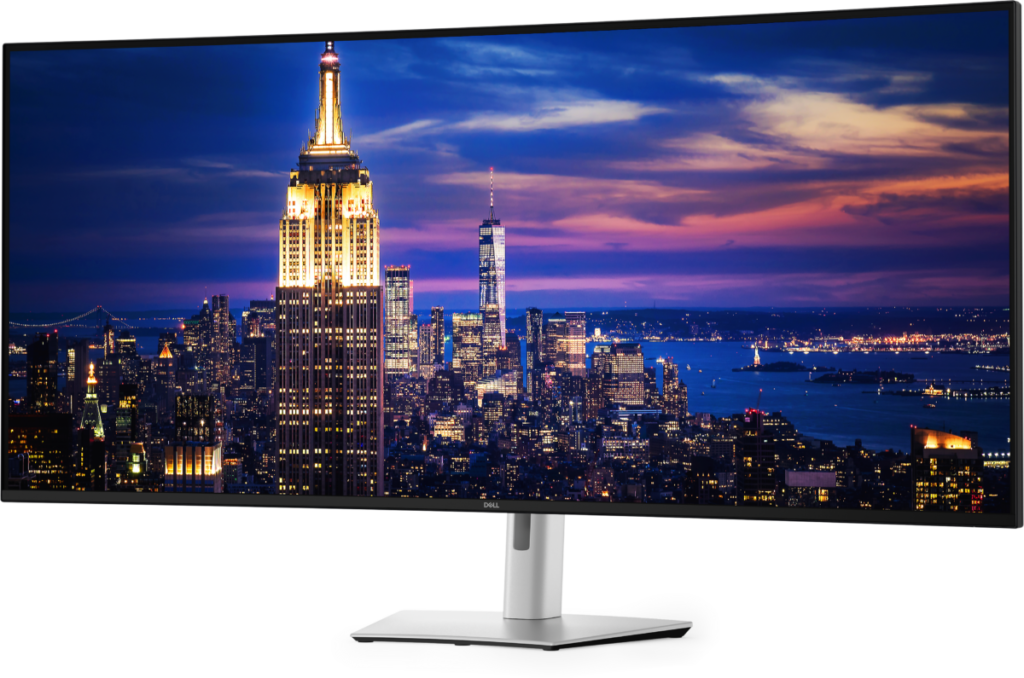
I don’t claim to be clever enough to work in Dell’s R&D department, but I wasn’t shocked to see that their answer was a very slightly curved 52in monitor.

Setting up the Dell UltraSharp 52 Thunderbolt Hub Monitor
“Hi honey, I’m home,” I shouted as I walked through the door after a couple of days away. A certain coldness accompanied the brusque “hello” of my partner, and it only took me a second to realise why. There, occupying pretty much the whole hallway, was a box containing the Dell UltraSharp 52.
There are times when the word “big” simply doesn’t convey enough meaning. Even “huge” doesn’t fit it. This box was so enormous its gravity attracted smaller boxes, so tall that even our cats couldn’t jump on top.
The good news: while it’s definitely a two-person job to unpack and assemble this monitor, it shouldn’t take you more than five minutes. Once done, you’ll also need two people to lift it up on the desk – not due to its weight but its bulk.
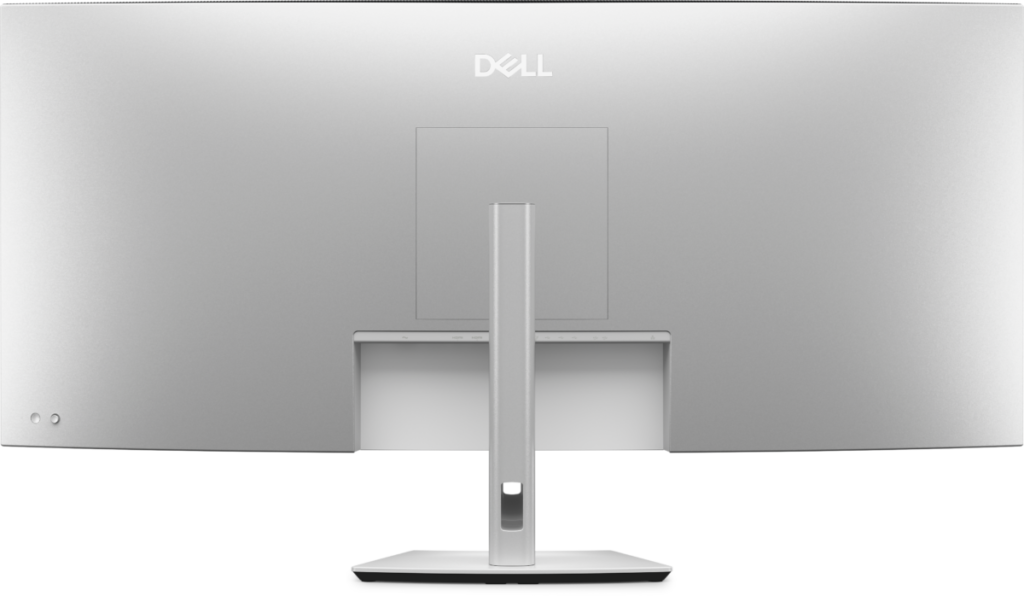
And this is the point where you need to carefully work out what you’re going to plug into this bulky, 52in screen. There are five inputs – one Thunderbolt, two HDMI, two DisplayPort – and I foolishly placed the Dell UltraSharp 52 on my desk without thinking that I’d need to plug in the latter two cables. Cue several minutes of attempting to slide in the connectors awkwardly, as the stand’s ten degrees of backwards tilt is not exactly generous. My language was not suitable for children or cats.
Arranging computers and windows on the Dell UltraSharp 52
While the Dell UltraSharp 52 has a speedy and intuitive OSD, controlled by a mini joystick at the rear, I recommend you install Dell’s Peripheral and Display Manager. I’ve covered what Dell Display and Peripheral Manager can do previously, but here it’s especially useful for breaking the 52in monitor into mini monitors of your choosing.
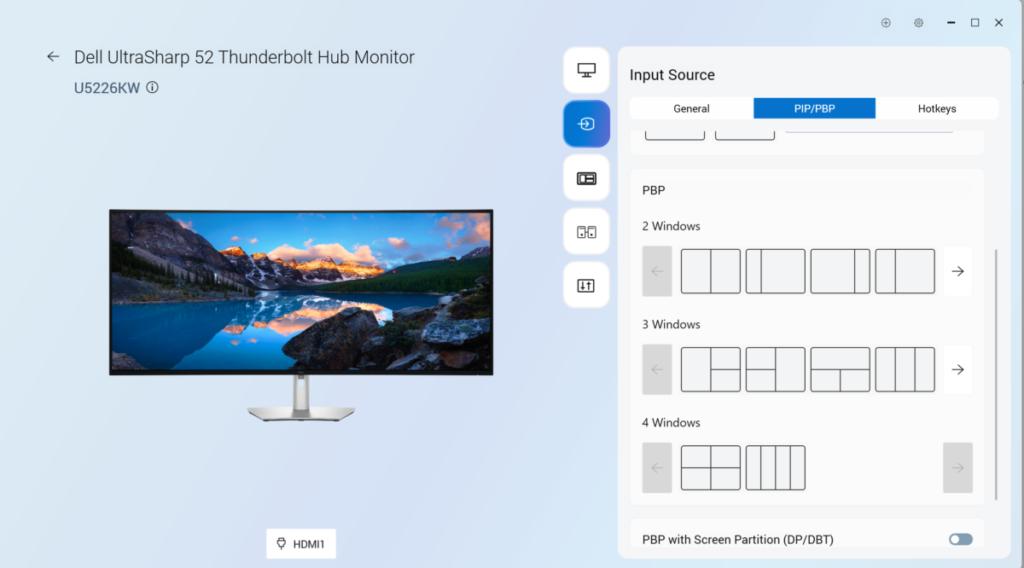
Let’s say that you have two PCs and a laptop attached. Then head into the Input Source section and select the the PIP/PBP function. PIP stands for picture-in-picture, but with this much space we’re more interested in picture-by-picture (PBP).
In the “3 Windows” area, you can see four of the options, which are self explanatory. Press the right arrow and you’ll discover two further options, as shown below. I ended up using the final one, with my main workspace in the middle and the two PCs I just needed to check periodically on the left and right.
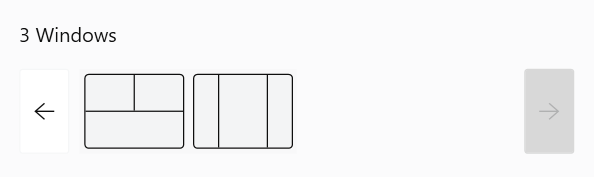
One neat touch is that Dell adds a slim, virtual bezel between each section, so it really is as if you have three monitors sitting side by side.
If you’re only using one computer at a time then Dell offers its Easy Arrange option, which follows similar thinking.
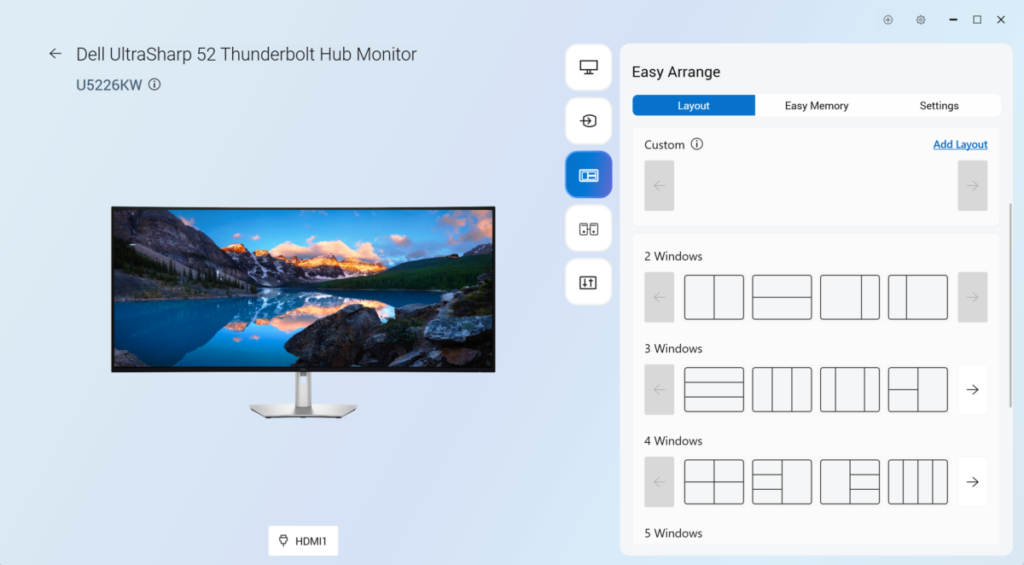
But I don’t like it. The reason being that sometimes I like to have windows floating over other windows – for example when writing an email – and Easy Arrange ain’t having none of that. That floating window snaps into one of the pre-defined areas, filling it all.
I found it far easier to use the Windows Snap option, which is far less bossy.
Dell UltraSharp 52 Thunderbolt Hub Monitor review: image quality
Dell uses an IPS Black panel, which means richer contrast than a typical IPS display. It’s an excellent choice for a monitor such as this, simply because its whites are spot on yet there’s enough depth to blacks that photos and films also look great.
Another plus: the 120Hz refresh rate. However, this will only work if the laptop or PC you’re connecting is up to the task. How will you know? If you don’t see the option for 120Hz when you click into the “Advanced display” options, then you’re out of luck.
For example, when I connected over HDMI on my three-year-old laptop I didn’t see the option; when I switched to USB-C, I did.
Out of the box, the panel will use Dell’s Standard colour preset, but you can switch to factory-calibrated sRGB, BT.709, DCI-P3 and Display P3 modes if you prefer. I tested the monitor in Standard, sRGB and DCI-P3, with results as below:
| Standard | sRGB | DCI-P3 | |
| Max brightness | 370cd/m2 | 361cd/m2 | 394cd/m2 |
| sRGB coverage | 100% (150% volume) | 95% (95%) | 99% (129%) |
| Adobe RGB coverage | 90% (103% volume) | 65% (66%) | 80% (89%) |
| DCI-P3 coverage | 97% (106% volume) | 67% (67%) | 91% (91%) |
| Contrast ratio | 1,753:1 | 1,703:1 | 1,865:1 |
| Colour temperature | 6318K | 6436K | 6406K |
| Average Delta E | 0.41 | 0.51 | 0.84 |
| Peak Delta E | 1.45 | 1.81 | 2.85 |
I’m not going to delve any further into these results, but they show that if you want the widest possible range of colours then stick with Standard. Here, the Dell UltraSharp 52’s colour accuracy is strong – as our most monitors these days – as shown by its average Delta E of 0.41. Anything under 1 is essentially perfect so far as the human eye can tell.
The other takeaway is that switching to DCI-P3 will lock you accurately to that colour space. That’s shown by the lack of difference between the coverage of 91% and the volume of 91%: it won’t display any colours outside of the DCI-P3 space.
I must also compliment Dell on its excellent coating to prevent reflections. This is a matte display and I was never troubled by overhead lighting glare.
Dell UltraSharp 52: panel uniformity
My final test was for panel uniformity. This measures brightness and contrast across 25 areas on the screen, and in an ideal world there would be no variance. In the real world, there always is on IPS panels as they use LED backlight strips (each pixel on an OLED panels is individually lit).
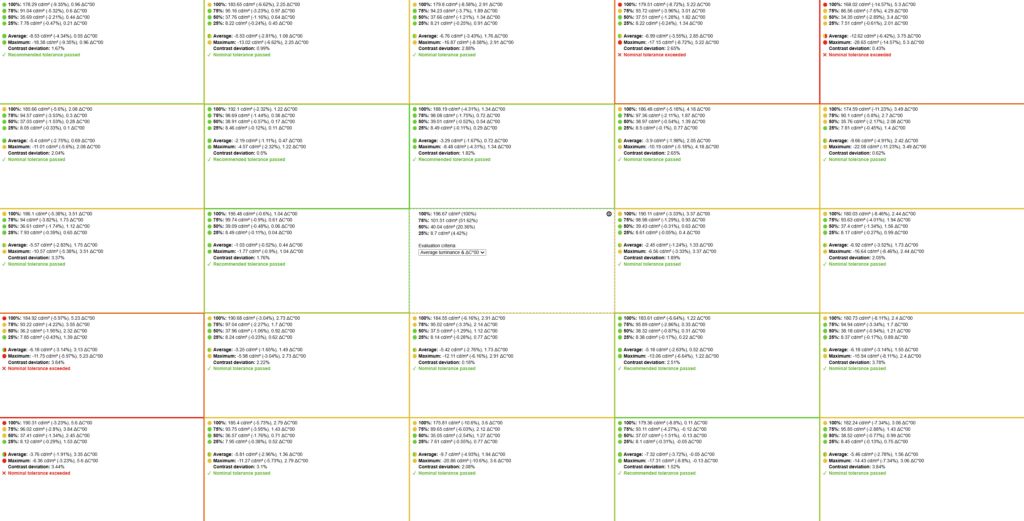
If you just focus on the colours, you can see greens and occasional ambers on the central three columns (the one exception being the top middle right area). But the bottom left shows two red markers.
However, I’m not concerned by this. The very worst figure was at the top right, where the maximum brightness was 15% lower than the middle section. In real-world use, I never noticed this variance, and I doubt you will either.
It’s also worth remembering that this 52in display may be replacing two, three, even four separate monitors. Each of those would have had different brightness levels and, most likely, colour reproduction. The Dell UltraSharp 52 Thunderbolt Hub Monitor is a far better solution if you want uniformity.
Dell UltraSharp 52 Thunderbolt Hub Monitor: final thoughts
We do need to talk about money. In the UK, the Dell UltraSharp 52 Thunderbolt Hub Monitor sells for £2,572 inc VAT. It’s $2,900 in the US and $3,925 in Australia. All of which means you could buy a professional 32in monitor and two high-quality 27in monitors for around a third less.
So what you’re buying here is pure convenience. Something that’s simple to manage, simple to use. And it lives up to the “hub” part of its name thanks to the ridiculous number of USB ports.
On the rear, you’ll find three USB-C ports and four USB-A ports, all of which are data only (there’s no daisychaining on offer here) with peaks of 10Gbits/sec. But for easy swapping in and out, Dell provides a drop-down module that contains a further two USB-C ports, with 27W power charging, and another USB-A port.
Plug a keyboard and mouse into any of these USB ports and you use the built in network KVM to share them between your connected PCs, along with the 2.5GbE wired Ethernet connection.

Other benefits? There’s an ambient light sensor so if you choose the option the panel’s brightness will automatically adjust. You also benefit from five-star ratings for low blue light emissions and flicker free viewing. Plus the Thunderbolt 4 port delivers up to 140W of power, which is exceptionally high.
This is also probably the best set of speakers I’ve heard on a panel. They go loud, as you’d expect from a 9W rating, but they’re high-fidelity enough to listen to music.
The stand is also extremely solid, keeping the panel locked firmly in place, and while I would have liked the option for more adjustability – it only swivels 20 degrees in either direction, I’ve mentioned the limited ten-degree tilt already and the height adjustment is a mere 90mm – there is the option of a desk or wall mount.
You will need space to accommodate such a large monitor. Not just width, but depth too: I pushed it as far back on my 80cm-deep desk as I could. During web calls you’ll also need to live with your webcam sitting higher than normal, but it wasn’t too bad if I pushed the monitor down to its lowest point.
And note that the UltraSharp 52 guzzles electricity: 52W at 200cd/m2 rising to 76W at its peak. Still, that’s probably less than the three or four monitors it’s replacing.
Overall, I can’t fault what Dell has produced here. The Dell UltraSharp 52 Thunderbolt Hub Monitor is a brilliantly flexible display that lives up to all the promises Loon Yee made back in December. It’s expensive but worth it.
More reviews
About The Author

Tim Danton
NEXT UP


