Trending Topics

 Trending
Meet your new teammate (who just happens to look like a notebook)

We’ve all played with AI tools to help us be more productive. The trouble is that most of us have little idea where we’re sending our instructions off to. Or, come to that, where we dispatched that PDF report marked confidential. That’s why many industry watchers believe we’re moving to a new era of hybrid AI: one where some tasks are offloaded to the cloud, but others – the sensitive ones – are run on your business notebook.
Not every notebook can handle these tasks. You will need a PC that can cope with the unique demands that AI tools place on them. Rather than going into deep technical detail, the simplest way is to look for a “Copilot+ PC” badge. This comes with Microsoft’s assurance that it includes the latest generation of processors; ones that are capable of running local AI tasks at speed.
Here, we’re going to introduce the idea of an extra teammate who’s there to help you, right on your Copilot+ PC. And we’re going to focus on five scenarios:
- The secure researcher
- The global translator
- The personal helper (who won’t share your secrets)
- The vigilant guard
- The 24/7 personal assistant
The secure researcher
It’s now easy to ask a cloud-based AI service to analyse a PDF, but you don’t know two crucial things. Where is that service based? And what is it going to do with your data? By uploading the PDF, you could be breaking rules of confidentiality; worst-case scenario, you might even be fired for negligence.
Which is why we put “secure” before “researcher”. For example, Dell provides a toolkit called Dell Pro AI Studio that allows developers and IT teams to create local AI tools specifically for your business. (Dell Services can help out if your team doesn’t include people with the necessary skills.)

Outshine with Dell PCs and Windows 11
PCs running Windows 10 no longer receive security updates, new features, or technical support. Windows 11 and Dell AI-enabled PCs have improved security, can provide innovation through AI, and help avoid added costs. Download this infographic to learn more.
Dell isn’t alone in offering local AI tools. HP recently announced the launch of HP IQ on its commercial laptops and Lenovo will be offering its own suite of tools under the name of Qira. Secure, local AI designed for business use – and kept within virtual business walls rather than leaking out to the public cloud – is the way things are moving.
The end result is like having your own version of ChatGPT sitting on your machine. One that you can ask questions in natural language and – assuming your AI tool supports it – analyse any locally held documents or folders.
And here’s the best news: as time goes on, your personal researcher is only going to become more intuitive and more powerful.
The global translator
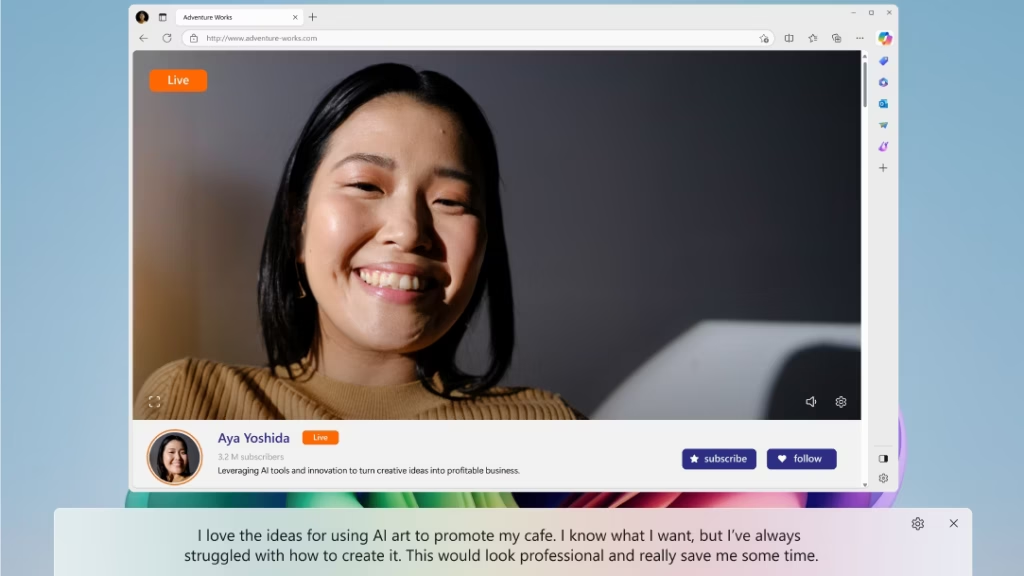
Live captioning is one of Copilot+ PCs’ best features. Not only does it provide captions and real-time translation* for people speaking in a foreign language (over 40 are supported) but it can also help those who are deaf or hard of hearing. And it all happens on your computer, with no audio data sent to the cloud.
You may have seen similar features on services such as Teams and Zoom, but all that processing happens in a remote data centre. You don’t have control. With Live Captions, providing you have downloaded the relevant language files, you can take your translator wherever you travel. And it will work when you’re offline too.
Note that for this to work you will need to download the relevant language pack. You probably have English (United States) already, but you need to go to Settings | Time & language | Language & region to download, say, Italian.
*The reason we add the star is that rollout isn’t yet complete. Microsoft is committed to rolling this feature out to all Copilot+ PCs, and expanding the language support, but you may find that your notebook can only provide live captions for now.
The personal helper (who won’t share your secrets)
We’ve already mentioned that commercial PC makers are starting to provide local AI tools to help you research and analyse local files. Why not go one further and ask it gather information and suggest what your next steps you can do?
For instance, you can ask it to help set your priorities for the day, week, even the month. You can ask it to break down a complex project into actionable steps – without sharing details of that potentially confidential project with a public service.
People also use local AI to help them with the “blank page” problem. Where do you start, whether it’s writing a report or coming up with ideas? The answer: explain the problem to the local AI and ask it for inspiration.
You can also use the AI model to challenge you. Are there flaws in your report? Ideas that could be made easier to understand? Again, you’re asking in private, with no risk of your questions emerging publicly, and no chance that you might be putting your company’s data at risk.
The key idea is that you have a local intelligence working on your PC. One that understands what you do, and what matters to you. And crucially, one that will keep all its workings on your machine.
The vigilant guard
You’re unlikely to meet your vigilant guard as it sits in the shadows. Although this isn’t really one guard but a collection of them, and they work either locally or in the cloud – whichever makes sense for the threat you’re trying to fend off.
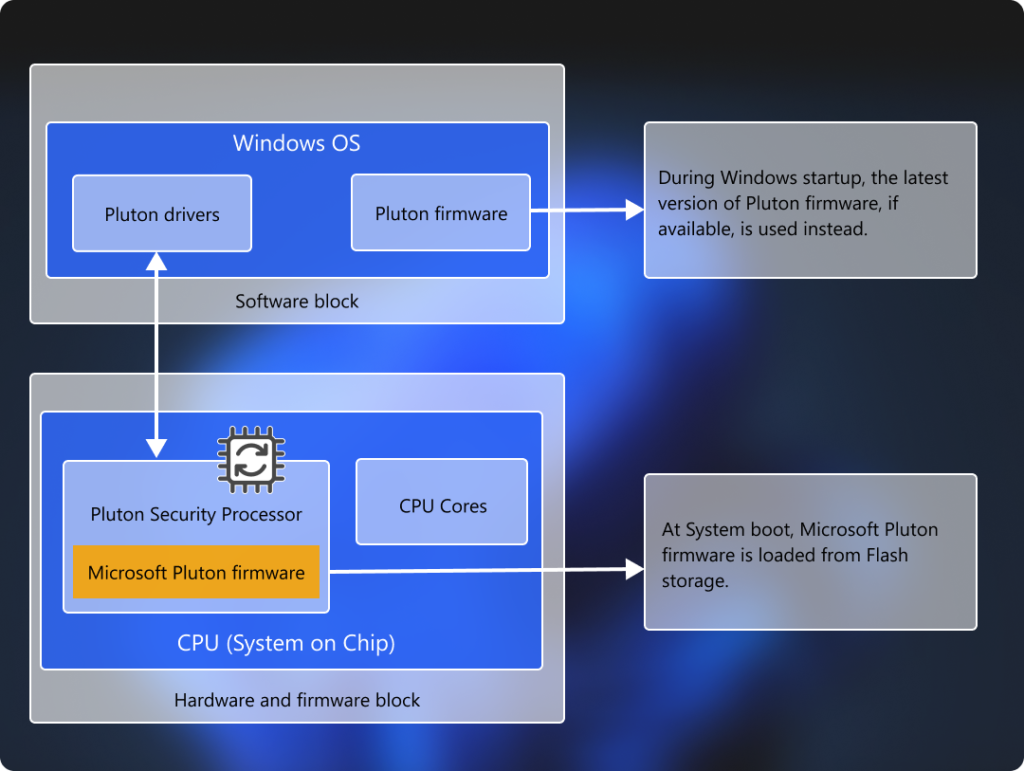
We’ll start with the Microsoft Pluton security processor, which builds zero trust principles into silicon (whether AMD, Intel or Qualcomm). Pluton is found in all Copilot+ PCs and enabled by default. This helps to protect your credentials and your identity, securing the encryption keys to ensure attackers can’t read your data. Even if they somehow gain access to your disk, it will look like a random pattern of 0s and 1s.
Copilot+ PCs also use AI to provide real-time threat detection. NPUs are brilliant at analysing complex data patterns, which helps them spot suspicious behaviour that might otherwise go unnoticed. This improves your chance of spotting a new piece of malware as the AI is looking at how it behaves – what actions it takes, or tries to take – rather than trying to match it against an existing library of malware.
Then there’s Smart App Control. This is processed by Microsoft in the cloud, which makes sense as it’s there to guard against suspicious apps. If Microsoft believes the app you’re trying to install is malicious, or simply doesn’t trust it, then Smart App Control will block it.
The 24/7 personal assistant
Finally, we come to Recall. This memory-assisting technology didn’t have the smoothest of starts, with early controversy due to a lack of security and very understandable privacy fears.
The fundamental idea behind Recall is that it silently captures what happens on your screen, 24/7. The lack of security came because in the original preview version it also captured sensitive screenshots such as bank statements and password managers. Not the kind of info you want stored. Microsoft has now stopped that from happening.
Crucially, it has also ensured that all the snapshots are stored locally, on the Copilot+ PC, in an encrypted database. It will only give you access after you sign on with Windows Hello.
Another big change is that Recall must be requested by users, and that they now have full control over which apps are captured.
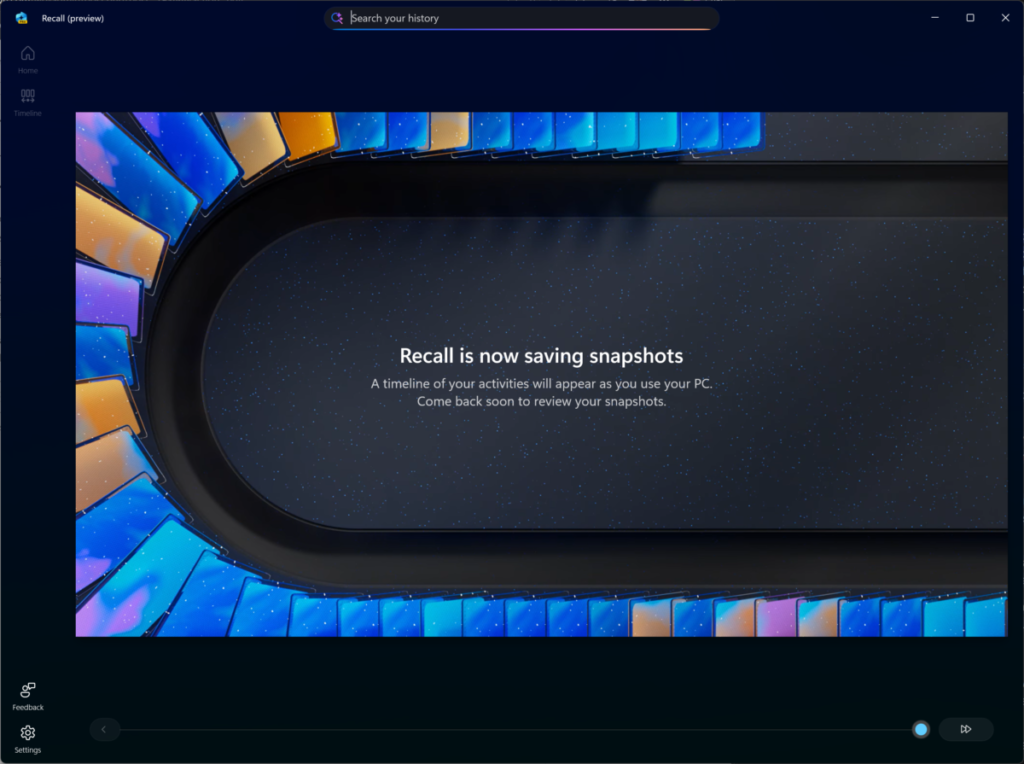
So with all that said, why use Recall? The simple answer is that it can be a huge help when trying to remember what happens – you can think of it as a photographic memory for your PC.
For instance, you can use natural language to search for apps, websites, images and documents that you remember using but can’t quite recall the details. “Search for the Acme Electronics proposal about dishwashers” for example. Recall will then show you relevant snapshots.
It also provides a timeline, so you can scroll back through the past day, week, month even year of work. Once you’ve identified a snapshot, Recall’s “Click to Do” feature will analyse the screen and allow you to copy text, head back to the website, open the document or even edit an on-screen image.
But perhaps the key thing to reiterate is that Recall works locally, on your PC. That also means it doesn’t need an internet connection to work.
What happens next
There is already a clear consensus among PC manufacturers and chipmakers that we are moving to a world of hybrid AI. But this relies on people having modern computers that can run local AI tasks.
We don’t know where local AI is going, in the same way that we can’t predict how tools such as Claude, Gemini and ChatGPT will evolve. The future has never been more uncertain.
However, to give yourself (and your workers if you run the IT function in a business) the best chance of being ready, it makes a lot of sense to buy suitably intelligent PCs.
About The Author

Tim Danton
NEXT UP


