Trending Topics

 Trending
What is McAfee WebAdvisor? Should I uninstall it?

McAfee WebAdvisor is a browser extension that alerts you to unsafe websites, downloads and phishing scams.
Here’s a closer look at what it does, how it may have ended up on your computer, and whether it is worth keeping. Have more questions? Please email [email protected] and we’ll consider them for updates.
What does McAfee WebAdvisor do?
At its core, McAfee WebAdvisor is a browser extension designed to:
- Highlight safe/unsafe search results
- Flag or block suspicious websites and phishing pages
- Warn about risky downloads
How do I get McAfee WebAdvisor for free?
While McAfee bundles WebAdvisor into its security products, you can download it for free as a standalone product. Searching for “webadvisor” will produce many sponsored results, but you can also head direct to the WebAdvisor download page.
At the time of writing, it’s a 92MB download.
Highlighting safe/unsafe search results
You’ll usually notice McAfee WebAdvisor when searching online, where it adds small icons beside your search results to show whether a website is safe to visit.
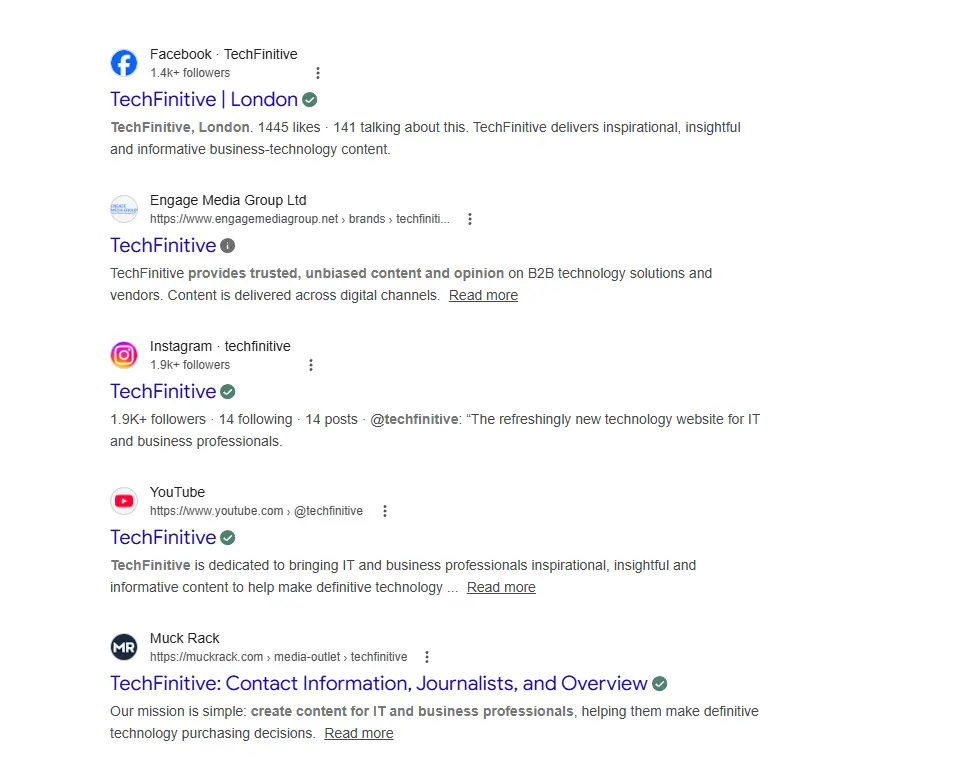
The four different icons it displays are:
Green Tick – “Safe”
Appearance:
- A solid green circle
- A white tick inside
- Sometimes accompanied by the text “Safe” when hovering
Meaning: The site is considered safe and has no known malware, phishing, or suspicious behaviour.
Yellow Exclamation Mark — “Caution”
Appearance:
- A yellow/orange circle
- A black exclamation mark inside
- Hover text usually says “Use caution “
Meaning: The site may contain annoying ads, tracking or minor risks. Not outright dangerous, but not fully trusted.
Red Cross — “Dangerous”
Appearance:
- A red circle
- A white X / cross inside
- Hover text: “Warning: this site is risky”
Meaning: McAfee has flagged the site for malware, phishing or other serious threats.
Grey Question Mark — “Unknown”
Appearance:
- A grey circle
- A white “i” inside
Meaning: McAfee has no data on this site — it hasn’t been scanned or rated yet.
If you click or tap on the icon, it will also offer further information regarding the website.

But I can’t see the icons?
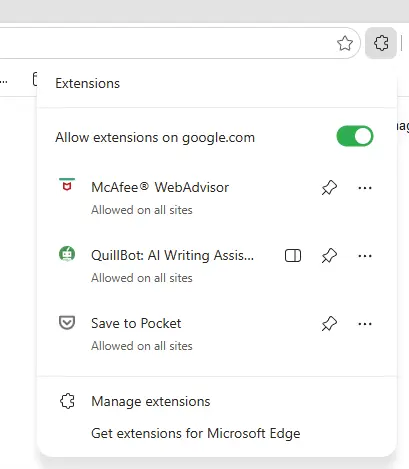
The icons on search results don’t always appear by default. If you can’t see them, you first need to find the McAfee WebAdvisor extension on your web browser.
The best way to get to it is by clicking the extension icon, usually found to the right of the search bar on your chosen web browser.
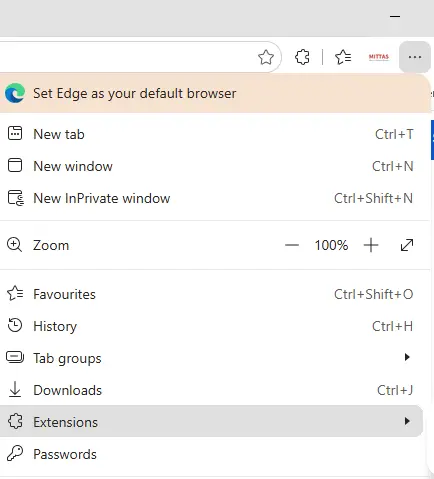
You can also find it in the overflow menu, usually represented by three vertical or horizontal dots.
Once you have found the McAfee WebAdvisor extension, click on it to open a side panel in your browser.
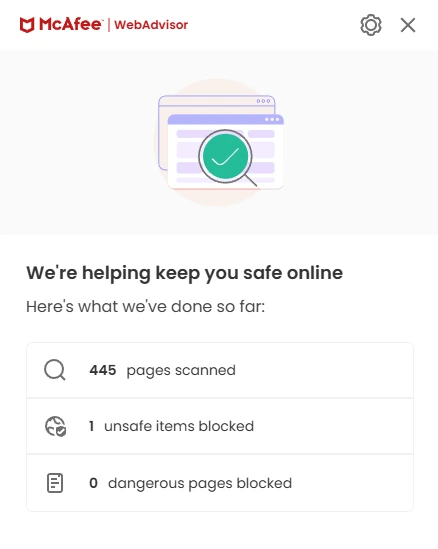
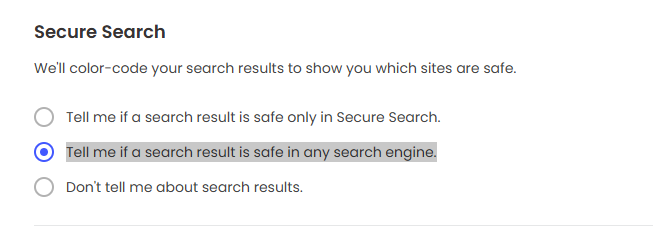
Now click the cog at the top of this panel and, under the heading Secure Search, make sure that Tell me if a search result is safe in any search engine is selected. Once done, close and reopen your web browser, and the icons should now appear in the search results.
Flag or block suspicious websites and phishing pages
If you still end up going to a dodgy website, maybe by clicking a link in a phishing email, McAfee WebAdvisor can still protect you by blocking access and displaying a warning message.
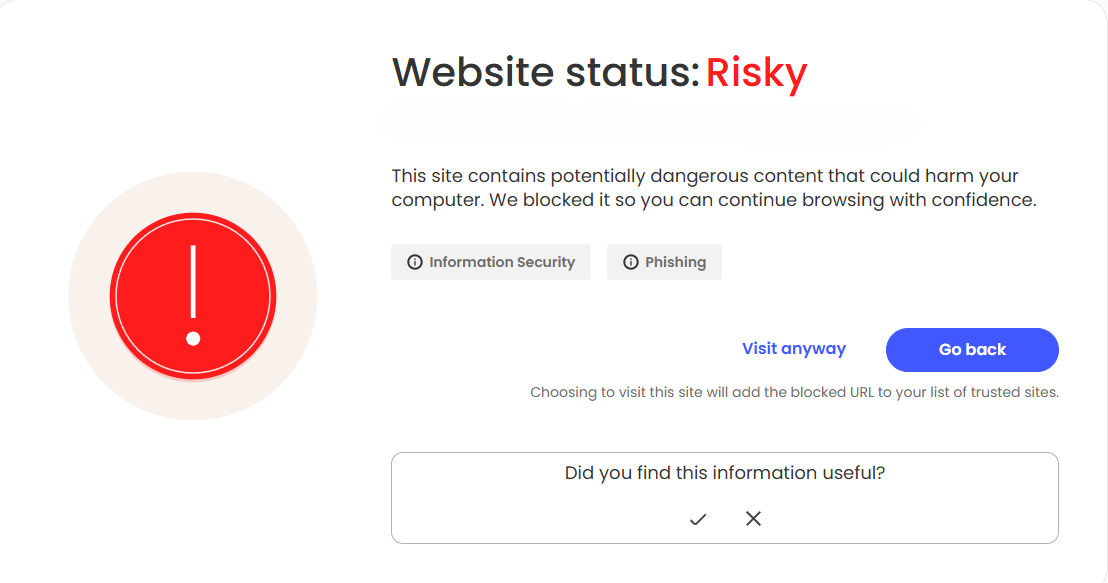
If you believe you can trust the website, then click on the Visit anyway link. This will also add the page to the list of trusted sites, so it won’t display the warning again. Otherwise, click on the Go Back button to avoid any possible issues.
Warn you about risky downloads
McAfee WebAdvisor can also let you know about potentially dangerous downloads. If you click on a dodgy download link, McAfee may pop up a message in the bottom corner of your screen to warn you.
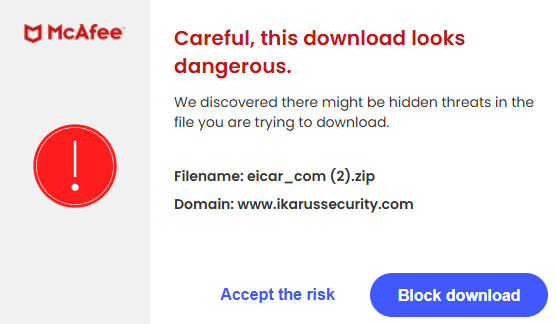
You can then either accept the risk or block the download by clicking the relevant button on the warning screen.
How did I end up with McAfee WebAdvisor on my computer?
The most likely reason you ended up with McAfee WebAdvisor on your computer is that it was there when you bought it.
Many laptops and PCs come with a trial version of McAfee Antivirus, which also includes McAfee WebAdvisor as a separate installation. This means, even if you uninstall McAfee Antivirus, it will not automatically remove WebAdvisor.
Should I uninstall McAfee WebAdvisor?
McAfee WebAdvisor does pretty much what it says on the tin, providing subtle visual protection while you browse the web.
However, your current antivirus, including Windows Defender, and modern browsers like Chrome, Edge and Firefox already block dangerous sites, phishing attempts and dodgy downloads, so WebAdvisor mostly duplicates protection you already have.
If you find McAfee WebAdvisor useful and it isn’t causing you any problems, then keep using it and enjoy the safeguards it offers. If not, you can safely uninstall it, as your antivirus and web browser already provide similar protection.
How do I uninstall it?
Uninstalling McAfee WebAdvisor is straightforward. On Windows 11, open Settings → Apps → Installed apps. If you’re using Windows 10, you need to open Settings → Apps → Apps & features. Now search for McAfee WebAdvisor, select uninstall, and follow the instructions to remove the main program.

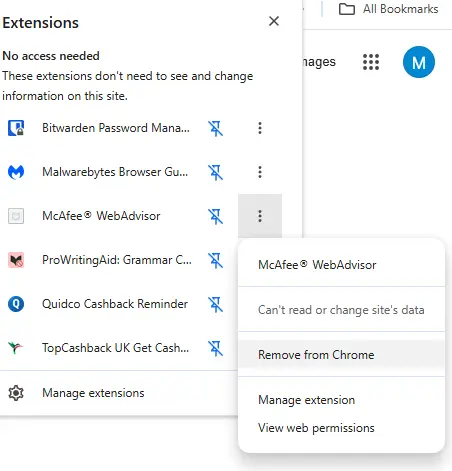
Even after uninstalling, some web browsers may leave the extension behind, so it’s worth checking your browser’s extensions page and removing McAfee WebAdvisor if you still find it listed.
About The Author

Mark Parvin
NEXT UP


