Trending Topics

 Trending
How do I check the specs of my PC?

From time to time, we all need to check the specs of our PCs. If you’re wondering why your games are slow, confused why Windows 11 fails or just investigating opportunities to upgrade your machine, we’ll show you a few ways on how to check your specification.
Checking specifications via Windows
Windows has a few different ways of revealing what’s beneath the covers. System can be found in the Control Panel but opening the Start Menu and typing “sys” will also do the trick.

In many instances, this snapshot will suffice to check your PC specs.It’s a quick rundown of some of the basics, RAM, CPU and Windows version. If you want information about how much data is on your drives, then click Storageon the left.
System Information adds more detail. This can also be found by searching the Start menu or by looking in the Windows Administrative Tools folder.
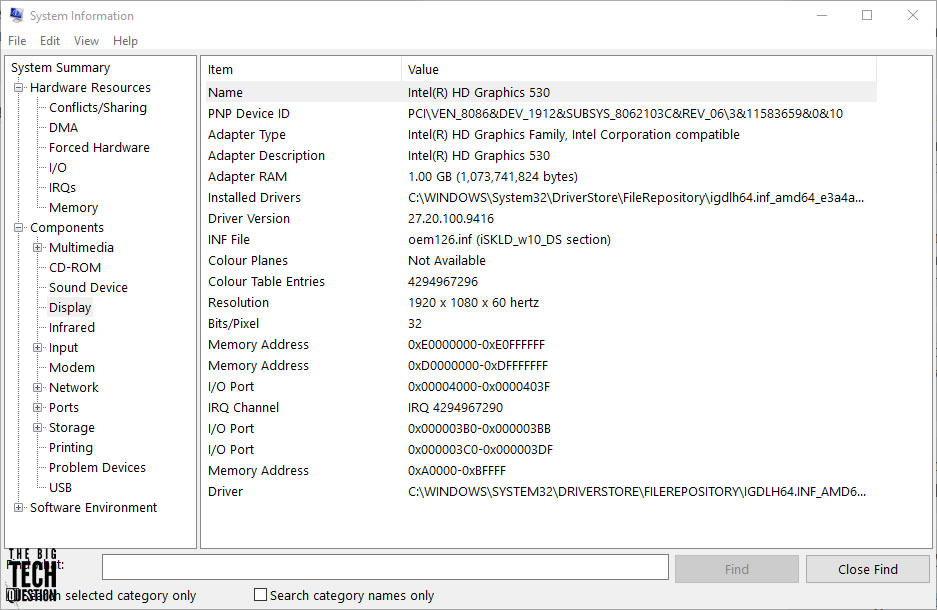
The menu system on this app gives access to specific components. Driver locations, version numbers and system drivers are discoverable and searchable. There’s also a handy option to print a report or export it (as a .txt file).
Using other software to check the specs of a PC
If the Windows tools are not giving you enough information, then here are couple of free tools to try. Speccy is made by Piriform who also make CCleaner. There is a paid version with enhanced features, but the free one gives a remarkable overview of your PC.

In addition to the hardware inside your machine, Speccy will also show the temperatures of certain components, network transmission speeds alongside details about the BIOS. Speccy will export reports as .txt or .xml and is also fully searchable.
If your thirst for information remains unquenched, then Belarc Advisor is about as good as it gets for free (for personal use). In exchange for an email address to download the app, install it then allow it update (to check security updates) and it’ll run a thorough scan of your PC.
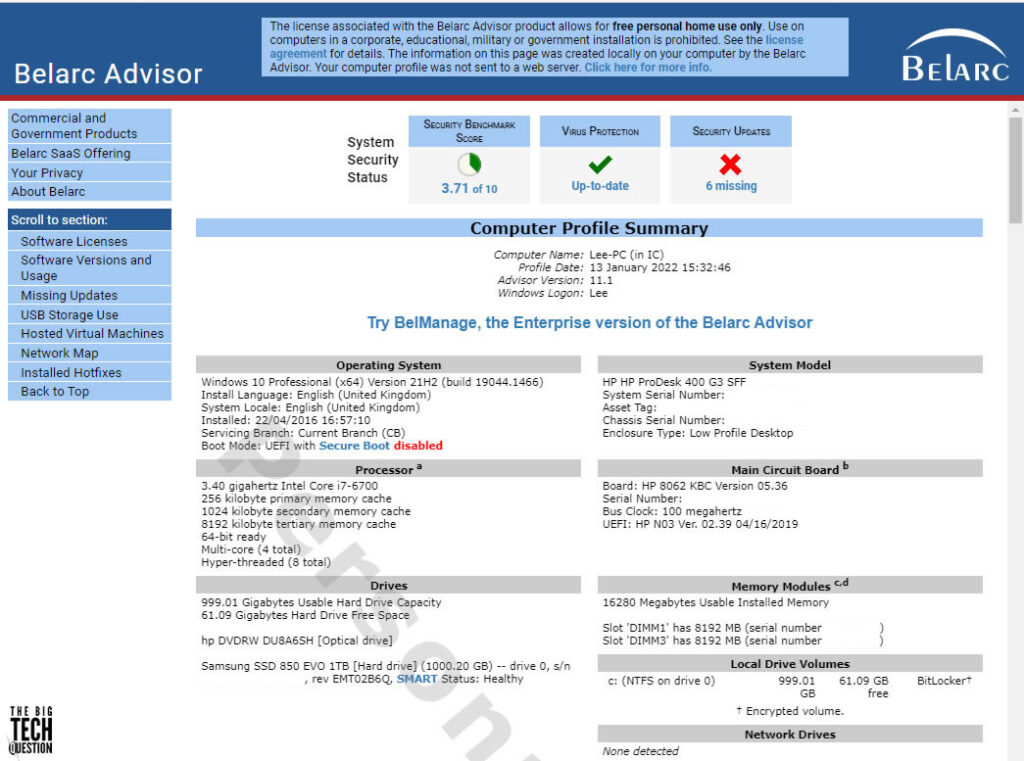
It’s all here. Hardware information, software license details, lists of virtual machines, USB connected devices, network maps and security hotfixes. Belarc generates a breathtaking amount of data about your PC and because it’s runs from a browser, it can be saved and shared.
What software doesn’t tell you about your PC
If you’re upgrading a desktop (for example, picking a new SSD), the thing software cannot tell help with is details about physical space and expansion capacity. The apps we’ve discussed reveal what’s inside the box, but that still doesn’t guarantee that your shiny new graphics card will fit inside. In these instances, it’s time to get the screwdrivers out, but it’s better that than buying a new PSU which is the wrong shape.
If you’re looking to run a new piece of software or a game, it will often come with a minimum and/or recommended list of specs. But how do you find your computer’s specs in Windows 10? It’s dead simple, when you know where to look.
Bonus: Find computer specs in Windows 10
There are all manner of software utilities that will list the entire spec of your computer, but you really don’t need to install anything extra to get a full specs breakdown.
Instead, type the word “system” into the Windows 10 search bar and you should be offered the option to open the System Information desktop app.
Open that app, and you should get a system summary that looks something like this:
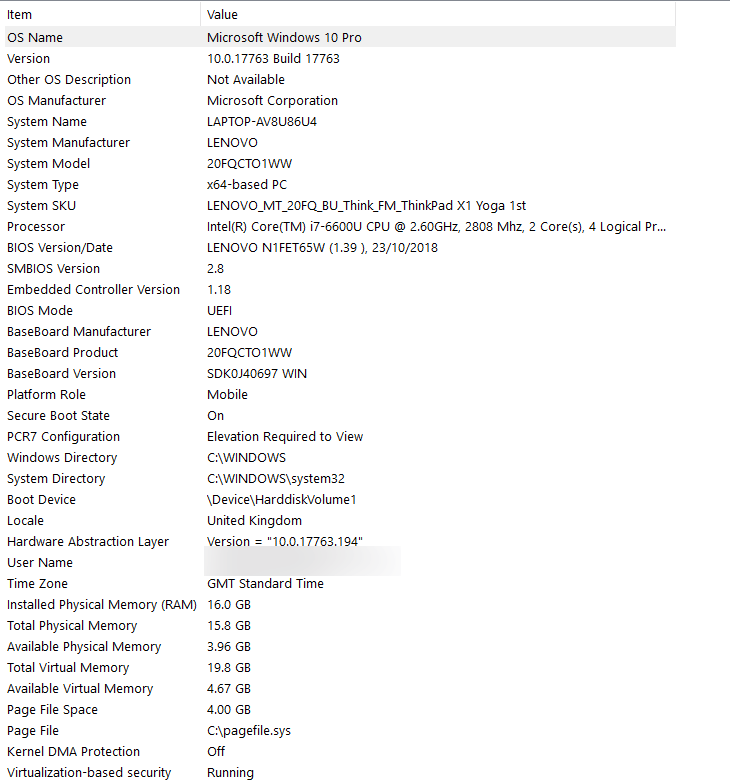
The key specs on this page are the Processor (or CPU) and the Installed Physical Memory (RAM). Most pieces of software will demand a processor of a certain generation or speed, as well as a minimum amount of memory.
The other key spec, especially when it comes to gaming, is the graphics. These aren’t listed on the summary page. Instead click Display in the menu on the left-hand side and this should display your graphics capabilities under Adapter Type and Adapter Description.
If, like me, you’re running a laptop with no dedicated graphics chip, this will likely be listed as Intel HD Graphics. These so-called ‘integrated’ graphics chips are not very powerful. They might be able to cope with basic games, but you can forget about any serious 3D gaming.
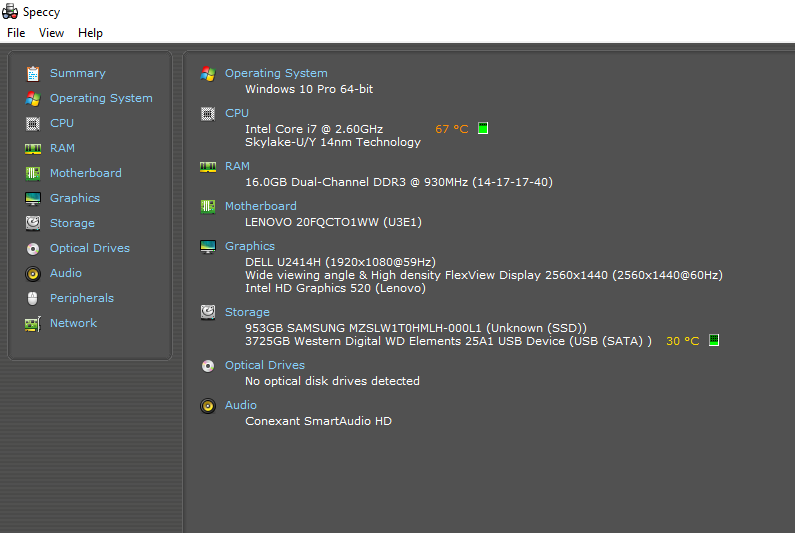
If you find all this info a little intimidating and want a cleaner breakdown, try installing the free Speccy from Piriform. This delivers the key specs in a much tighter, friendlier format, but give you the option to dig down into greater detail from the menus on the left, as shown below.
Now read this: How do I check my PC’s temperature?
More explainers
About The Author

Lee Grant
NEXT UP


