Trending Topics

 Trending
How do I change the password on a TalkTalk router?

TalkTalk is savvy enough to give its Wi-Fi Hub router a unique admin password instead of the default admin or 1234 password that other routers use. However, TalkTalk has also printed the password on the back of the router so anyone with physical access to the hub can find it. If you would prefer tighter security, let’s look at how you can change the password on your TalkTalk router.
Note: we’re talking here about changing the password to access the router’s settings. Read this article if you want to change the Wi-Fi password on your TalkTalk router.
Log in to your TalkTalk router
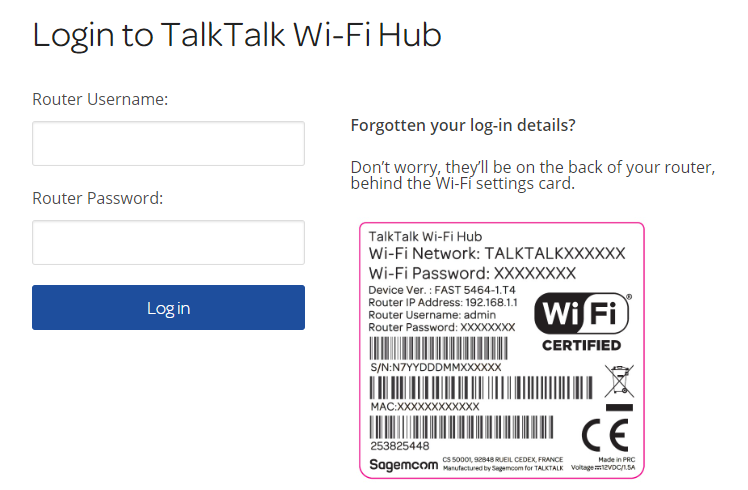
The first thing you need to do to change the admin password on a TalkTalk Wi-Fi Hub is to log in to your router. If you’re unsure how to log in or are experiencing problems, check how to access TalkTalk router settings.
Change the admin password
After logging into your TalkTalk router, you can change the admin password by following the steps below.
On the main Dashboard page, select See Internet Settings.
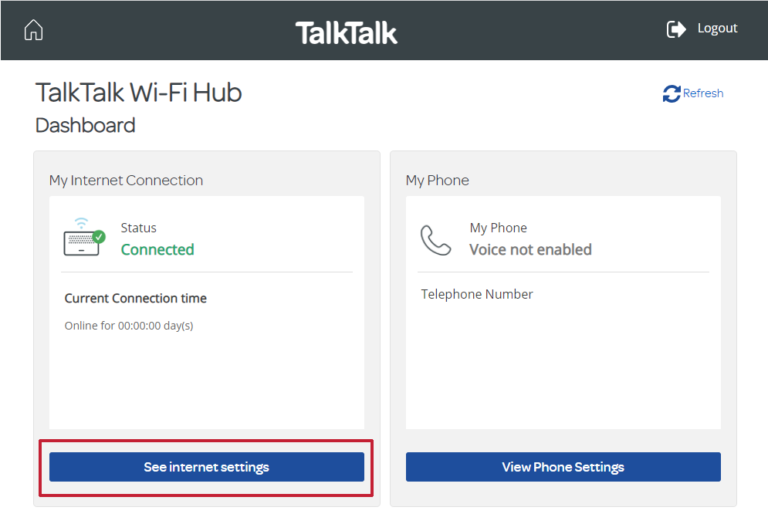
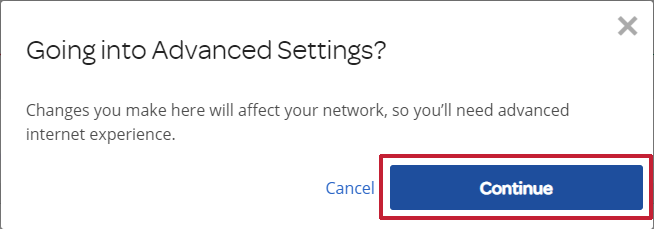
Now select Manage advanced settings, and click Continue when the following pop-up box appears:
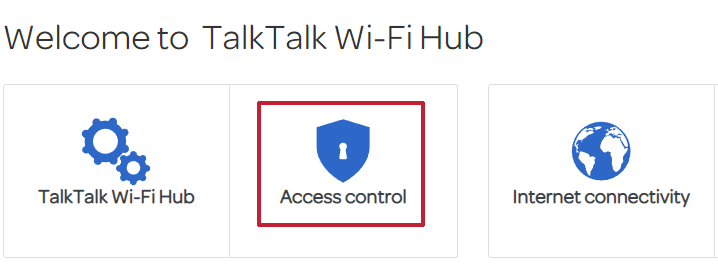
Once you’re in the advanced settings section, click on the Access Control box:
The Access Control page will now appear. When it does, click on theUser tab.
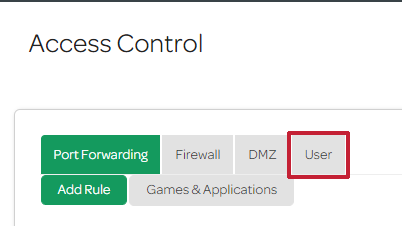
The User section allows you to change the admin password. First, enter the current password into the Old Password box. This is the password you used to log in to your TalkTalk router initially.
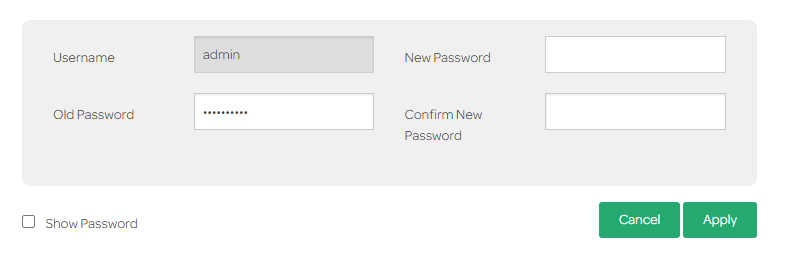
Now enter the new password in both the New Password and Confirm Password boxes. The password needs to be between eight and 64 characters. It should also contain a number, a lowercase and an uppercase character.
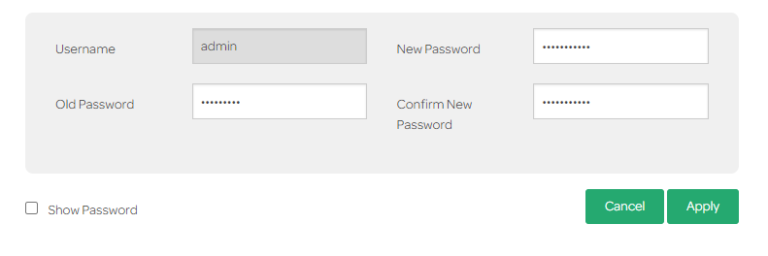
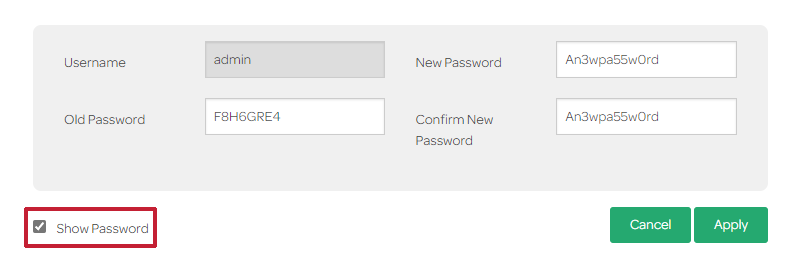
If you want to double-check that you’ve typed in the passwords correctly, you can reveal them by clicking on the Show Password box.
Once you’re sure everything is correct, click the Apply button.
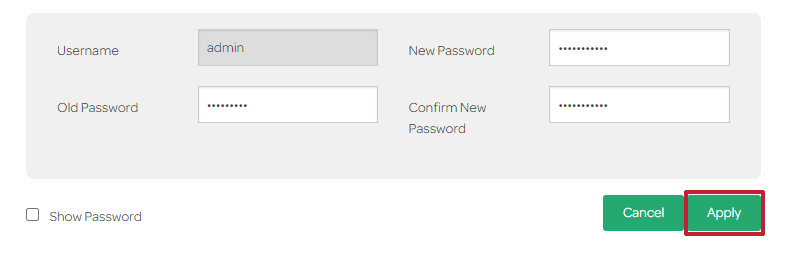
After clicking the apply button, your new admin password will come into effect and your TalkTalk router will return you to the login page. You can now log back in with your new password to make any further changes or close your web browser to finish.
About The Author

Mark Parvin
NEXT UP


