Trending Topics

 Trending
Ten areas where AI can save professionals time today

Discover how AI can revolutionize your daily workflow with practical tools that save time, boost collaboration, and help you master new skills – no hype, just results.

As with any new technology, there is a lot of hype around AI. Too much, to the point where people can feel misled by all the promises if they don’t see the results. In this article, we’re going to do the precise opposite: we’ve come up with ten specific areas where AI can help you do your job better, today.
Some of the tools are free, some paid-for. But all will either save you time, help you collaborate with others in your team, or simply improve the quality of your work. They may even add new skills that you never previously considered.
1 Solving the blank page problem
The blank page problem comes in many forms. Most commonly it’s associated with Microsoft Word, a cursor ominously flashing against a white background, but it’s a problem faced by creatives and professionals alike. For years, the best solution – the only solution – came in the form of templates, but now the best software includes AI tools to help.
You’re probably already familiar with Copilot in Word, which now comes with a pre-made collection of prompts or asks “What do you want Copilot to draft?” Likewise, Gemini in Google Docs. But you may be less familiar with Adobe Firefly, a generative AI tool that transforms your prompt into a striking image.
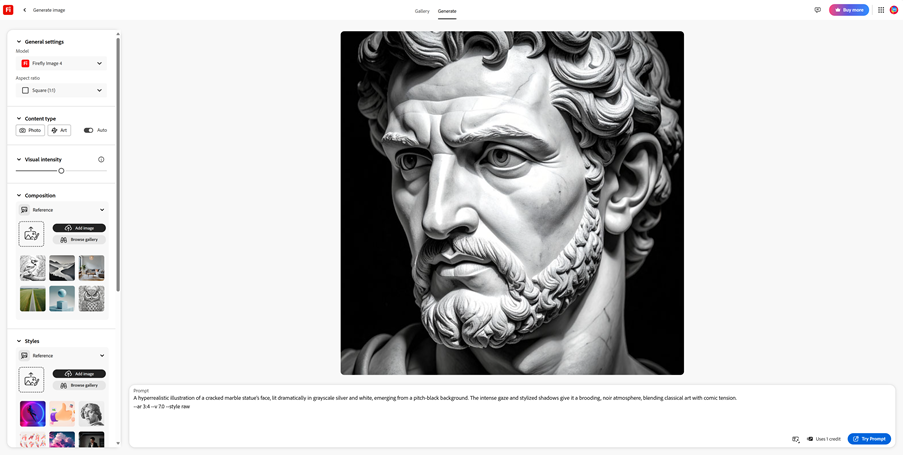
This isn’t just useful for designers. Consider the common task of creating a presentation. You can now use AI to turn a set of basic slides into a convincing, professional package to support your cause. If you’re still using clipart or hackneyed images, experiment with these tools.
And that’s just the start…
2 Extract information from a collection of documents
While you may literally be sitting in front of a blank page, the reality is that you’re almost certainly sitting on a huge amount of information. The problem is that the information is hidden away in presentations, Word documents, emails and PDFs. Some of which you have access to, some of which you don’t.
Adobe aims to solve this everyday problem with PDF Spaces in Acrobat Studio. In combination with Acrobat AI Assistant, PDF Spaces can pull out insights and uncover trends based on the documents you share – and it will save you time by linking straight to the source. Think of it as AI-powered sharing.
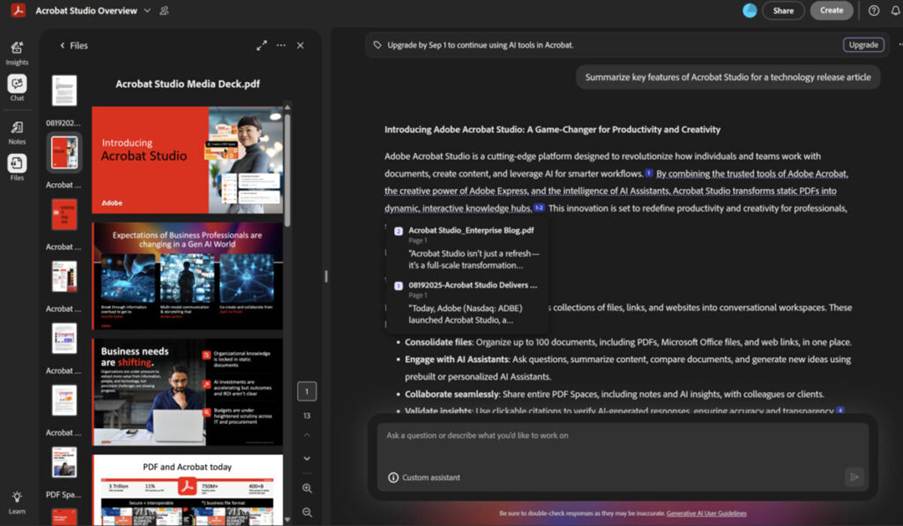
Where things get particularly clever is that Adobe provides tools to create new assets, new PDFs, based on the generated insights. That could be a presentation or a report, and here you can personalize it to a client you have in mind.
3 Train your own AI assistants
Generic AI assistants are great. We’ve all played around with ChatGPT and Google Search’s AI Mode. But the most powerful AI assistants for professionals are the ones that can answer questions specific to your role. The equivalent of a personal secretary; just one that won’t baulk at boring tasks and is ready to answer 24 hours a day, seven days a week.
This means that the assistants must be trained on your data, which comes with inherent questions over security and trust. In a professional setting, you naturally deal with confidential information, whether it belongs to your organization or your clients. So, you need a trusted place to pool the relevant documents – here again we turn to Adobe’s PDF Spaces.
Within PDF Spaces, Adobe supplies three pre-built versions of its AI Assistant, each designed to suit different communication needs. First, the Analyst can extract insights from the data and answer your questions. That’s great for business reports, contracts and research papers. Then there’s the Instructor, which can explain complex topics in a conversational style – useful for training materials and onboarding docs. And if you want to engage people with marketing content or storytelling presentations, the Entertainer is your friend.
But you can also create your own custom assistants (an Adobe demo suggests creating a “Sales Pitch Pro”) by describing what you want it to do and then using prompts to sharpen up its approach to directly match your needs. It’s well worth playing around with as a short amount of time spent here could result in hours, days, weeks of effort in the future.
4 Bring a team together
How can you build a cohesive team when everyone works in different places, often in different time zones? It’s a problem facing many organizations, and the daily whirl of emails, Slack conversations and Teams calls can’t fully solve it. Sometimes, they actually make it once. Once again, Adobe believes it has the answer in PDF Spaces in Acrobat Studio.
Let’s say that you’re working together on a project. You can upload up to 100 files – including PDFs, Office docs and web links – into a PDF Space dedicated to it. This PDF Space becomes your single point of truth: a hub where team members can ask questions, create live comments and annotate. That means everyone sees the progress of a particular document you’re working on, and there is built-in version control. Not three different versions of the same presentation.
As mentioned above, AI assistants – pre-built or customized for the job – can help the team not only better understand the data but create new, personalized assets. They can also create a to-do list, ready for the leader to assign tasks to team members. Everyone’s on the same page and there’s no time-wasting duplication.
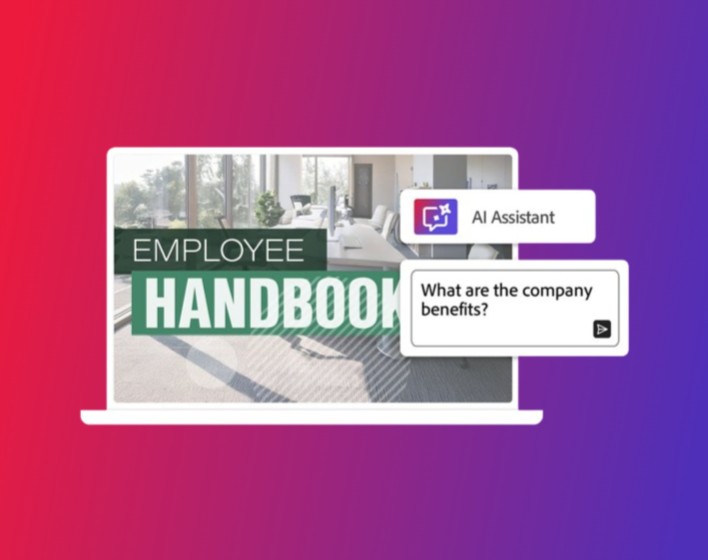
Speed Up Your Teams Work with Generative AI
Information overload can be a time-intensive burden for distributed teams. Adobe Acrobat AI Assistant changes the game with powerful capabilities that help teams get work done four times faster.
Watch this on-demand webinar to learn how Adobe Acrobat AI Assistant can help you work with document information at groundbreaking speeds.
5 Be on brand
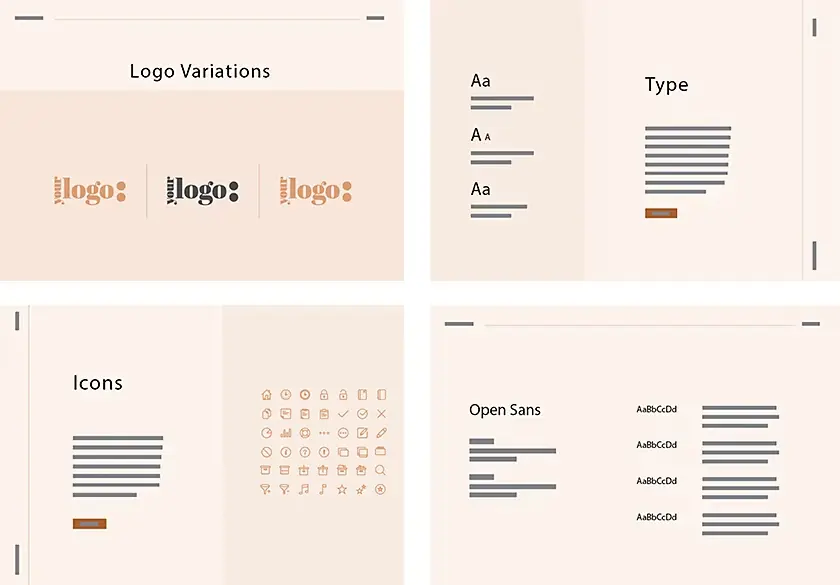
We’re all for free thinkers, but not if they break our brand guidelines. It’s a common problem, where a sales executive will create a fantastic-looking presentation, but one that uses the wrong, outdated logo, off-brand fonts and colors and images that break all sorts of copyright laws.
To save time, and keep every asset you look professional, you should consider creating Brand Kits in Adobe Express Premium (which comes bundled with Adobe Acrobat Studio). These automatically apply the right logo, brand colors and fonts to any new assets designed by a member of your team.
You can even go further by asking your designers to create locked templates from Photoshop, Illustrator or InDesign files. And by integrating your library of logos, graphics, and styles in Creative Cloud libraries, members of your team can draw upon these approved assets without leaving Adobe Express.
6 to 10 Draft emails, summarize long documents, attend meetings, analyze contracts and act as your IT helper
To finish off this article, we want to blitz you with a number of different ways that we’re already using AI for specific tasks.
Draft emails: It’s the end of the day, you have a pile of emails you need to respond to. Well, let AI help. There are numerous AI writing tools out there, some built into the email app, and we say use them. Whether it’s ChatGPT, Claude Sonnet, Google Gemini or Copilot in Outlook, let AI quickly draft the response – and then send it as is or tweak as required.
Summarize long documents: This is yet another area where Adobe’s AI Assistants do a brilliant job. In a fraction of the time it would take you to skim-read a long PDF, Adobe’s built-in AI can draw out the key points and point you to exactly where to find more info in the document. You can even ask questions and generate ideas.
Attend meetings: We’ve now reached the point where you can set up a meeting in your calendar and an AI agent (such as the one included with Otter.ai) will attend it on your behalf. It will then write up the notes, create action points, and allow you to ask questions about what happened.
Analyze contracts: We’re not suggesting that AI can yet replace legal professionals, but if you throw an Adobe AI Assistant at a contract it will identify the key clauses, generate summaries, and extract any deadlines or payment terms that might otherwise be hidden away. And, unlike humans, it never tires or forgets, making it possible to compare and review dozens of documents.
Act as your IT helper: Whether it’s Pivot Tables in Excel, switching on Dark Mode in Windows or even trying to decipher that weird error message generated by your office printer, AI is ready and waiting to be your IT helper. Most people’s biggest error? Not asking it for help before they get stuck.
Find out more about Adobe’s solutions
About The Author

Tim Danton
NEXT UP


