Trending Topics

 Trending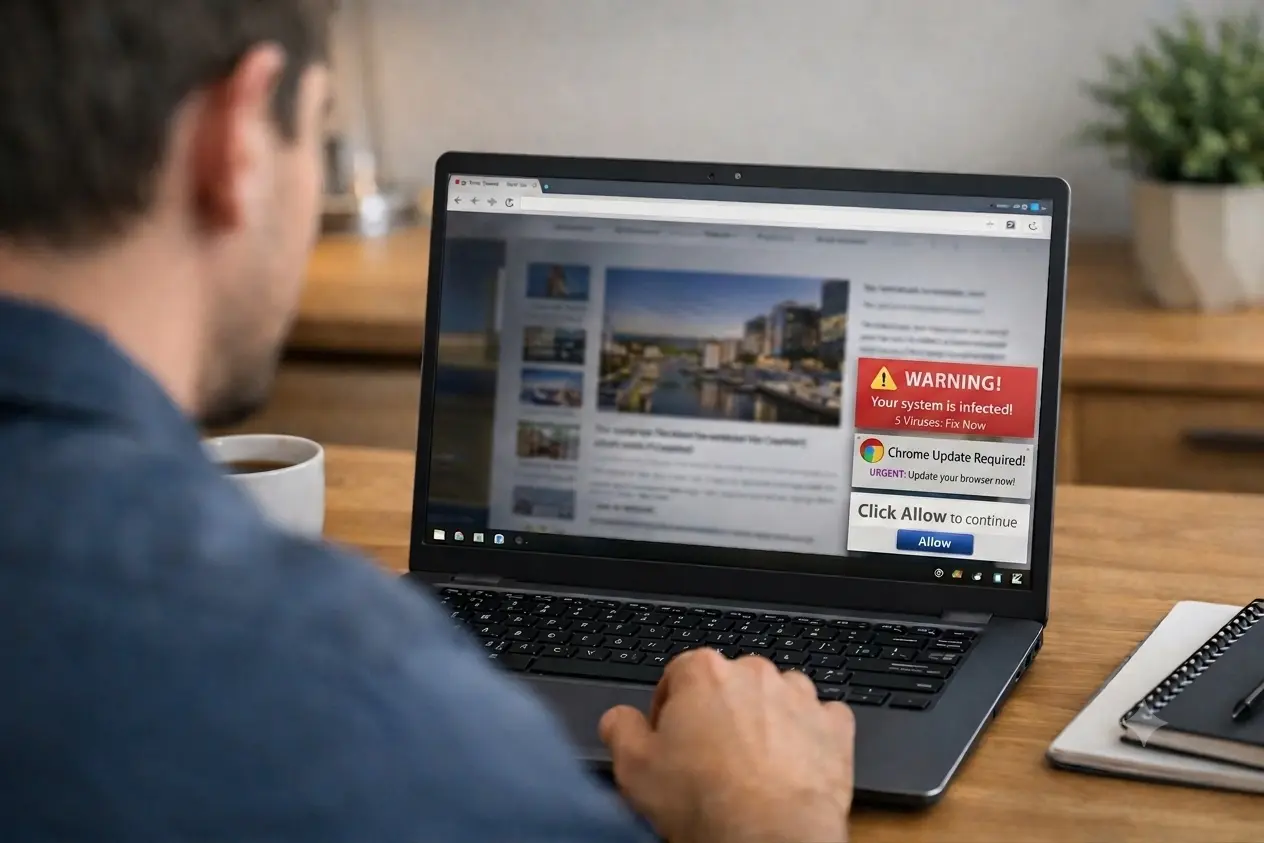
Why am I getting scam notifications in Google Chrome — and how do I stop them?

If you’ve suddenly had your screen fill with warnings like “Your computer is infected!” or “Click here to fix your system!”, you’re not alone. Scam notifications in Google Chrome are everywhere right now – and they’re annoying, misleading and designed to trick you into handing over your cash.
The good news is that once you understand what’s happening, these notifications are easy enough to stop.
What are Chrome scam notifications?
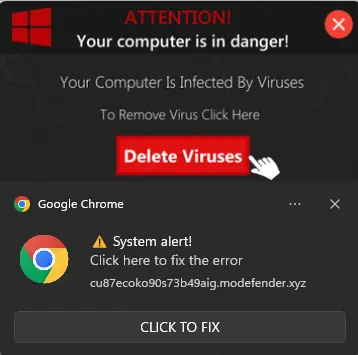
Scam notifications are fake alerts that pretend to be from Chrome, your antivirus, or even your operating system. They pop up on your desktop or phone and try to scare you into clicking something.
They often look like:
“Your computer has a virus!”
“Chrome needs an urgent update!”
“Your system is at risk — click to fix!”
“You’ve won a prize!”
How do these Chrome scam notifications sneak in?
None of these notifications come from Chrome. They come from websites you’ve accidentally allowed to send notifications.
Malicious websites use a technique known as “clickjacking” which are deceptive prompts that trick you into clicking “Allow.” Common tactics include:
- Fake CAPTCHAs: A page displays a message saying, “Click ‘Allow’ to prove you are not a robot.”
- Video Playback Tricks: A screen mimics a video player with a prompt stating, “Click ‘Allow’ to play video.”
- File Downloads: A message claiming, “Your download is ready. Click ‘Allow’ to save your file.”
The second you click “Allow,” the website gains permission to send pop-ups directly to your desktop or phone, even when you’re not using Chrome.
So be aware of any prompts that may pop up when browsing. However, one of the most common ways to get scam notifications is through the genuine Google Chrome notification box that appears near the address bar at the top of Chrome.
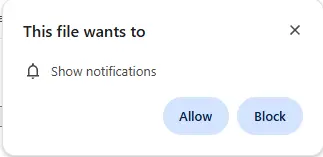
Even if the request appears to come from a legitimate website, it could still be a scam. If you see one of these boxes, it’s safest to click Block. Only allow notifications if you’re certain you want them – even genuine ones can be annoying.
What do I do if I’m already getting Chrome scam notifications?
If unwanted notifications are already popping up, you can shut them down through Chrome’s settings.
On a PC or Mac
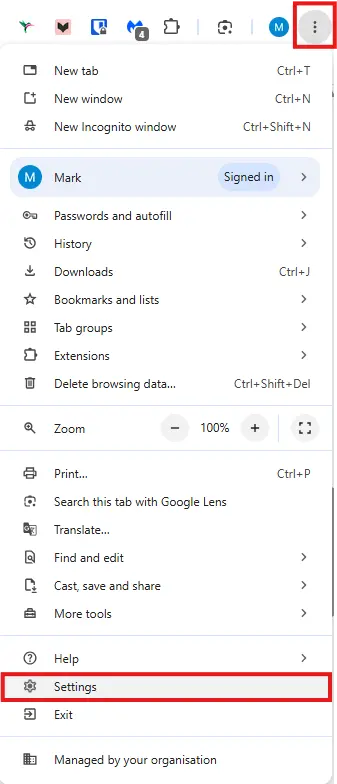
To stop scam notifications on a PC or Mac, open Chrome and click on the three vertical dots in the top right of the app. Then select Settings from the menu that appears.
Next, on the left-hand side of the settings page, click on Privacy and security.
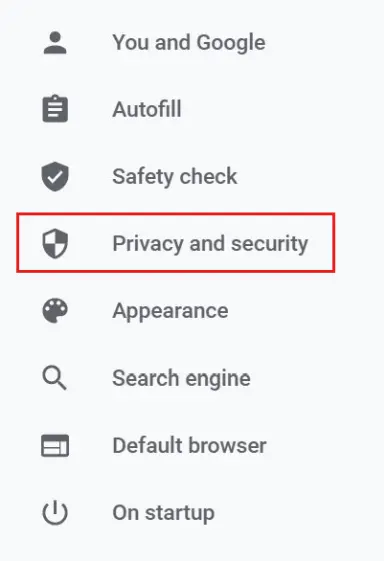
In the Privacy and security section on the left hand side, click Site Settings.

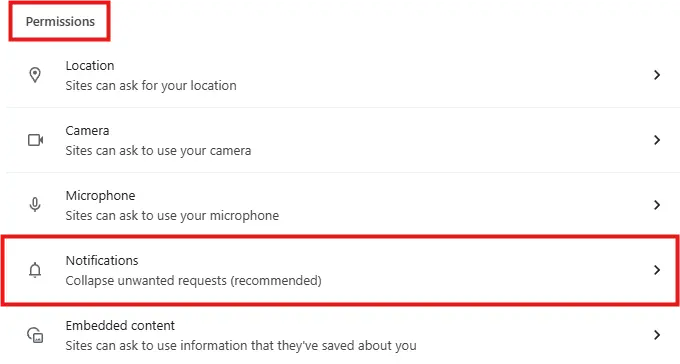
Now scroll down to the Permissions section and click on Notifications.
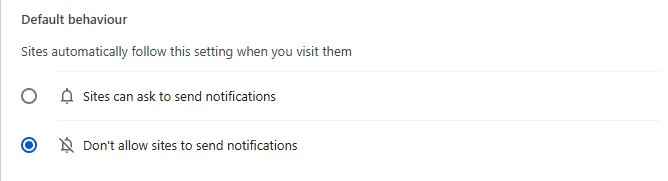
If you wish to block Chrome from offering notifications in the future, choose Don’t allow sites to send notifications, found under the Default Behaviour heading in the Notifications section. To select it, click on the circle to the left of the option. Doing this vastly reduces the chance of scam alerts appearing, but only choose it if you’re sure you don’t want any notifications.
To block any unfamiliar or unwanted websites, click the three vertical dots next to the site and select Block.
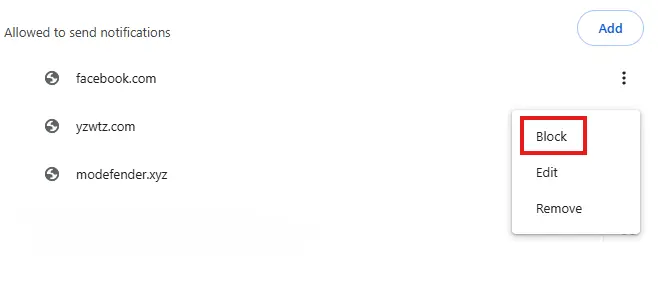
The site will now appear under the Not allowed to send notifications heading. Although you can choose Remove, it’s better to select Block to avoid the site sending further notifications.
On an Android phone or tablet
To remove Chrome scam notifications on an Android phone, first open Chrome, click the three vertical dots in the top right of the app, and tap on Settings on the menu that appears.
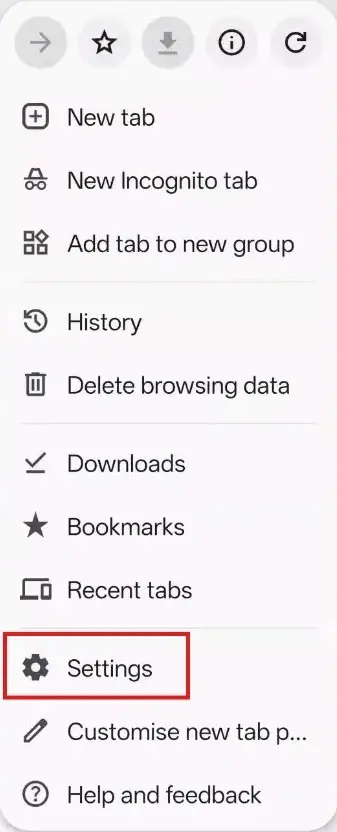
Now scroll down to the Allowed section to find the current sites that may show notifications. To block any unfamiliar or unwanted websites, click the three vertical dots next to the site and, on the screen that appears, tap the toggle switch next to Allow notifications.
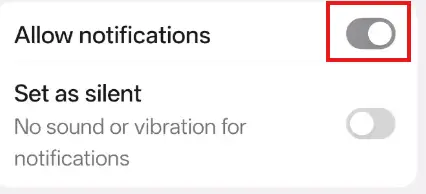
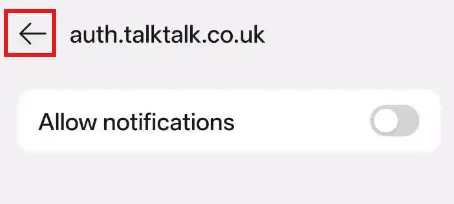
The switch will grey out and stop all notifications from that site. You can now return to the site list by hitting the back arrow at the top left of the screen and repeat the process on any other sites listed.
On an iPhone/iPad
Chrome cannot send system-level notifications on iPhones or iPads, so any scam alerts on these devices are not coming from Chrome.
Other reasons for scam notifications
While this article covers the most common cause of scam notifications in Chrome, they can sometimes come from other sources. If the steps above don’t fix the problem, try these two additional options.
Remove unwanted Chrome extensions
To check them, type the following into the address bar in Chrome on your PC and Mac (extensions are not available on the phone or tablet version of Chrome).
chrome://extensions
and then hit the Enter key.
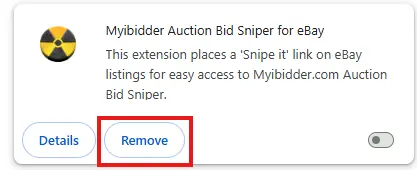
This will take you to the extension page. Look at the listed items and remove any unrecognised ones by clicking the Remove button within the extension box.
Scan for unwanted software or malware
Unwanted software, often known as PUPs, or general malware can also cause scam notifications and pop-ups. A full scan with your antivirus should hopefully sort those out.
If you still have issues, Malwarebytes is worth a try. It’s very effective at detecting PUPs and malware, and, when first installed, includes a fourteen‑day trial before switching to a free version.
The free version doesn’t offer real-time protection, so you need to run a scan manually whenever needed, and it does nag you a bit to buy it. However, it is an excellent companion to your main antivirus and is sometimes better at weeding out the likes of adware and scams.
More articles by computer repair expert Mark Parvin
About The Author

Mark Parvin
NEXT UP


