Trending Topics

 Trending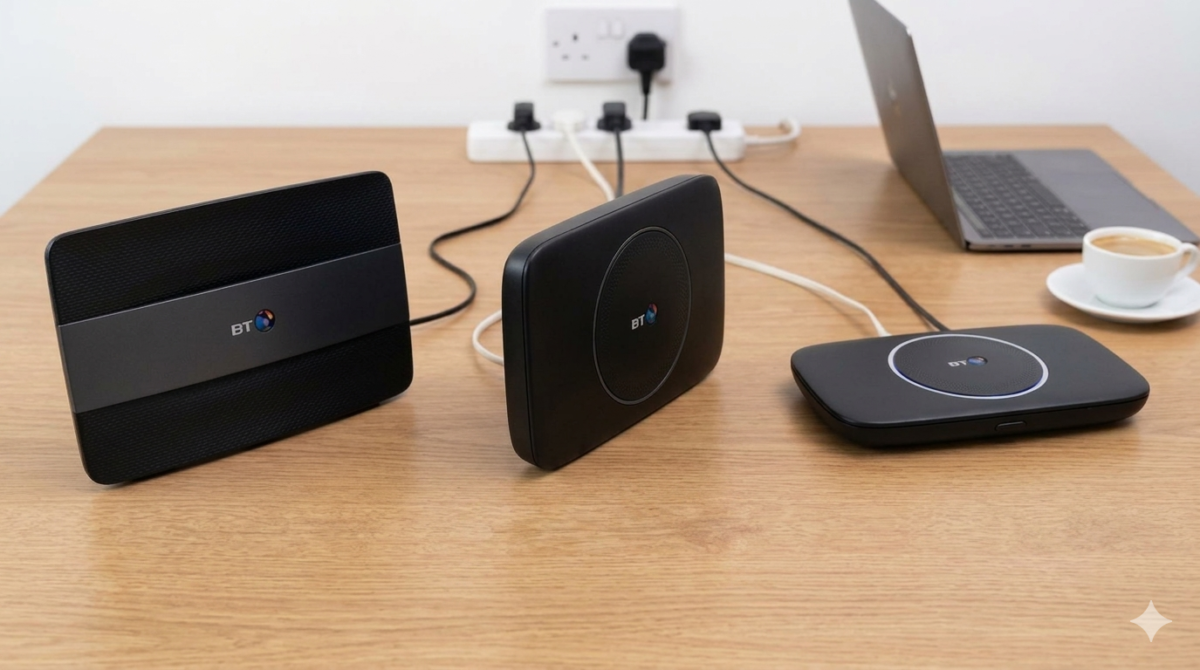
What do the lights on my BT Smart Hub mean?

When your BT-supplied internet suddenly drops, the quickest way to understand what’s going on is to look at your BT Smart Hub’s light. BT uses a colour‑coded system on its routers to show what’s happening with your connection. The problem is, it’s not always obvious what those colours mean. This guide breaks down what each light signifies and the steps you can take to fix any potential issues.
Which BT Smart Hub do I have?
BT currently has three Smart Hubs available: Smart Hub, Smart Hub 2 and, unsurprisingly, Smart Hub 3.
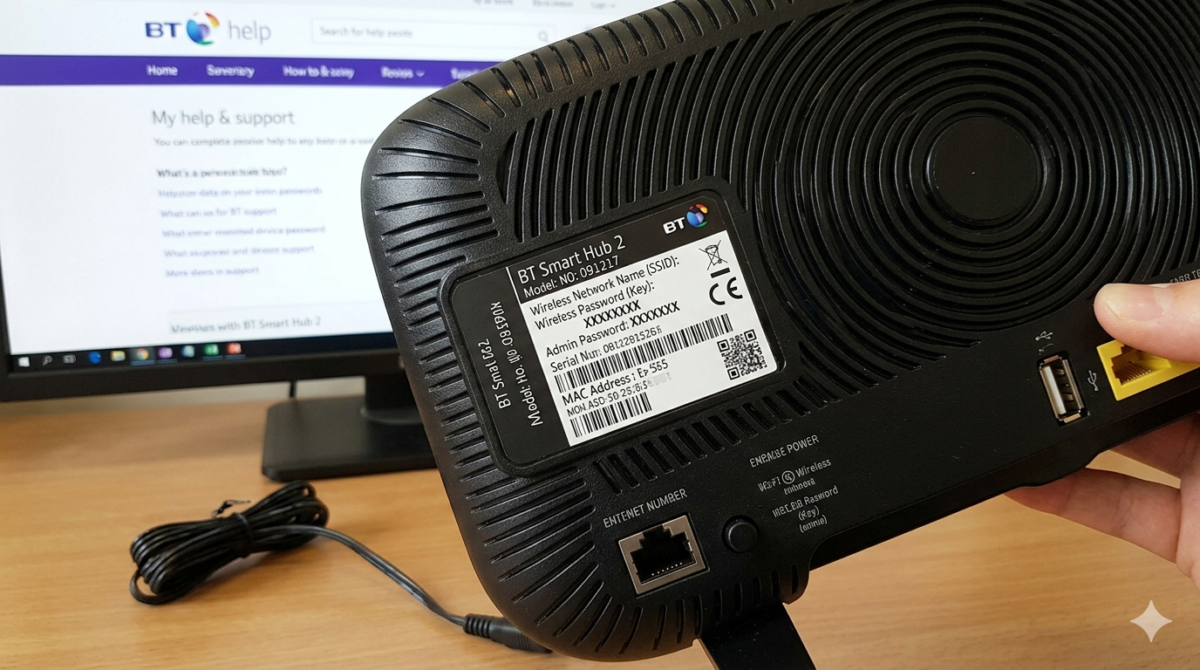
While they each have cosmetic differences, the light show they create is essentially the same for each one. However, if you want to know which Smart Hub you own, it’s printed on the removable Wi-Fi card or on a sticker on the base of the router.
Have you tried restarting?
Before heading into what light does what, if you are having an issue with the internet, it is always worth trying a restart or of the BT Smart Hub first. To do this:
- Press the power button on the back of the router to turn it off, then press it again to turn it back on.
- Unplug the power cable or switch the router off at the wall socket.
After turning it off, wait around 30 seconds before restoring power.
Then allow 5 to 10 minutes for the hub to fully restart. During this time, the light may change colour several times before, hopefully, returning to blue.
Once it does, try connecting to the internet again. If it doesn’t turn blue or it still isn’t working, it’s time to read on.
So what do the lights on my BT Smart Hub mean?
Okay, let’s take a look at each in turn
Blue light
A blue light should show you have an internet connection and that all is well with the world.
However, all may not be as it seems. Sometimes, the router may show a blue light even when your device cannot get online.
If you have a blue light but no internet access, then try restarting the hub if you haven’t already.
If the light returns to blue but the internet still does not work, then check the following:
- Does your phone, tablet, or computer have its own connection problem? Check if it’s only affecting one device and, if so, maybe a restart of the device will help
- Check whether other light colours on the router described in this guide suggest a different fault
Green light
A green light shows that the hub is rebooting. This is normal behaviour after powering on or restarting the Smart Hub.
This light should only appear for a few minutes before moving on. If it continually stays green, then give the Smart Hub another restart.
Flashing orange light
A flashing orange light on your BT Smart Hub means it is trying to connect to the internet. This usually takes a few minutes, and then the router should turn blue and be ready to use.
If it continues to flash for over ten minutes, then try a restart of the hub.
Solid orange light
The solid orange light on a BT Smart Hub means the router is working, but it can’t connect to the BT Broadband.
To troubleshoot a steady orange light, try these tips:
- Restart the Hub
- Just wait a while – it could be a temporary issue
- If you have a device connected to the router, open a web browser and follow the instructions that should appear on the screen
Red light
A red light is a good indicator of trouble. It’s the all-in-one warning of a possible fault with the line or the hub itself. However, before you contact BT, it’s worth trying:
- Restarting the router.
- Checking all the cables, especially the broadband cable, as mentioned in the flashing purple light section below.
Flashing purple light
A flashing purple light usually means the broadband cable may not be connected correctly.
However, which cable you have depends on how you receive your internet.
If you get your internet through a telephone connection
- Check that the grey cable is securely in the grey broadband socket at the back of the router.
- Also verify the cable’s connection to the telephone socket at the other end.
- If you use a micro filter, make sure it is also connected properly.
If you get your internet through an Openreach modem
- Ensure the Ethernet cable is firmly plugged into the port marked WAN on the router’s rear.
- Also verify the cable is connected into the white Openreach modem at the far end of the cable.
- Try restarting the Openreach modem by turning off the power for 30 seconds and then turning back on. Wait around five minutes before retesting the internet.
No light
If you have no lights on the Smart Hub, then make sure the router is receiving power.
- Check that the power button on the back of the router is in the on position.
- Check that the power cable is securely connected to the power socket on the hub.
- Ensure the power adapter for the Smart Hub is plugged in and pushed completely into the electrical socket.
- Make sure the electrical socket that supplies the power adapter is on.
- If none of the above help, you may need to replace the power adapter.
Solid white light
BT also supplies a hybrid connect router that offers mobile broadband when your main internet has an issue. If your BT Smart Hub is showing a solid white light, then this smaller box is in use and keeping you connected.
While this solves the immediate issue, if the white light continues to show, it would be best to contact BT to let them know as you still have an issue with your main broadband connection.
Flashing blue light
A flashing blue light on the Smart Hub means that you have pressed the WPS button on the router and can now connect other devices that use WPS. If you pressed it by accident, it will disappear after a couple of minutes.
But I still can’t get the internet!?
If you are still having issues connecting to the internet after trying the tips above, then you can always try a factory reset of your BT Smart Hub.
- Find the little hole at the back of the router called Factory Reset.
- With the hub switched on, grab a paperclip or something similar and push it into the hole and hold it there for around five seconds., then release it.
- Wait for around five to ten minutes and try the internet again.
- If you have changed the Wi-Fi name or password, these will now reset to the default ones shown on the removable card.
If none of that has helped, try the BT service status web page to see if there is an issue in your area.
Otherwise, your best option is to contact BT.
About The Author

Mark Parvin
NEXT UP


