Trending Topics

 Trending
How to disable Incognito Mode (and what it doesn’t hide)

This is a sponsored article brought to you by Planet VPN.
To disable incognito mode, close the private browsing window or toggle it off in your browser’s menu — there’s no permanent “on/off” switch to flip. But turning it off isn’t really the issue: incognito mode never hid your traffic from your employer, ISP, or the websites you visited in the first place, so switching it off changes almost nothing about who can see what you do online.
Table of contents
- What does Incognito Mode actually hide?
- How do you turn off Incognito Mode on different browsers?
- What can still see your activity in Incognito Mode?
- How do you get real privacy instead of just Incognito Mode?
- What common mistakes do people make with private browsing?
- Incognito Mode vs real privacy tools: quick comparison
What does Incognito Mode actually hide?
Incognito, or private browsing, was built to solve a narrow problem: keeping your local browsing history clean on a shared device. When a browser session runs in this mode, it skips writing your visited pages, form entries, and cookies to local storage, and it discards them the moment you close the window. That’s the entire job description.
What it was never designed to do is mask your identity from the wider internet. Your IP address, which is what websites, network administrators, and internet service providers use to see where a connection is coming from, stays exactly the same. DNS requests, the lookups your device makes to translate a website name into an address, also travel unencrypted through your network in most default setups. None of that changes just because a browser tab is labeled “private.”
How do you turn off Incognito Mode on different browsers?
Disabling an active private session is straightforward, but each browser handles it a little differently:
- Chrome: Close the incognito window directly, or use Ctrl+Shift+N (Cmd+Shift+N on Mac) to toggle a new private window; there’s no setting that keeps it permanently disabled without third-party device management tools.
- Firefox: Close the private window, or go to the hamburger menu and select “New Private Window” to open one; organisation-managed devices can restrict it via policy settings in enterprise deployments.
- Safari: Tap the tab overview icon, switch from “Private” back to a regular tab group, or close the private tabs individually.
- Edge: Close the InPrivate window, or disable it for managed devices through Group Policy if you’re an IT administrator handling company laptops.
- Android/iOS apps: Most mobile browsers let you toggle out of the private tab group from the tab switcher rather than a settings menu.
For most users, there’s nothing to permanently “disable” — incognito is a temporary window mode, not a persistent setting.
What can still see your activity in Incognito Mode?
Even with private browsing active, several parties retain full visibility into your session. Your network administrator or the WiFi provider at a coffee shop, airport, or office can still see every domain you connect to, since that traffic passes through their infrastructure regardless of browser mode. Your internet service provider can log the same connection data for as long as their retention policy allows.
Websites themselves aren’t blind either: they can still fingerprint your device using details like screen resolution, installed fonts, and browser version, then link that fingerprint to your account if you log in during the session. Employers using device management software on work laptops can typically see browsing activity at the network or endpoint level, since incognito mode only affects what’s stored locally on that device.
How do you get real privacy instead of just Incognito Mode?
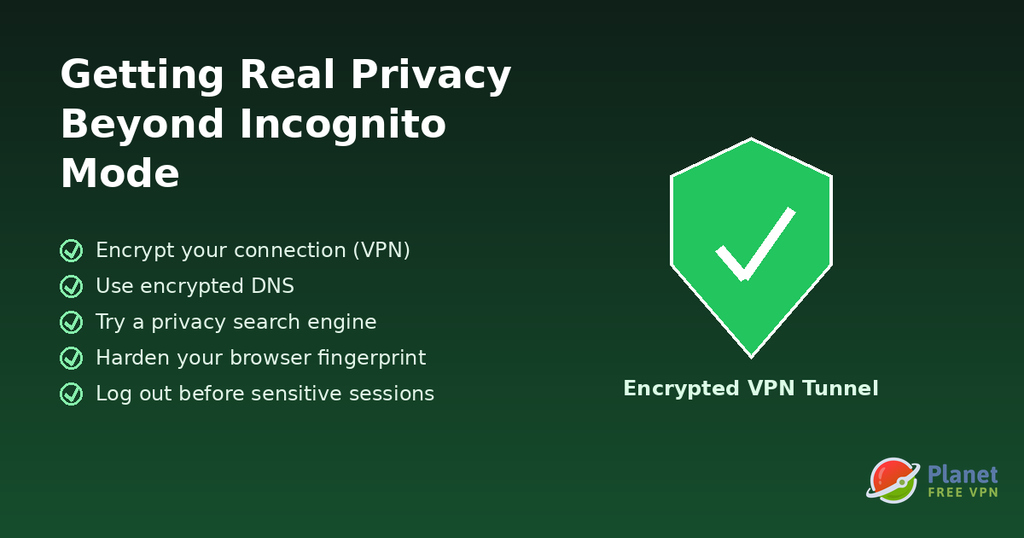
Closing the gap between “feels private” and “is actually private” takes a few extra layers, each solving a different part of the problem:
None of these tools work in isolation — the point is combining them based on what you’re actually trying to protect against.
What common mistakes do people make with private browsing?
The most frequent mistake is assuming incognito mode protects against tracking rather than just local history. People often open a private window to check flight prices, believing it will show them a fresh, untracked rate, when in reality airlines and travel sites can still track them through IP address and account logins.
Another common error is using private browsing on a public or work network expecting anonymity from the network owner, when the connection itself remains fully visible to whoever controls that network. Some users also assume incognito mode blocks malware or phishing attempts, when it offers no additional security against either. Finally, closing the private window without logging out of accounts first can leave sessions active longer than expected on shared devices.
Incognito Mode vs real privacy tools: quick comparison
A quick way to see where the gaps sit:
- Hides local history from other device users: Incognito mode — yes. Real privacy tools — not their job.
- Hides your IP address from websites: Incognito mode — no. A VPN — yes.
- Hides browsing from your ISP or WiFi network: Incognito mode — no. A VPN — yes.
- Prevents account-based tracking when logged in: Incognito mode — no. Logging out — yes.
- Blocks malware or phishing sites: Incognito mode — no. Dedicated security software — yes.
FAQ
Does incognito mode hide your IP address?
No. Incognito mode only stops your browser from saving local history and cookies; it has no effect on the IP address that websites and networks see during your session.
Can my employer see what I do in incognito mode on a work laptop?
Yes, in most cases. Company-managed devices and networks typically log traffic at the network or endpoint level, which sits outside what incognito mode controls.
Does incognito mode protect you from hackers or malware?
No. Private browsing mode has no built-in malware scanning or phishing protection; it only affects what gets stored locally after you close the window.
Why does incognito mode still show targeted ads sometimes?
Ad targeting can still occur because websites use IP addresses, device fingerprints, and account logins to identify you, none of which incognito mode hides.
Is there a way to permanently turn off incognito mode in Chrome?
On personal devices, there’s no built-in permanent toggle; only enterprise-managed devices can disable the feature entirely through administrator policy settings.
Does closing incognito mode delete everything from that session?
It deletes locally stored history, cookies, and form data from that browser, but it does not delete records that were already sent to and stored by websites, your network, or your ISP.
About The Author

Gabriel Jones
NEXT UP


