Trending Topics

 Trending
How do I improve MacBook battery life?

If you’re running the latest version of macOS, Ventura, on an M1 or M2 MacBook, then you may experience the battery draining even when it’s sleeping with the lid closed. What’s happening, and how can this be fixed? Here’s how to improve your MacBook battery life.
Why is my MacBook battery draining whilst it’s sleeping?
MacOS will perform functions (such as checking email, for example) when your MacBook is asleep, so that you have the latest information available when you flip the lid open.
However, Ventura on M1/M2 MacBooks also offers third-party apps the option to continue running in the background, even whilst the device is asleep. There are, of course, circumstances where you may want this, but it’s easy for an app to drain the battery when you’re not bothered about it updating in the background.
How can I stop apps draining MacBook battery?
Thankfully, the solution is relatively simple.
Time needed: 2 minutes
How to reduce battery drain whilst your MacBook is sleeping
- Launch Activity Monitor
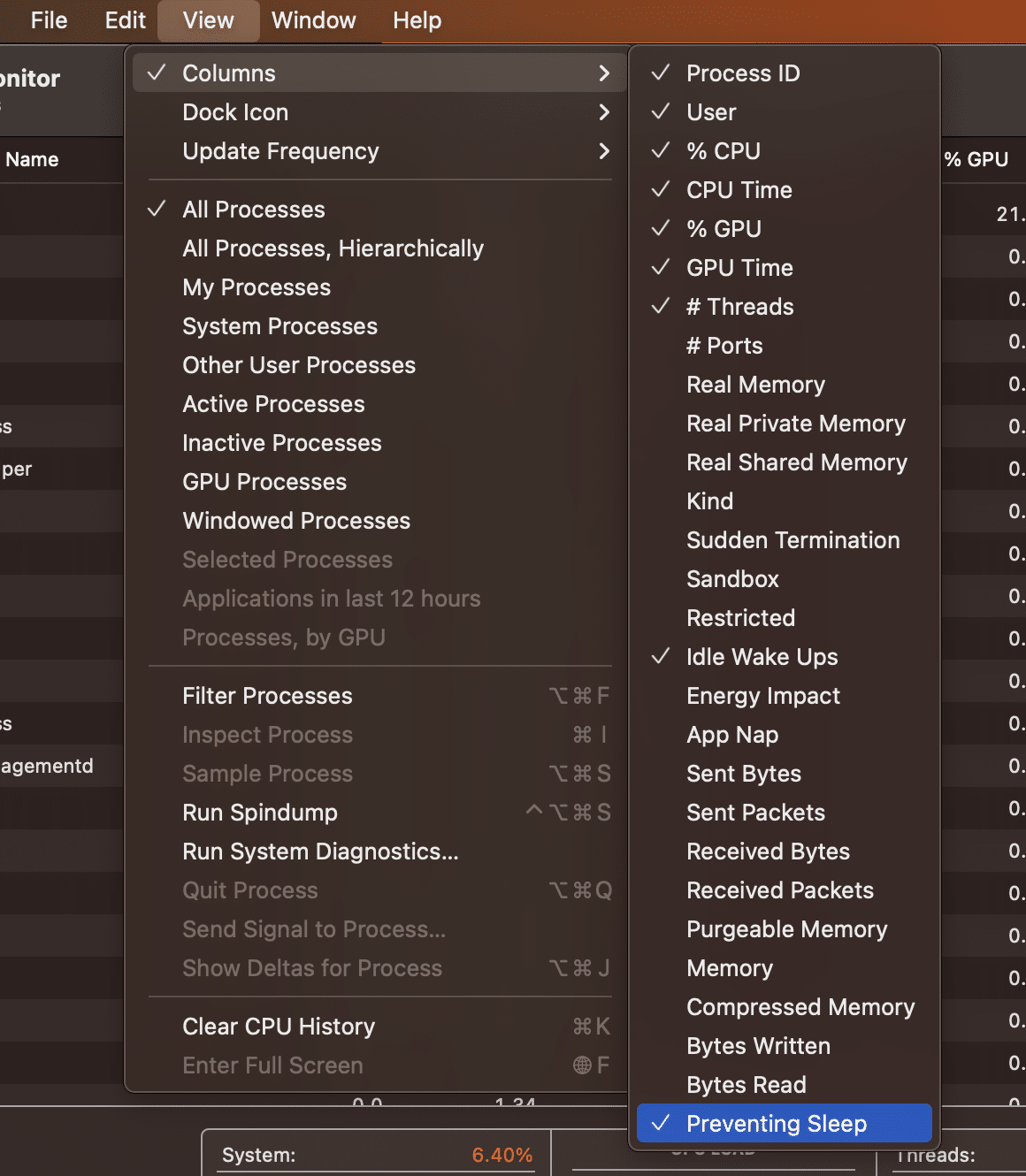
Press Command & Space together to bring up the Spotlight Search bar. Type in Activity Monitor and press Enter. - Switch on the Preventing Sleep column
Click on View in the toolbar, then select Columns and ensure Preventing Sleep is ticked.
- Identify the app(s) causing the problem
When you return back to the Activity Monitor screen, each process will now show, in the Preventing Sleep column, whether or not it’s actually preventing the Mac from sleeping. Any that say Yes may be the culprit.
However, be aware that many processes that are marked with Yes may be system processes, and may have unforeseen circumstances if stopped (don’t worry, you won’t break anything; at worst a reboot of your computer will put things back to how they were).
Your best solution is to look in the User column to see if it’s showing your Mac username, if so, it’s less likely to be a critical system process. - Stop the app from running
Highlight the app in question and then press the cross icon at the top of the window (highlighted here in red).
A confirmation window will appear, select Quit to stop the process. If this doesn’t stop, repeat the previous step but select Force Quit instead.
This isn’t a permanent solution. Rebooting your Mac or even just relaunching the app in question may restore the process. Investigating why this is occurring with the development team in question is the best course of action in the long term. Also, check the app’s settings to make sure there isn’t already an option to prevent this from happening. - Turn off system updates
Finally, we can now turn to the system updates that can be performed whilst your MacBook is asleep. These include iMessages, app updates and iCloud changes, amongst others.
Launch System Settings and then click on Battery and, in the bottom right-hand corner, click on the Options button.
You will see an option named Wake for network access; ensure this is either Only on Power Adapter or Never.
Unlike the previous changes, this will remain even after your MacBook is restarted.

Additional explainers you might be interested in
About The Author

David Artiss
NEXT UP


