Trending Topics

 Trending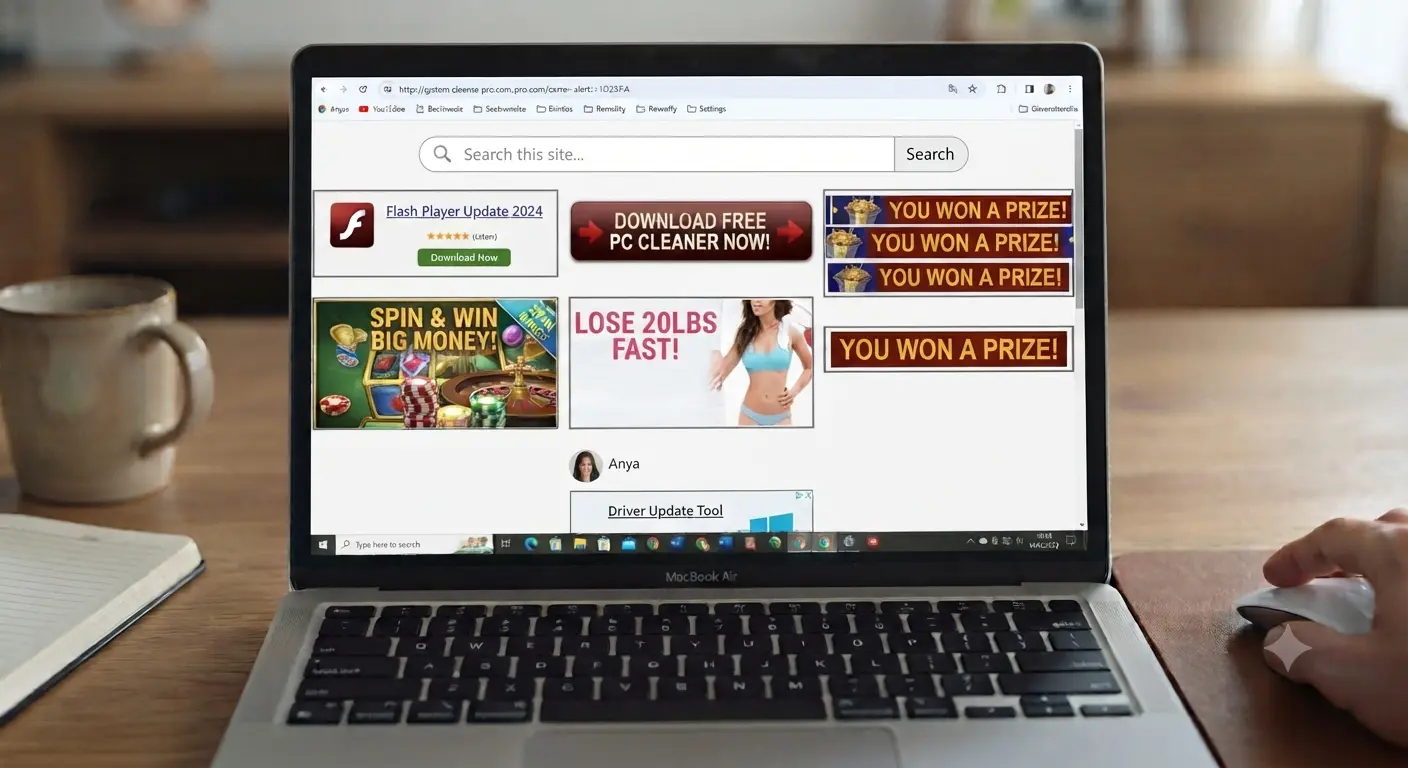
Homepage hijacks: how to restore your browser’s start page

Homepage hijacks are one of the oldest – and still most common – browser annoyances. You open your PC’s web browser expecting Google, Bing or your favourite start page, and instead you’re greeted by a strange search engine, or a page full of ads.
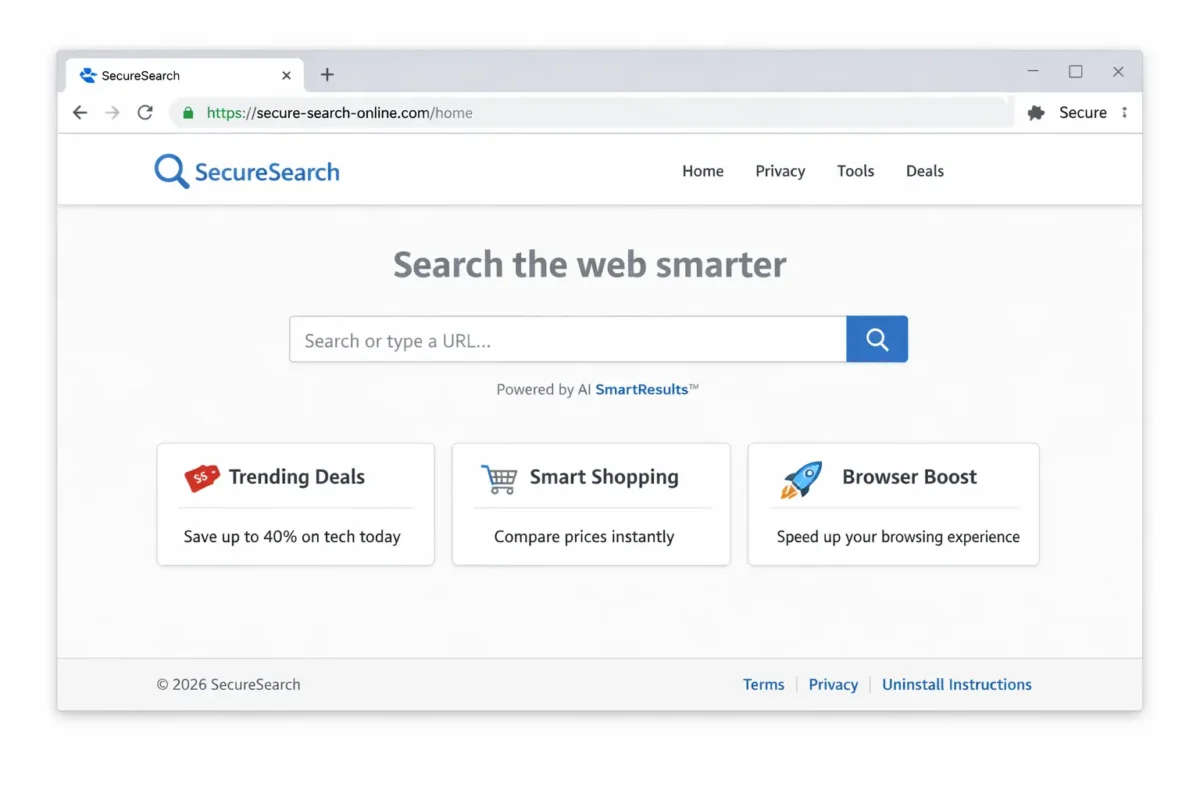
While modern browsers are better at blocking unwanted changes, hijackers have evolved too. They use a range of tactics to keep their homepage in place and hard to remove.
Let’s look at how homepage hijacks happen and the best way to fix them.
What causes homepage hijacks?
Homepage hijacks usually come from a few different sources.
Malicious extensions
Extensions can override your homepage, search engine, or new‑tab page. Some hide themselves or reinstall after removal.
Malicious pop-ups and alerts
Fake system alerts can pop up while browsing (for example, “Your browser is outdated” or “Security threat detected!”). Clicking these alerts often prompts you to download a fix or a plugin that then causes the homepage hijack.
Software bundling
Software bundling is a very common method. Attackers bundle their malicious code into legitimate, often free software installers. During installation, attackers usually hide the malicious element behind “Advanced” or “Custom” installation settings. If you blindly click “Next” or “Accept” without reading, you unintentionally grant permission for the homepage change to take place.
How do I remove a homepage hijack?
Resetting your browser is usually the easiest way to remove a hijacked homepage. This method can resolve the issue quickly without deleting important browser data, such as bookmarks, browsing history, or saved passwords.
Here’s how to reset the three most common PC web browsers: Edge, Chrome and Firefox.
How to reset Microsoft Edge
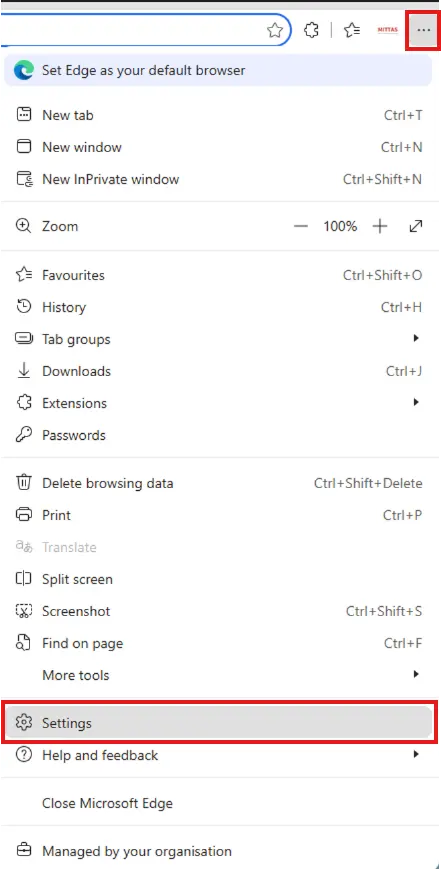
To reset Microsoft Edge, first open the browser and then click on the three horizontal dots in the top right of the app. Next, select Settings from the menu that appears.
Now, on the left-hand side of the Settings page, click on Reset settings.
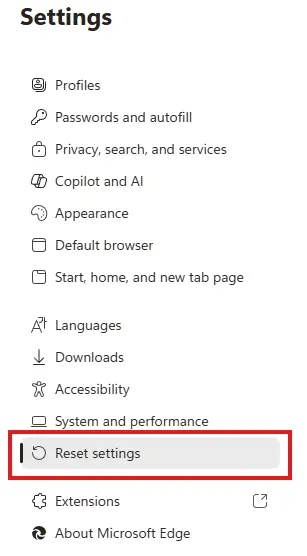
In the right-hand pane, click Restore settings to their default values.

A warning will appear, letting you know what will happen when you reset. If you’re okay with what it says, click the Reset button.
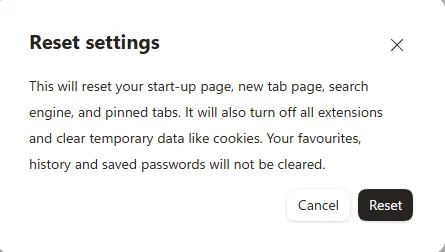
Now close and re-open Edge, and the default homepage should show instead of the hijacked version.
Re-activating extensions in Edge
When you reset Edge, you also turn off any active extensions. If there are any you want to continue using, you’ll need to turn them back on. To do this, type the following into the address bar in Edge
edge://extensions/
and then hit the Enter key.
This will take you to the extension page. Look at the listed items and reactivate any you need by clicking the toggle switch so it turns green.

Only reactivate extensions you trust and still need, as a dodgy extension may have caused the homepage hijack.
How to reset Google Chrome
To reset Google Chrome, first open the browser and then click on the three vertical dots in the top right of the app. Next, select Settings from the menu that appears.
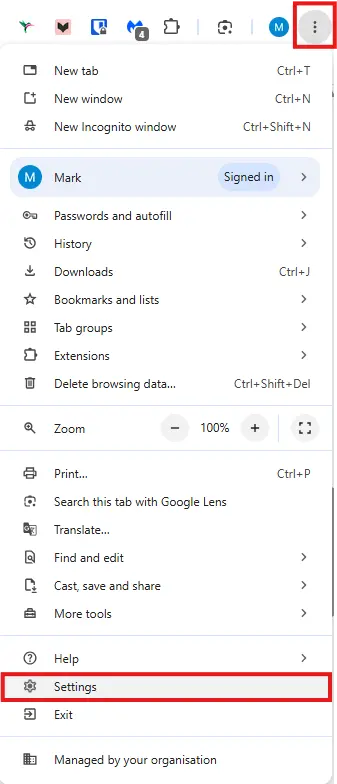
Now, on the left-hand side of the settings page, click on Reset settings
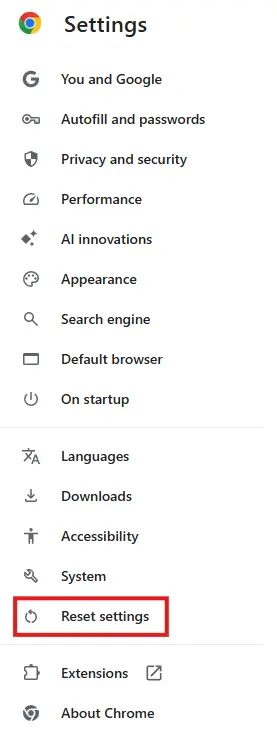
In the right-hand pane, click Restore settings to their original defaults.

A warning will appear, letting you know what will happen when you reset. If you’re okay with what it says, click the Reset settings button.
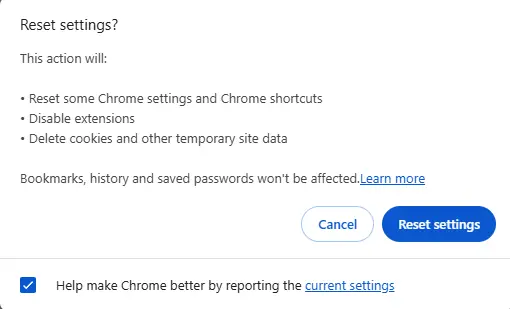
A revolving circle will now appear within the warning box, and the box will disappear once the reset finishes.
Once the box disappears, close and re-open Chrome, and the default homepage should show instead of the hijacked version.
Re-activating extensions in Chrome
When you reset Chrome, you also turn off any active extensions. If there are any you want to continue using, you’ll need to turn them back on. To do this, type the following into the address bar in Chrome
chrome://extensions/
and then hit the Enter key.
This will take you to the extension page. Look at the listed items and reactivate any you need by clicking the toggle switch so it turns blue.
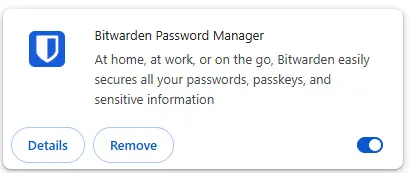
Only reactivate extensions you trust and still need, as a dodgy extension may have caused the homepage hijack.
How to reset Mozilla Firefox
To reset Firefox, first open the browser and then click on the three vertical lines in the top right of the app. Next, select Help from the menu that appears.
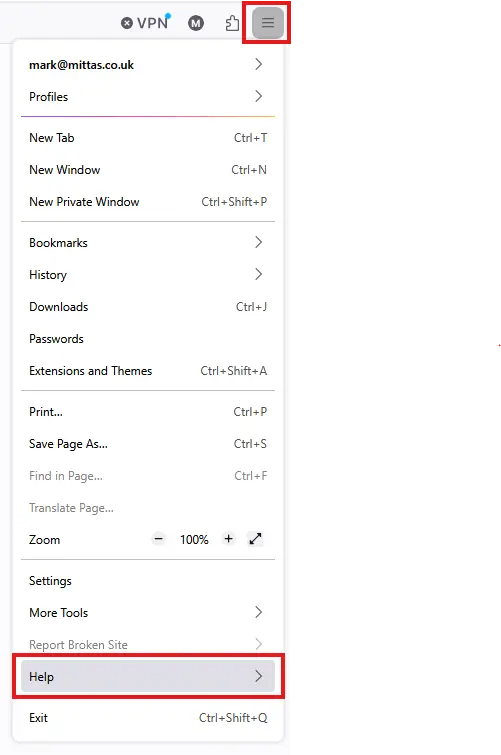
Now select More troubleshooting information.
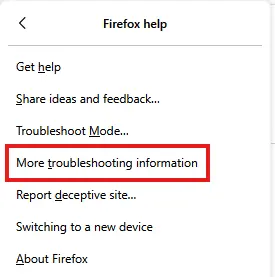
The troubleshooting information page will now appear. In the top corner, click on Refresh Firefox.
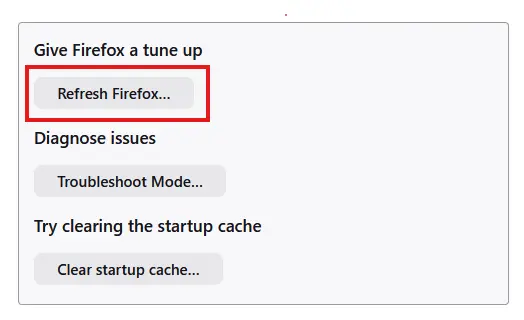
A warning will appear, letting you know what will happen when you reset. If you’re okay with what it says, click the Reset Firefox button.
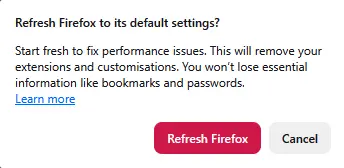
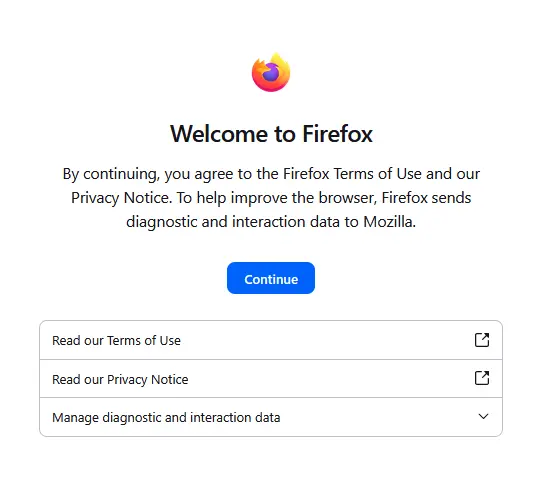
Firefox will close and then reopen. Once re-opened, you’ll see a Welcome to Firefox window. Click the Continue button to get to the next step.
The next page will ask if you wish to Restore all windows and tabs or Restore only the ones you want. Ideally, select Restore all windows and tabs and click the Let’s go! Button to take you back to where you were.
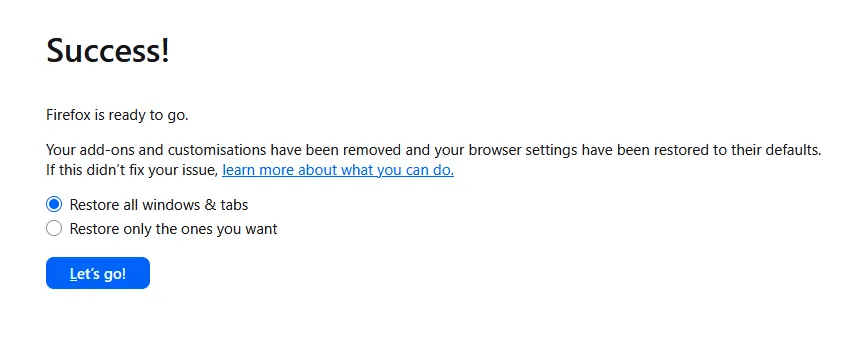
Your homepage should now also be the default Firefox homepage.
Re-activating extensions in Firefox
When you reset Firefox, you also turn off any active extensions. If there are any you want to continue using, you’ll need to turn them back on. To do this, click on the three vertical lines in the top right of the app, and select Extensions and Themes from the menu that appears.
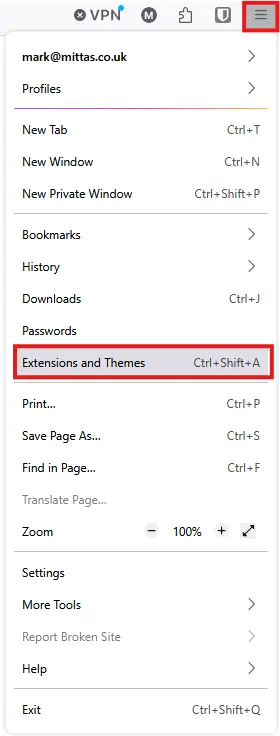
Now click Extensions in the left-hand list.
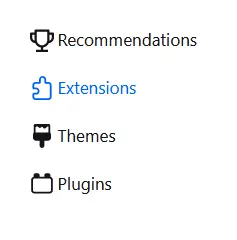
Under the Manage Your Extensions heading in the right-hand pane, reactivate any extensions you need by clicking the toggle switch so it turns blue.

Only reactivate extensions you trust and still need, as a dodgy extension may have caused the homepage hijack.
If a web browser reset doesn’t work
If resetting your browser doesn’t fix the problem, a potentially unwanted program (PUP) or malware may be responsible.
Your best option is to run a full scan with your antivirus. If you still have issues, Malwarebytes is also worth a try. It’s very effective at detecting PUPs and malware. When first installed, it includes a 14‑day trial of the full software before switching to a free version.
The free version doesn’t offer real-time protection, so you need to run a scan manually whenever needed, and it will nag you to buy it. However, it can be a useful companion to your main antivirus and may help remove the cause of a homepage hijack.
Related articles by Mark Parvin
About The Author

Mark Parvin
NEXT UP


