Trending Topics

 Trending
How do I scan QR codes on Huawei and Honor phones?

Table Of Contents−
A quick tip for owners of Huawei and Honor phones who are wondering, as I did for a while, how to read QR codes. It’s actually incredibly easy, but only if you know how. Here’s the “secret” way to activate the QR reader on Huawei and Honor phones.
If your screen is locked, the quickest option is to swipe up from the bottom where you’ll see, from left to right, icons for quick record, torch, calculator, timer and Huawei’s AI Lens app.
The first option for launching the AI Lens app is a code scanner, which is what you’re looking for. We go into more detail on how to use the QR code scanner below.
How to scan QR codes from the home screen
First, head to the home screen and then swipe down from the middle of the screen. This will reveal a screen like so:
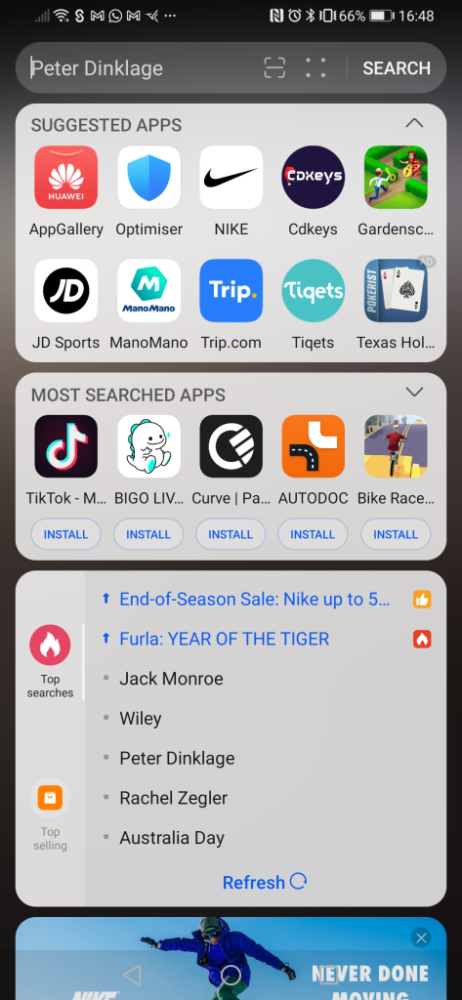
As you can see, it’s full of junk that Huawei is promoting. However, ignore that and focus on the top area:

I’ve no idea who Peter Dinklage is, but I am interested in the icon with four rounded corners and a horizontal line across the middle. For pressing that launches Huawei’s AI Lens app.
By default, it launches the code scanner as seen below. You simply point the phone at the QR code and it will work.
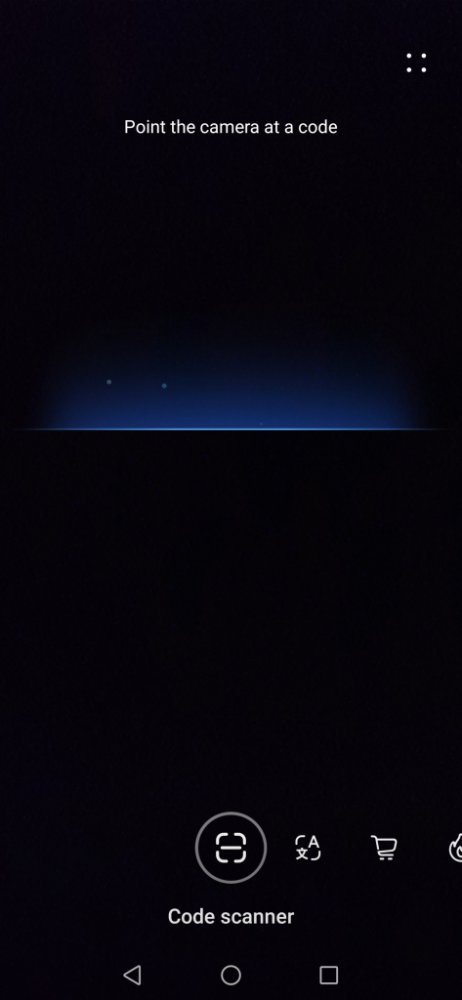
You may then see a message saying “This URL has not been authenticated”, but don’t worry about that. Press “Continue” and you’ll be taken to the relevant site.
Huawei AI Lens: beyond QR codes
Your phone may also offer additional options, as shown in the image below. “Instant translation”, second from left, is self-explanatory. Unlike the dedicated app, Google Translate, it only supports a limited number of languages, but it will show them live on-screen.
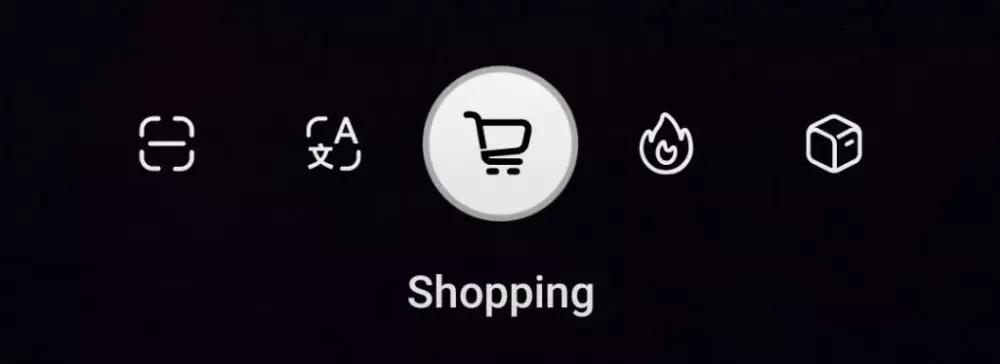
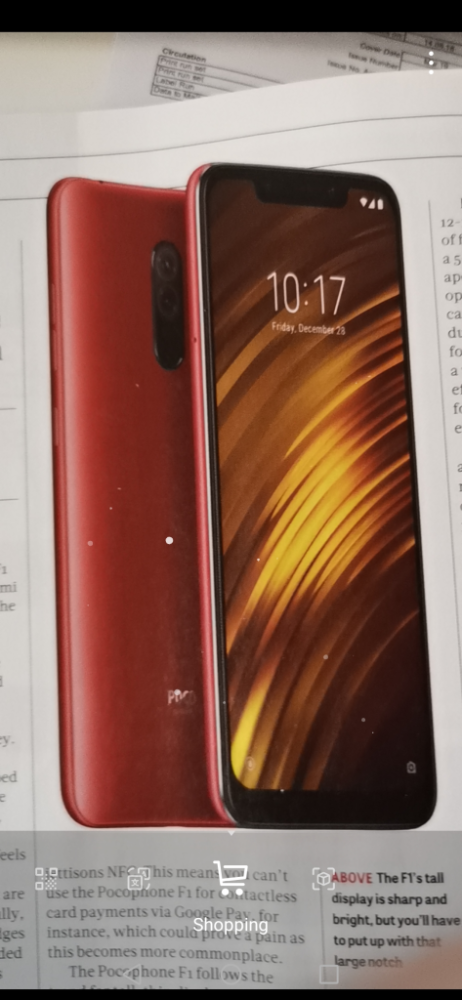
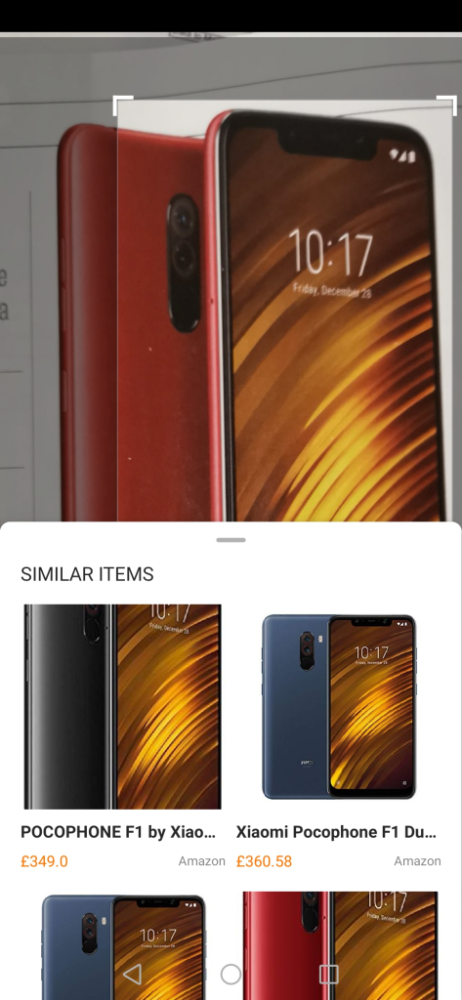
The Shopping widget automatically recognises what it sees and directs you to an online store – and it works pretty well. Here, it took me straight from a printed image in a magazine to a website where I could buy the selected product.
On more recent Huawei and Honor phones (including the Huawei Mate 20 Pro) there are two further skills. The first is Calories. Incredibly, Huawei claims that it can use the depth sensor in those phones to work out how big an item or portion is, and then calculate the number of calories.
It works to an extent, but no serious calorie counter should trust it.
For example, it thought my test banana was 140g when actually it was 90g, so heavily overestimated its calorific value. I also found its recognition ability to be dubious, variously identifying an apple as a mandarin, kumquat and peach – it only decided it was an apple about a third of the time.
Finally, there’s Identify. The idea is that it recognises objects and points you to further resources.
Related reading: How do you measure an item in a photo?
Additional tips and troubleshooting
Common QR scanning issues and fixes
Huawei’s QR scanning is generally reliable, but you may encounter issues from time to time. First, make sure you’re in the Camera > Photo mode (not Video) and tap the AI Lens or code scanner icon. On some devices, the scanner is hidden under the Master AI icon or in the Huawei ID settings. If the scanner seems missing, try updating your camera app or phone software, or reinstalling the Huawei Camera APK. Clean the camera lens and ensure good lighting and stable focus – tilting or moving the phone can prevent recognition. Since Huawei’s built‑in scanner (“AI Lens”) is cloud‑assisted, it needs an Internet connection; disable any VPN, ad‑blocking DNS (e.g. AdGuard), or airplane mode if you see “Network error.” Finally, some regions or models (like certain P30 Pro versions) block the HiVision/AI scanner; in that case try the Huawei ID QR shortcut or a third‑party app (see below).
Scanning QR codes from saved images
You can scan codes that are already in your gallery without printing them. Huawei’s Gallery app supports this on most EMUI/MagicUI versions. To do so, open the image containing the QR code in Gallery, then simply tap the screen. The phone will automatically recognise and decode the code. After a moment, a “View details” option appears – tap it to see or follow the QR content. This trick works for screenshots or photos of codes. It’s very handy if someone sends you a code in chat or email: just save or open the image and let Gallery do the rest. If you don’t see this option, make sure your gallery app is up to date or try a dedicated scanner app.
Using Huawei’s built‑in AI Lens for QR scanning
Huawei’s camera has a powerful “AI Lens” feature that includes QR scanning. To use it, open the Camera app, switch to Photo mode, and tap the AI Lens icon (a little square or box icon). Then tap the code‑scanner symbol (often labelled “QR” or showing a small code graphic). Now point your camera at the QR code. AI Lens will frame the code and automatically recognise it. Once detected, the phone will display a notification or a “View details” button – tap it to open the link or content. Unlike simple pattern matching, AI Lens may also perform web lookups, translations, or shopping searches, but for QR codes it just pulls up the embedded URL or data. (On some older EMUI versions, you might need to touch the menu icon at the top left in Photo mode to find the “Code Scanner” tool.) In short, AI Lens turns your camera into a QR reader – make sure it’s enabled and that any necessary permissions (camera, internet) are granted.
Privacy and security tips for QR scanning
While QR codes are convenient, be cautious about what you scan. Always verify the source of a QR code before scanning. If you receive a code from an unknown person or suspicious flyer, think twice before opening it. Huawei’s scanner will often show you the URL or content preview – read it carefully and make sure it’s legitimate. Consider using scanner apps that let you preview the link and even check it against known malicious URLs. Never enter sensitive information or passwords on a website reached via a QR code unless you trust it completely. In short: “think before you scan” – stick to QR codes from trusted sources and be extra wary of anything unexpected.
Alternative QR scanner apps
If Huawei’s built-in tools aren’t convenient or available, you can use other QR apps. For example, Google Lens (if installed) or open-source scanners like Binary Eye can be sideloaded and used to scan codes. The Huawei AppGallery and Huawei’s own QR & Barcode Scanner (free on AppGallery) are good alternatives. These apps may offer offline scanning or additional features (e.g. scanning multiple code types or histories). In fact, on some older phones or updates without a native scanner, installing a dedicated reader app is necessary. Just choose a well‑reviewed, privacy‑minded app (Kaspersky QR Scanner, QR & Barcode Reader, etc.) so you know it won’t misuse your data. With a quality third‑party scanner, you’ll always have a backup if the built‑in QR function is missing or not working.
This article was updated on the 5th June 2025 with additional tips and tricks.
About The Author

Tim Danton
NEXT UP


